Index patterns
Index patterns are essential for accessing OpenSearch data. An index pattern references one or more indexes, data streams, or index aliases. For example, an index pattern can point you to your log data from yesterday or all indexes that contain that data.
If you store data in multiple indexes, creating an index pattern enables your visualizations to retrieve data from all indexes that match the index pattern. You need to create index patterns to define how data is retrieved and fields are formatted so that you can query, search, and display data.
Prerequisites
Before you can create an index pattern, your data must be indexed. To learn about indexing your data in OpenSearch, see Managing indexes.
To create or modify index patterns, your role must have the following permissions:
- The
kibana_userrole (or equivalent), which grants access to OpenSearch Dashboards.- The
kibana_all_writetenant permission for the tenant in which you want to create the index pattern. Withkibana_all_read, you can view existing index patterns but cannot create or modify them.- Read access to the indexes that the index pattern will match.
Contact your administrator for support. For more information about tenant permissions, see Multi-tenancy configuration. For more information about roles, see Predefined roles.
Creating an index pattern
If you added sample data, you have index patterns that you can use to analyze that data. To create an index pattern for your own data, follow these steps.
Step 1: Define the index pattern
- Go to OpenSearch Dashboards, and select Management > Dashboards Management > Index patterns.
- Select Create index pattern.
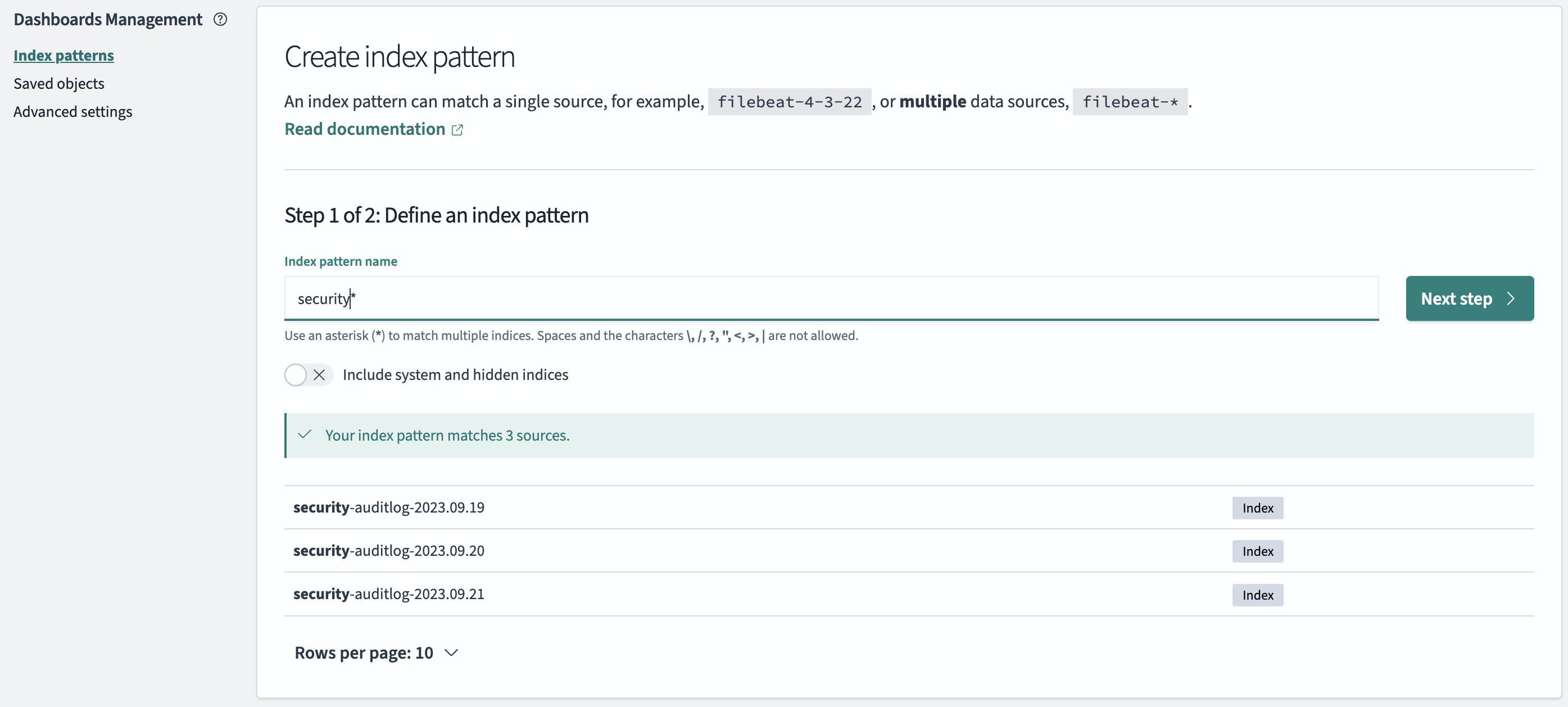
- From the Create index pattern window, define the index pattern by entering a name for your index pattern in the Index pattern name field. Dashboards automatically adds a wildcard,
*, once you start typing. Using a wildcard is helpful for matching an index pattern to multiple sources or indexes. A dropdown list displaying all the indexes that match your index pattern appears when you start typing. - Select Next step.
An example of step 1 is shown in the following image. Note that the index pattern security* matches three indexes. By defining the pattern with a wildcard *, you can query and visualize all the data in your indexes.
Step 2: Configure the settings
-
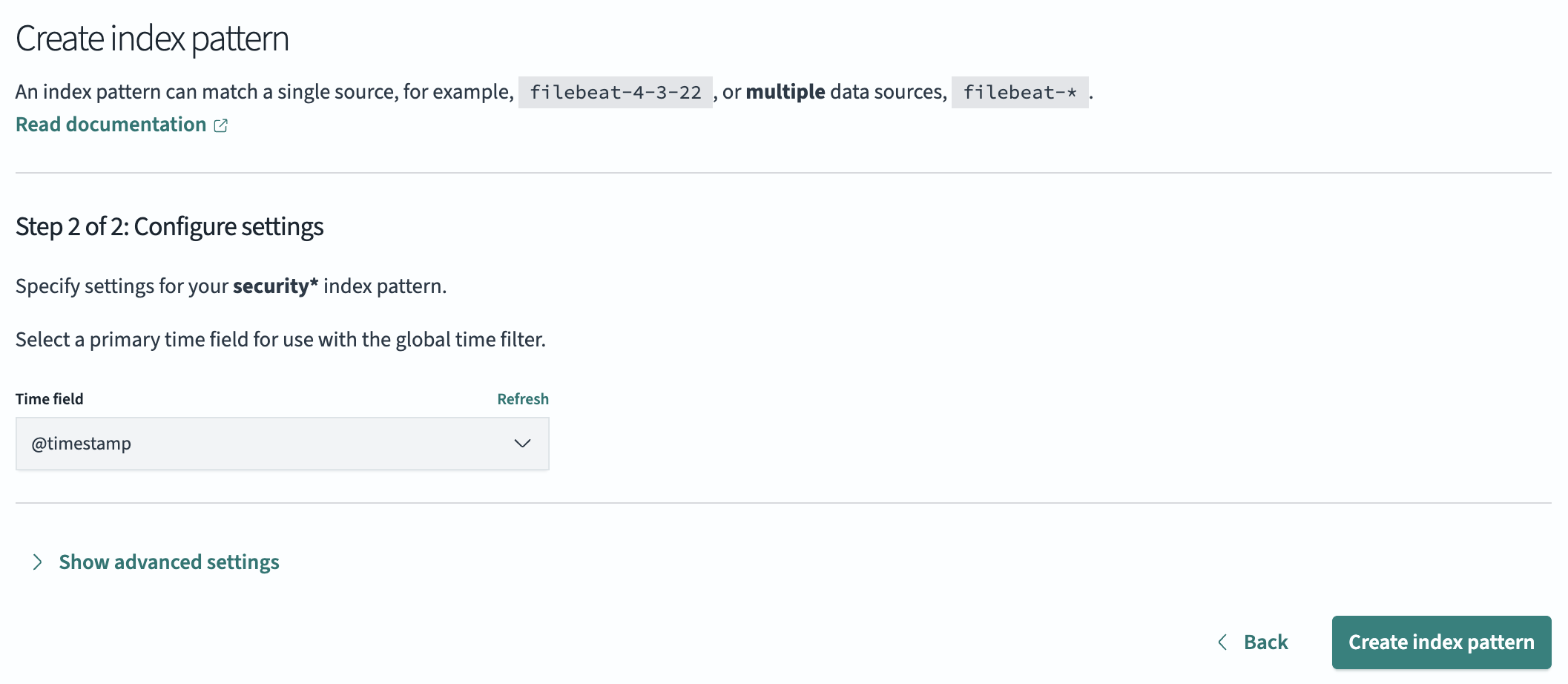
In the Time field list, select the date field to use for time filtering, for example,
@timestamp. The list contains the date fields in the matching indexes, so if your indexes don’t have an@timestampfield, select another date field, such as the time an event or order occurred. The time filter applies only to this field. If your indexes don’t contain a date field, or you don’t want to filter by time, select I don’t want to use the time filter. In this case, data is not filtered by time, so all data in the matching indexes is returned. You can’t change the time field after you create the index pattern. -
Select Create index pattern. An example is shown in the following image.
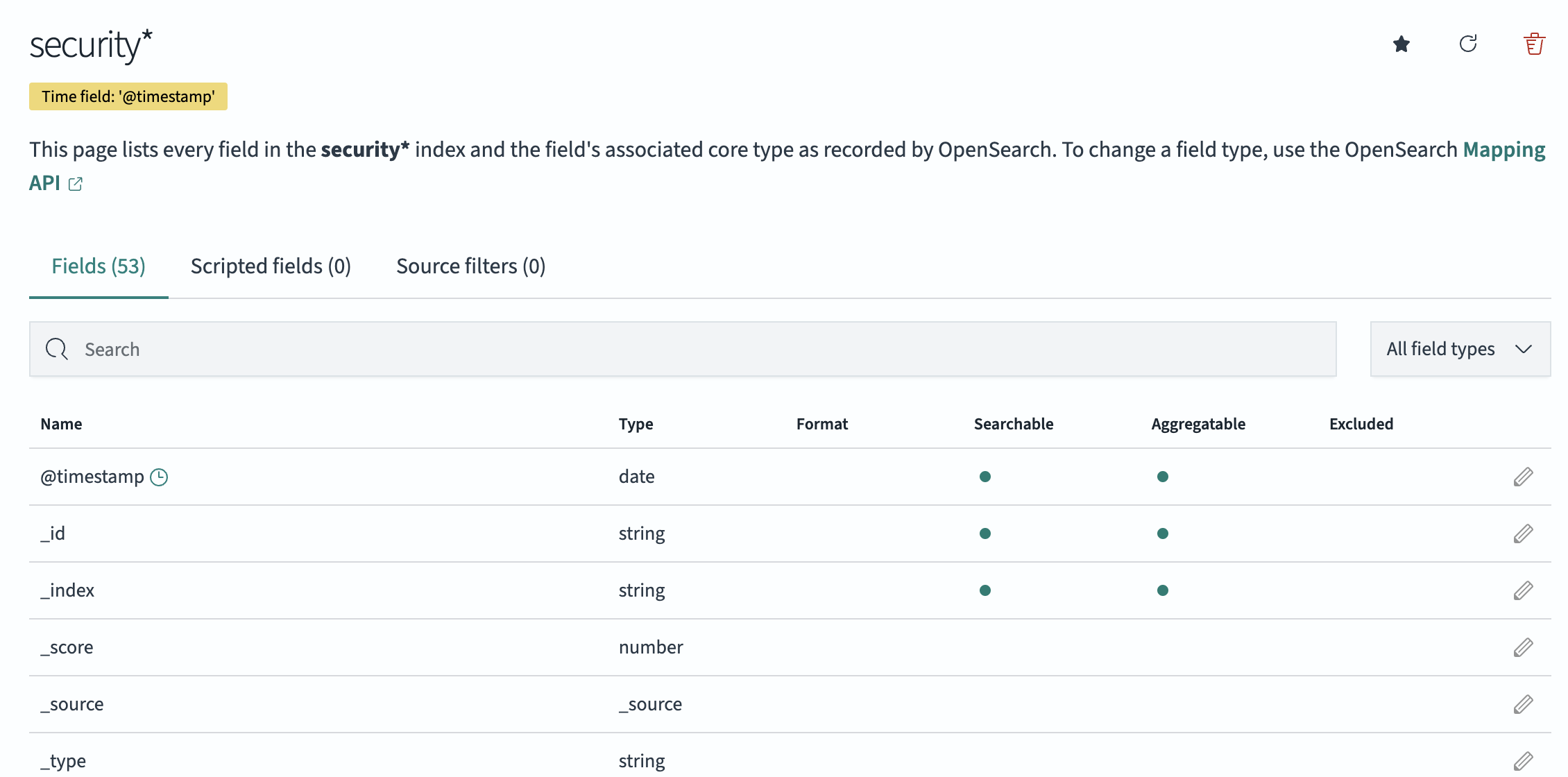
Once the index pattern has been created, you can view the mapping of the matching indexes. Within the table, you can see the list of fields, along with their data type and properties. An example is shown in the following image.
Best practices
Consider the following best practices when creating index patterns:
- Make your index patterns specific: Instead of creating an index pattern that matches all indexes, create an index pattern that matches all indexes starting with a certain prefix, for example,
my-index-. The more specific your index patterns, the better it will be to query and analyze your data. - Use wildcards sparingly: Wildcards can be useful for matching multiple indexes, but they can also make it more difficult to manage your index patterns. Try to use wildcards as specifically as possible.
- Test your index patterns: Make sure to test your index patterns to ensure that they match the correct indexes.