You're viewing version 3.8 of the OpenSearch documentation. This version is no longer maintained. For the latest version, see the current documentation. For information about OpenSearch version maintenance, see Release Schedule and Maintenance Policy.
Managed indexes
A managed index is an index that an Index State Management (ISM) policy is attached to. This page describes how to move a managed index from one policy to another.
Change policy
Changing the policy of a managed index is constrained so that a change cannot leave an index in a state that the new policy does not define.
If the new policy contains a state identical to the current one—same name, same actions, in the same order—ISM applies the new policy immediately, even in the middle of an action. Use this when an index is stuck in its current state and you need the change to take effect now.
If the new policy does not contain an identical state, ISM applies it only after every action in the current state finishes. You can also name a state in the current policy after which the new policy takes effect.
To change a policy, use the Update Managed Index Policy API or the steps in Changing the policy of an index.
Change policy parameters
This table lists the parameters of the Change Policy operation.
| Parameter | Description | Type | Required | Read Only |
|---|---|---|---|---|
name | The name of the managed index policy. | String | Yes | No |
index | The name of the managed index that this policy is managing. | String | Yes | No |
index_uuid | The UUID of the index. | String | Yes | No |
enabled | When true, the managed index is scheduled and run by the scheduler. | Boolean | Yes | No |
enabled_time | The time the managed index was last enabled. If the managed index process is disabled, then this is null. | Timestamp | Yes | Yes |
last_updated_time | The time the managed index was last updated. | Timestamp | Yes | Yes |
schedule | The schedule of the managed index job. | Object | Yes | No |
policy_id | The name of the policy used by this managed index. | String | Yes | No |
policy_seq_no | The sequence number of the policy used by this managed index. | Number | Yes | No |
policy_primary_term | The primary term of the policy used by this managed index. | Number | Yes | No |
policy_version | The version of the policy used by this managed index. | Number | Yes | Yes |
policy | The cached JSON of the policy for the policy_version that’s used during runs. If the policy is null, it means that this is the first execution of the job and the latest policy document is read in/saved. | Object | No | No |
change_policy | The information regarding what policy and state to change to. | Object | No | No |
policy_name | The name of the policy to update to. To update to the latest version, set this to be the same as the current policy_name. | String | No | Yes |
state | The state of the managed index after it finishes updating. If no state is specified, it’s assumed that the policy structure did not change. | String | No | Yes |
The following example shows a managed index policy:
{
  "managed_index": {
    "name": "my_index",
    "index": "my_index",
    "index_uuid": "sOKSOfkdsoSKeofjIS",
    "enabled": true,
    "enabled_time": 1553112384,
    "last_updated_time": 1553112384,
    "schedule": {
      "interval": {
        "period": 1,
        "unit": "MINUTES",
        "start_time": 1553112384
      }
    },
    "policy_id": "log_rotation",
    "policy_version": 1,
    "policy": {...},
    "change_policy": null
  }
}
Managed indexes in OpenSearch Dashboards
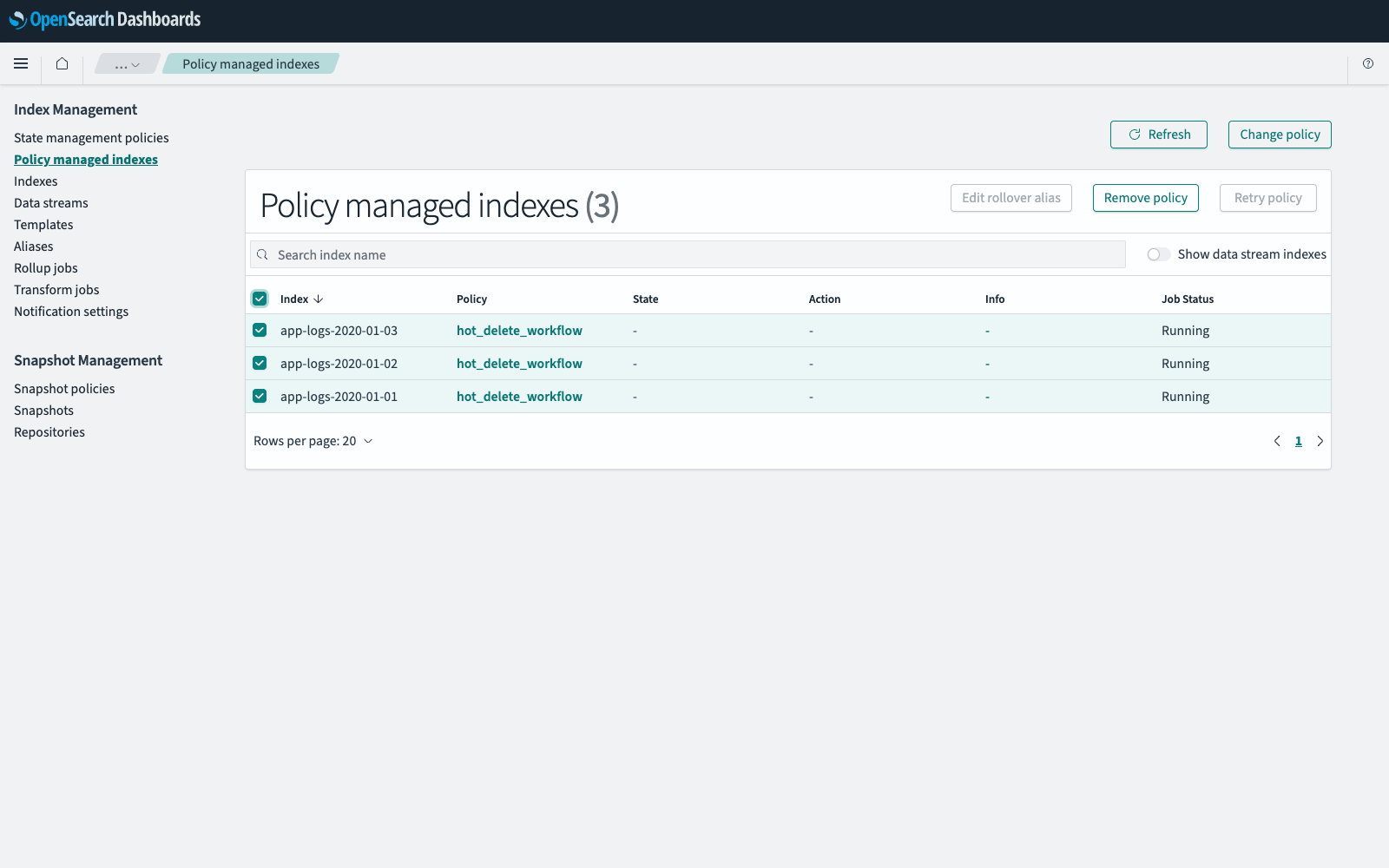
To navigate to the Index Management page, go to Management > Index Management on the top menu. Select Policy managed indexes to list the indexes that a policy manages, along with the policy, the current state, and the status of the last action.
The following image shows the Policy managed indexes page.
To attach a policy to an index that is not managed yet, see Applying a policy.
Viewing the state of a managed index
The Policy managed indexes table shows the state each index is in and the status of its last action. Select the  (expand) icon in the Info column of a failed index to view the reason for the failure. To narrow the table to particular indexes, enter a name in the search box.
Changing the policy of an index
- In Index Management, select Policy managed indexes.
- Select the checkbox next to each index whose policy you want to change, and then select Change policy.
- In Choose managed indexes, confirm the indexes. To limit the change to indexes in particular states, select those states in State filters.
- In Choose new policy, select the policy to change to.
-
Select when the new policy takes effect:
- Keep indexes in their current state after the policy takes effect starts the new policy in the state that each index is in.
- Start from a chosen state after changing policies starts the new policy in the state that you select.
- Select Change.
For the constraints on when the change takes effect, see Change policy.
Adding a rollover alias
A policy that contains a rollover action needs an alias to roll over. If the index was not created with one, add it:
- In Index Management, select Policy managed indexes.
- Select the checkbox next to the index. Edit rollover alias is available only when exactly one index is selected.
- Select Edit rollover alias.
- Enter the name of an existing alias, and then select Edit.
Removing a policy
- In Index Management, select Policy managed indexes.
- Select the checkbox next to each index that you want to stop managing.
- Select Remove policy.
- Select Remove in the confirmation dialog.
Removing a policy leaves the index and its data as they are. The state that the policy last applied to the index, such as read_only, remains in effect.
Retrying a policy
When an action fails and its retries are exhausted, the managed index stops in a failed state. Correct the cause, such as a missing rollover alias or a snapshot repository that does not exist, and then retry:
- In Index Management, select Policy managed indexes.
- Select the checkbox next to each failed index. Retry policy is available only when a selected index has failed.
- Select Retry policy.
- Select Retry from the failed action, or select Retry policy from a specific state and select the state to restart from.
- Select Retry.