Resource access management
Introduced 3.3
This is an experimental feature and is not recommended for use in a production environment. For updates on the progress of the feature or if you want to leave feedback, join the discussion on the OpenSearch forum.
Resource sharing in OpenSearch Dashboards provides fine-grained, document-level access control for plugin-defined resources such as machine learning (ML) model groups, anomaly detectors, report definitions, and other shareable objects. This feature extends OpenSearch’s role-based access control by allowing resource owners to specify who can access a resource and what level of access they have, including read-only or read-write permissions. OpenSearch Dashboards offers a simple UI for everyday access management, while the Dev Tools console enables automation or batch operations for advanced workflows.
If resource sharing features are not visible in OpenSearch Dashboards, contact your OpenSearch administrator to enable the capability and assign appropriate permissions.
A resource is a document created by a plugin and stored in a protected system index, for example:
- ML model groups and models.
- Anomaly detectors.
- Reporting definitions.
- Flow framework workflows.
- Any plugin-defined resource type.
The following table lists the default resource access, which is determined by the user’s role and relationship to the resource.
| User | Access |
|---|---|
| Resource creator | Full access (view, edit, delete, share) |
| Superadmin | Full access |
| Other users | No access unless shared |
Once a resource is shared with specific users, roles, or backend roles, it becomes visible to those users in OpenSearch Dashboards. OpenSearch Dashboards automatically filters resource lists based on your identity, permissions, and the resource sharing configuration.
Prerequisites
To use resource sharing in OpenSearch Dashboards, you must fulfill the following prerequisites:
- Plugin-level cluster permissions: Assigned by an administrator; required for creating resources.
- Resource-level sharing access: The resource must be explicitly shared with you unless you are the owner or a superadmin.
- Security plugin settings enabled: Administrators must enable the following in the configuration:
plugins.security.experimental.resource_sharing.enabled: true plugins.security.experimental.resource_sharing.protected_types: ["<resource-type>"] plugins.security.system_indices.enabled: trueFor more information, see Experimental feature flags.
Sharing resources using OpenSearch Dashboards
Follow these steps to share resources in OpenSearch Dashboards:
-
Open a shareable resource:
- In the left navigation menu, under the Management section, select Resource Access Management (visible only if resource sharing is enabled).
- From the resource type dropdown list, choose the resource type you want to view or manage. The Resources table automatically displays all resources you have access to. If no resources appear, create one or ask an administrator or resource owner to share it with you.
-
Choose an access level. OpenSearch Dashboards dynamically retrieves available access levels (action groups) from OpenSearch, for example:
ad_read_onlyml_read_writeflow_framework_full_access
Access levels are plugin-specific and vary by resource type.
- Add users, roles, or backend roles:
- Specific users (for example,
alice) - Specific roles (for example,
data_viewer) - Specific backend roles (for example,
engineering_team)
Wildcards (
*) are supported for theusersfield to make a resource publicly accessible at the chosen access level. - Specific users (for example,
- Select Save to update the backend configuration. Changes are applied immediately.
Viewing and managing access
Follow these steps to view and manage access for a resource in OpenSearch Dashboards:
-
In the left navigation menu, in the Management section, select Resource Access Management. The landing page displays all available resource types.
-
In the Resources panel, in the upper-right corner, select a resource type from the dropdown menu.
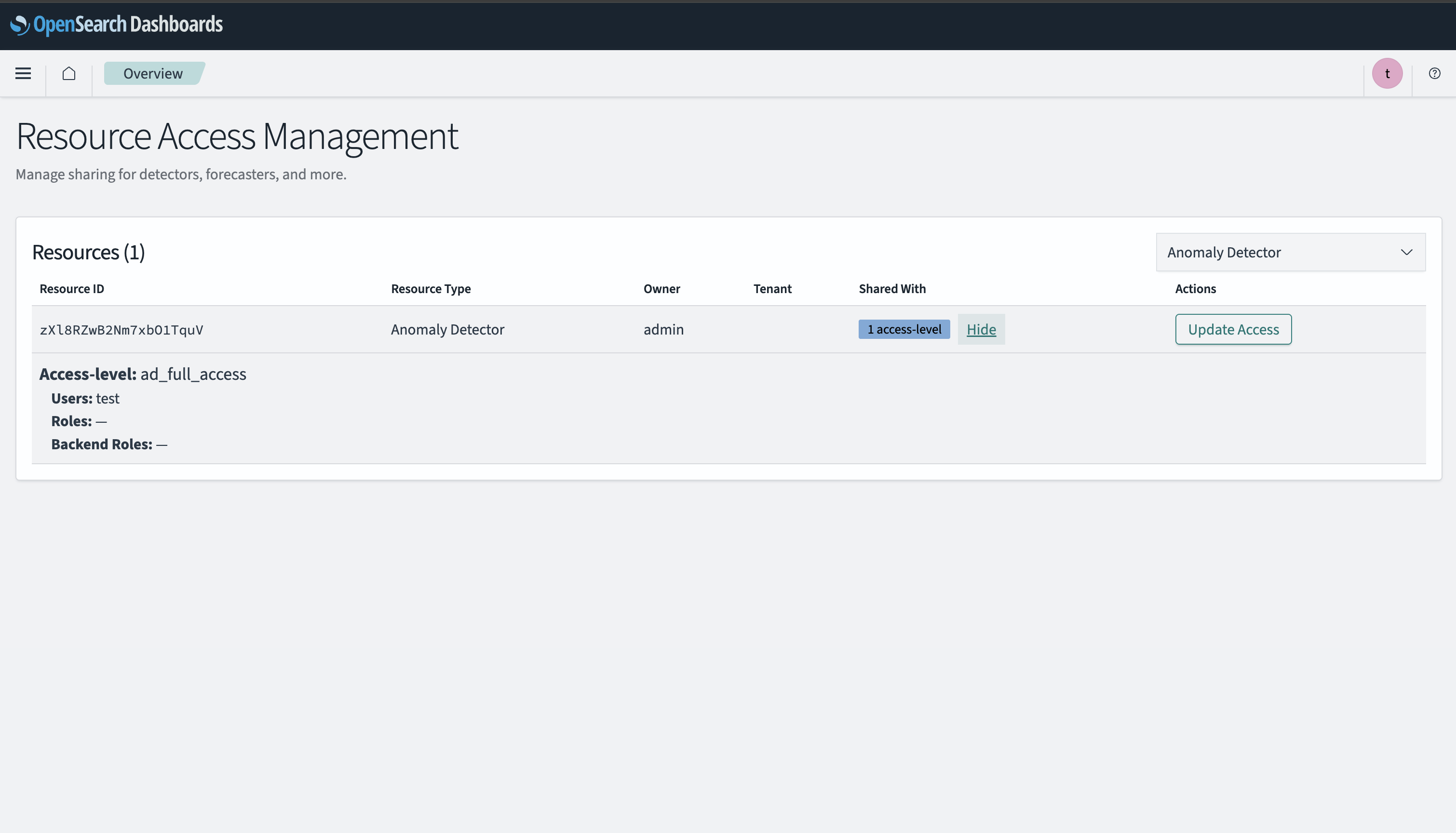
The panel displays:
- The resource owner.
- All users, roles, and backend roles with access.
- Their assigned access levels.
- Whether you have permission to reshare the resource.
The Resources panel for the Anomaly Detector resource type is shown in the following image.
-
Determine sharing permissions. You can share a resource only if you meet one of the following conditions:
- You are the owner of the resource.
- The owner shared the resource with you and granted share permission.
- You are a superadmin.
-
In the Update Access dialog, configure access to the resource by selecting the Access level and adding or removing Users, Roles, or Backend roles as needed.
-
Select Save to apply changes. Removing access immediately hides the resource from the affected users.
Listing resources shared with you
OpenSearch Dashboards automatically shows only the resources you have access to. No additional actions are required.
Resource visibility is determined by:
- Ownership – You are the owner of the resource.
- Sharing configuration – The resource has been explicitly shared with you.
- Plugin cluster permissions – You have the necessary permissions for the resource’s plugin.
- Role or backend role membership – Your roles grant access to the resource.
- Public resources – Resources shared with all users using wildcards (for example,
users: ["*"]).
Managing resource sharing using APIs
You can manage resource sharing programmatically using REST APIs. These operations can only be performed if you are the owner, a superadmin, or have sharing access to the resource. You can use the command line or the Dev Tools console to send API requests.
For complete API documentation, including endpoints, parameters, and examples, see Resource sharing APIs.
Troubleshooting
Use the following table to troubleshoot the following common issues.
| Issue | Possible cause | Fix |
|---|---|---|
Resource Access Management app not visible | Feature disabled | Ask admin to enable resource_sharing.enabled |
| User can’t create resource | Missing plugin API permissions | Ask admin to map to appropriate role |
| User can’t access a resource | Resource is not shared with them | Ask owner to share it with them at appropriate access level |
| API returns 403 in Dev Tools | Resource is not shared with them | Ask owner to share it with them at appropriate access level |
| Resource not listed in OpenSearch Dashboards | Resource not marked as protected | Ask admin to mark resource as protected resource_sharing.protected_types |
| PATCH does nothing | Access level not defined for that type | Verify plugin’s action-groups |
Related documentation
- Resource sharing and access control – Backend concepts, configuration, and setup
- Resource sharing APIs – REST API reference for programmatic management