Creating dashboards
You can use the Dashboards application in OpenSearch Dashboards to build a page containing multiple visual representations of your data.
This documentation uses the following terms:
- OpenSearch Dashboards: The web UI for OpenSearch.
- Dashboards application: The application within OpenSearch Dashboards for creating dashboards.
- dashboard (lowercase): An individual collection of data visualizations created in the Dashboards application.
Use the following tutorials to learn to create a dashboard using the Dashboards application and the OpenSearch sample data. The sample datasets have existing sample visualizations that you can use for the dashboard, or you can create your own visualizations. The tutorials demonstrate how to do both.
This OpenSearch Playground dashboard example comprises several of the visualizations available in OpenSearch Dashboards.
Navigating the UI
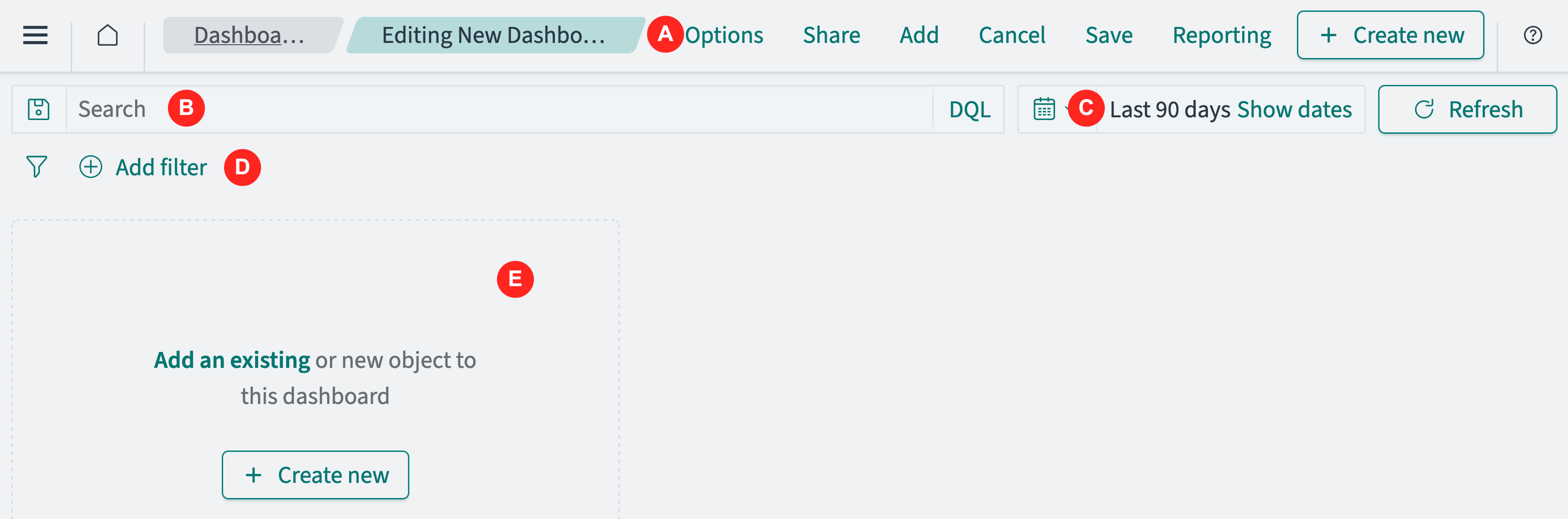
The following components make up the Dashboards UI.

- The navigation panel (A) on the left contains the OpenSearch Dashboards applications.
- The search bar (B) enables selection of data using a query language search.
- The filter (C) provides a graphical interface for selecting data values and ranges.
- The toolbar (D) contains frequently used commands and shortcuts.
- The time filter (E) enables selection of data based on a time and date range.
- The panel (F) displays the dashboard. You can add existing visualizations, create new ones, and save the dashboard’s configuration.
The following tutorials assume you’re either using your existing installation of OpenSearch Dashboards or using the OpenSearch Playground. Depending on which one you use, certain capabilities may not be available. For example, sample datasets may not be included in your existing installation, and saving a dashboard isn’t an option in the OpenSearch Playground.
Prerequisites
Before using the Dashboards tool, ensure that you:
-
Add sample data or import your own data into OpenSearch. To learn about adding sample datasets, see Adding sample data. To learn about importing your own data, see Managing indexes.
The tutorials on this page use the Sample eCommerce data dataset.
-
Know how to use the search bar and the time filter.
Creating a dashboard and adding an existing visualization
To create a dashboard and add a sample visualization, follow these steps:
-
In the navigation panel, select OpenSearch Dashboards > Dashboards.
-
From the Dashboards panel, choose Create > Dashboard.
-
Choose the calendar icon and set the time filter to Last 30 days.
-
From the panel, choose Add an existing.
-
From the Add panels dialog, choose [eCommerce] Promotion Tracking.
-
Choose the
(cross) icon to close the dialog.
You’ve created the following dashboard with a single panel, which you’ll continue using throughout this tutorial.

Creating visualizations
To create a new visualization and save it to the dashboard, follow these steps:
-
From the Dashboards toolbar, choose Create new.
-
From the New Visualization window, choose Gauge.
-
Select the index pattern opensearch_dashboards_sample_data_ecommerce.
-
From the toolbar, choose Save.
-
In the Save visualization dialog, enter a title for the visualization. For example, the title for the gauge chart panel is [eCommerce] Orders.
-
Choose Save and return.
The Dashboards application saves the gauge chart visualization and adds it to the dashboard as shown in the following image.

Adding subsequent panels
To add an existing visualization to the dashboard from the preceding steps, follow these steps:
-
From the dashboard toolbar, choose Add.
-
From the Add panels dialog, choose [eCommerce] Sales by Category.
-
Choose the
(cross) icon to close the dialog.
The Dashboards application adds an area chart visualization to the dashboard, as shown in the following image.

Saving a dashboard
When you’ve finalized your dashboard, save it. To save a new dashboard, follow these steps:
-
In the Dashboards toolbar, choose Save.
-
In the Save dashboard window, enter a Title.
-
(Optional) Enter a Description.
-
(Optional) To save the time filter to the dashboard, select Store time with dashboard.
-
Choose Save.
Customizing the look of a panel
You can customize details of a visualization panel such as colors and legend text.
To customize the panels:
-
In the Dashboards toolbar, choose Edit.
The button changes to Create new to indicate that Dashboards is in edit mode.
Displaying a legend can give readers more information, while hiding a legend can give the panel a cleaner look. To display or hide the panel legend:
-
Choose the list icon in the panel’s lower left corner.
To change a color in the panel legend, follow these steps:
-
From the visualization legend, select a category.
-
From the flyout, select a color.
The area chart updates with your change.
The color change is only saved for the current panel and dashboard and doesn’t affect the saved visualization.
To change the color of the panel legend in the visualization, follow these steps:
-
Choose the
(gear) icon on the area chart panel. -
From the Options menu, select Edit visualization.
-
From the visualization legend, select a category.
-
From the flyout, select a color.
The area chart updates with your change.
-
From the Visualize toolbar, select Save and return.
This color change affects the saved visualization and any dashboard that links to the visualization.
To display, hide, or customize the panel title, follow these steps:
-
Choose the
(gear) icon on the area chart panel. -
From the Options window, select Edit panel title.
-
From the Customize panel, enter a title under Panel title or toggle the Show panel title to hide the title.
-
Choose Save.
Changing panel titles only affects the particular panel on the particular dashboard and won’t affect any other panel containing that same visualization or any other dashboard.
Arranging panels
To organize panels, arrange them side by side, or resize them, use the following procedures.
Moving a panel
To move a panel, follow these steps:
-
Select and hold the panel title or the top of the panel.
-
Drag the panel to the new location.
Resizing a panel
To resize a panel, follow these steps:
-
Choose the
(resize) icon in the panel’s lower-right corner. -
Drag to the new dimensions.
Viewing a panel in full screen mode
To view a panel in full screen mode, follow these steps:
-
Choose the
(gear) icon on the area chart panel or vertical ellipsis (⋮) at the upper right of the panel. -
Select
(maximize) Maximize panel.
Minimizing a panel in full screen mode
To minimize a panel in full screen mode, follow these steps:
-
Choose the
(gear) icon on the area chart panel or vertical ellipsis (⋮) at the upper right of the panel. -
Select
(minimize) Minimize.
The following image shows an example of a customized dashboard created by using this tutorial.