Metric analytics
Introduced 2.4
You can ingest and visualize metric data stored directly in OpenSearch using the Metrics tool. This equips you with tools to analyze and correlate data across logs, traces, and metrics.
Before the introduction of this feature, you could only ingest and visualize logs and traces from your monitored environments. With the Metrics tool, you can observe your digital assets with more granularity, gain deeper insight into the health of your infrastructure, and better inform your root cause analysis.
The Metrics tool offers federated visualization capabilities in addition to the following:
- An OpenSearch cluster containing an OpenTelemetry (OTel)-compatible metrics index with OTel-based signals. See What is OpenTelemetry? for an overview of OTel.
- An OpenSearch cluster containing a Prometheus data source connected to a Prometheus server.
The following image displays the flow for retrieving metrics from Prometheus and displaying them on a visualization dashboard.
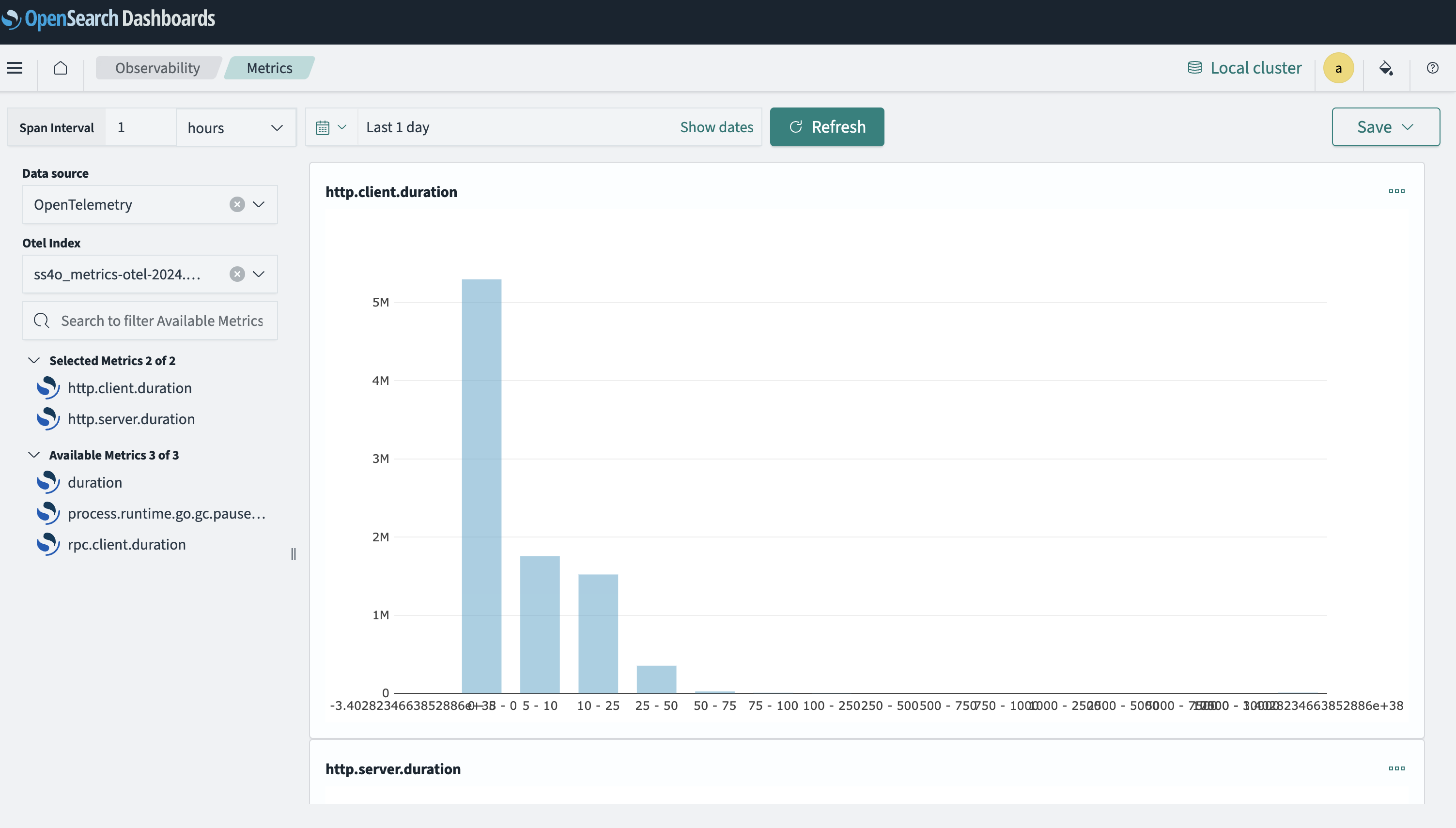
The following image displays an observability dashboard that visualizes metric data from the OpenSearch index using OTel queries.
Configuring a Prometheus connection using the API
OpenSearch doesn’t ingest Prometheus metrics. Instead, the SQL plugin queries Prometheus directly each time you view or query the metrics. To connect OpenSearch to a Prometheus server, create a Prometheus data source using the _datasources API endpoint. The Prometheus URI must be reachable from the OpenSearch nodes.
Before you create a data source, set the plugins.query.datasources.encryption.masterkey setting on all OpenSearch nodes. For more information, see Prerequisites. You can also create the connection in OpenSearch Dashboards. For more information, see Connecting Prometheus to OpenSearch.
The following example shows a request that configures a Prometheus data source without any authentication:
POST _plugins/_query/_datasources
{
    "name" : "my_prometheus",
    "connector": "prometheus",
    "properties" : {
        "prometheus.uri" : "http://localhost:9090"
    }
}
The following example shows how to configure a Prometheus data source using AWS Signature Version 4 authentication:
POST _plugins/_query/_datasources
{
    "name" : "my_prometheus",
    "connector": "prometheus",
    "properties" : {
        "prometheus.uri" : "http://localhost:8080",
        "prometheus.auth.type" : "awssigv4",
        "prometheus.auth.region" : "us-east-1",
        "prometheus.auth.access_key" : "<access_key>",
        "prometheus.auth.secret_key" : "<secret_key>"
    }
}
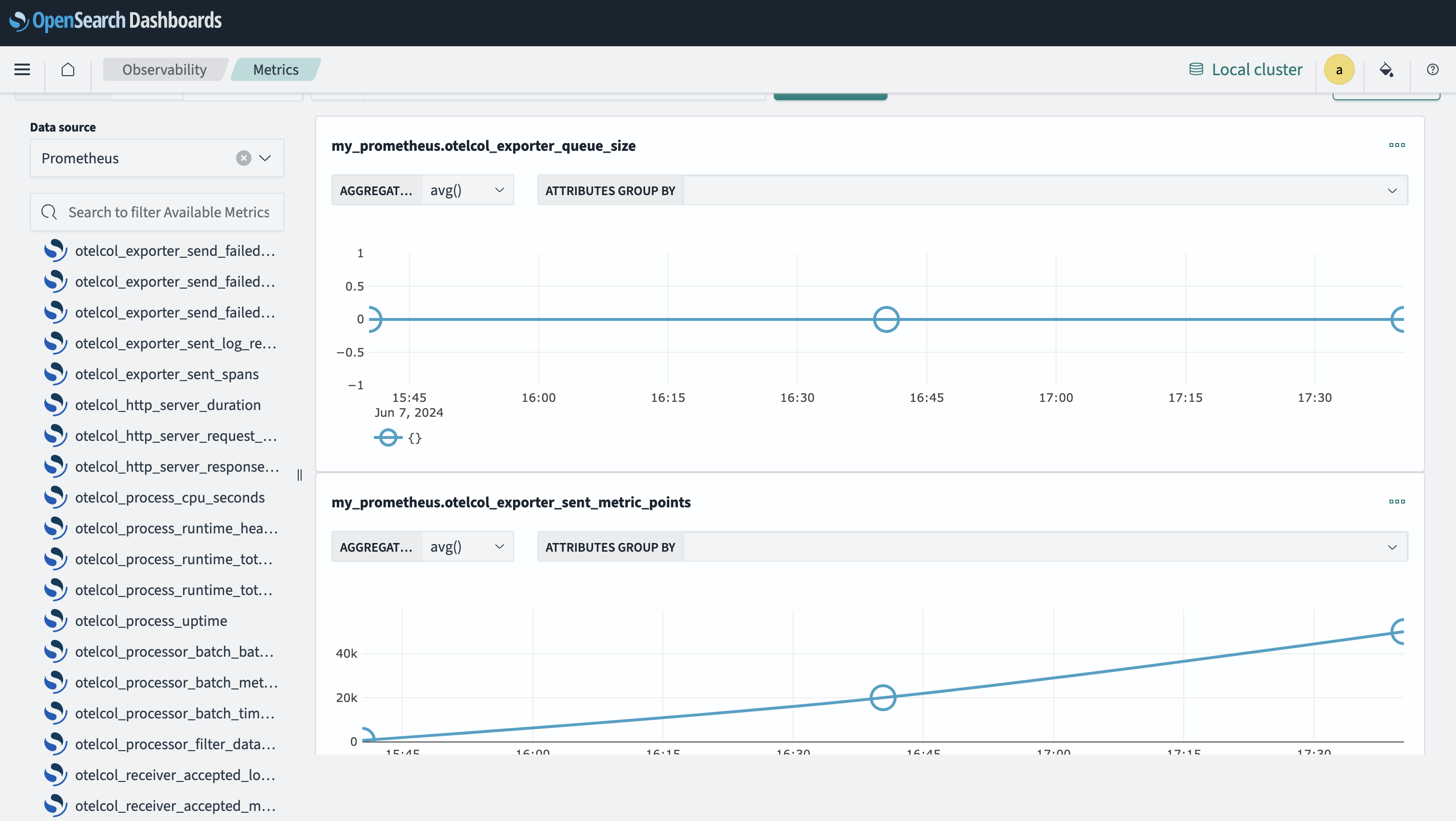
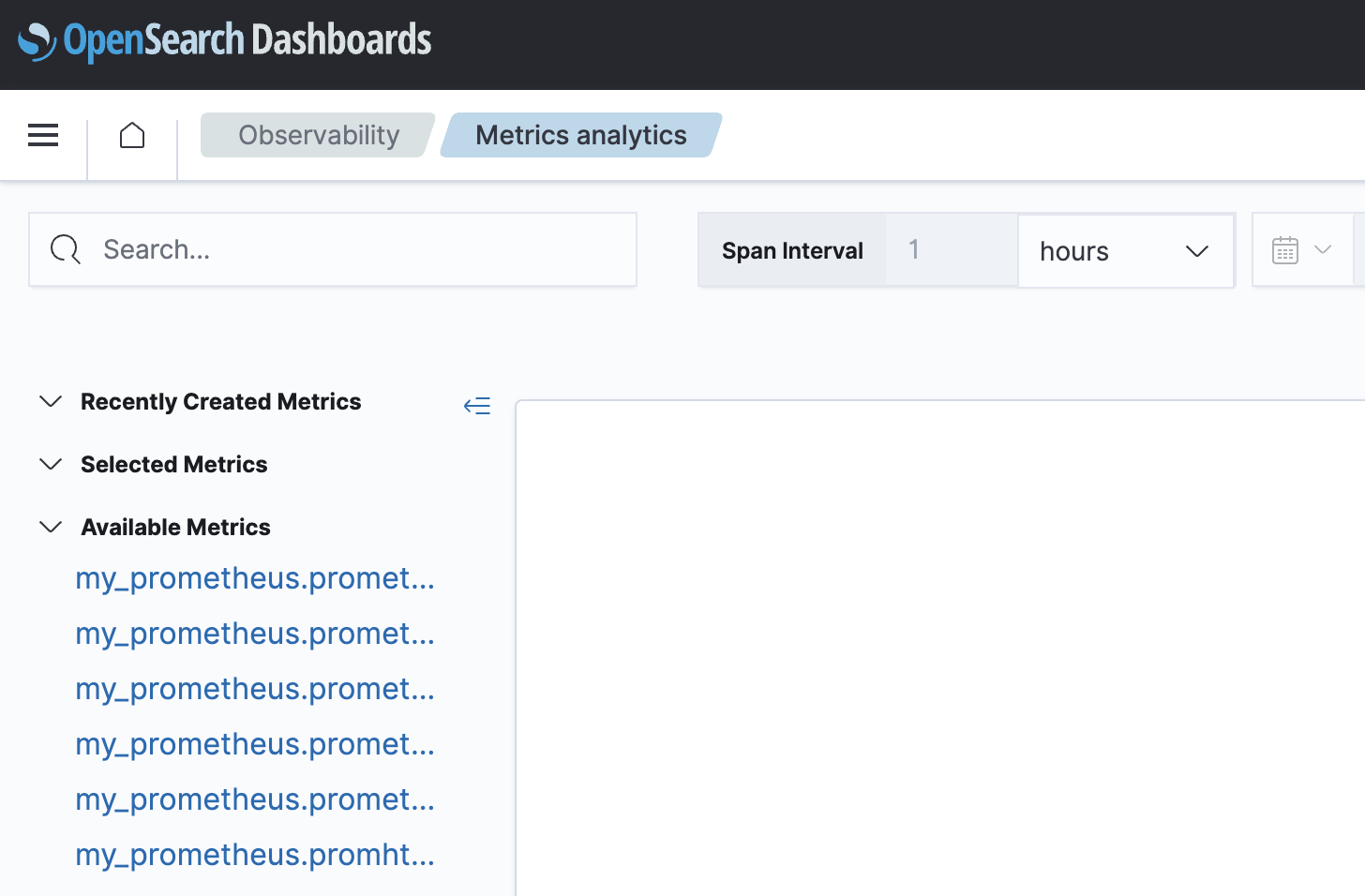
After configuring the connection, you can view Prometheus metrics in OpenSearch Dashboards by going to the Observability > Metrics page, as shown in the following image.
Developer resources
See the following developer resources for sample code, articles, tutorials, and API references:
- Data source settings, which contains information about authentication and authorization of data source APIs.
- Prometheus Connector, which contains configuration information.
- Simple Schema for Observability, which contains information about the OTel schema and ingest pipeline.
- OTel Metrics Source, which contains information about the Data Prepper metrics pipeline and ingestion.
Experimenting with OpenTelemetry Metrics in the OpenSearch demo environment
The OpenSearch opentelemetry-demo repository provides a practical demonstration of collecting, processing, and visualizing metric data through OpenTelemetry Metrics from OpenTelemetry and using the Metrics tool in OpenSearch Dashboards.
Visualizing OTel metrics in OpenSearch
To visualize OTel metric data in OpenSearch, follow these steps:
- Install the
opentelemetry-demorepository. See Quick start for instructions. - Collect the OTel signals, including metric signals. See the OTel Collector guide for instructions.
- Configure the OTel pipeline to emit metric signals. See the OTel Collector Pipeline guide for instructions.
Example YAML config file
    service:
      extensions: [basicauth/client]
      pipelines:
        traces:
          receivers: [otlp]
          processors: [batch]
          exporters: [otlp, debug, spanmetrics, otlp/traces, opensearch/traces]
        metrics:
          receivers: [otlp, spanmetrics]
          processors: [filter/ottl, transform, batch]
          exporters: [otlphttp/prometheus, otlp/metrics, debug]
        logs:
          receivers: [otlp]
          processors: [batch]
          exporters: [otlp/logs,  opensearch/logs, debug]
- Configure the Data Prepper pipeline to emit the collected metric signals into the OpenSearch metrics index.
Example YAML config file
    otel-metrics-pipeline:
      workers: 8
      delay: 3000
      source:
        otel_metrics_source:
          health_check_service: true
          ssl: false
      buffer:
        bounded_blocking:
          buffer_size: 1024 # max number of records the buffer accepts
          batch_size: 1024 # max number of records the buffer drains after each read
      processor:
        - otel_metrics:
            calculate_histogram_buckets: true
            calculate_exponential_histogram_buckets: true
            exponential_histogram_max_allowed_scale: 10
            flatten_attributes: false
      sink:
        - opensearch:
            hosts: ["https://opensearch-node1:9200"]
            username: "admin"
            password: "my_%New%_passW0rd!@#"
            insecure: true
            index_type: custom
            template_file: "templates/ss4o_metrics.json"
            index: ss4o_metrics-otel-%{yyyy.MM.dd}
            bulk_size: 4
- Ingest metric data into OpenSearch. As the demo starts generating data, the metric signals will be added to the OpenSearch index that supports the OpenTelemetry Metrics schema format.
- On the Metrics page, choose
Otel-Indexfrom the Data sources dropdown menu andSimple Schema for Observability Indexfrom the OTel index dropdown menu. A visualization is displayed, as shown in the following image.
Visualizing metrics in remote clusters
Introduced 2.14
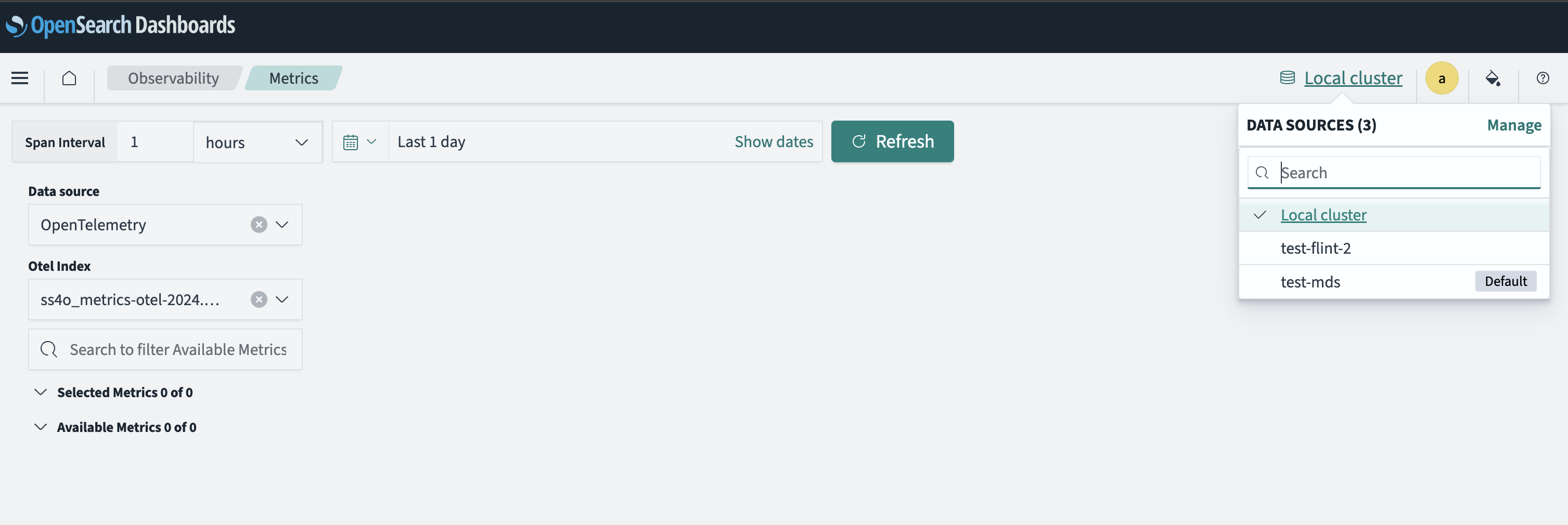
You can view metrics from remote OpenSearch clusters by using the Metrics tool. Select the database icon on the upper-right toolbar and choose a cluster from the DATA SOURCES dropdown menu, as shown in the following image. You can switch from a local cluster to a remote cluster.
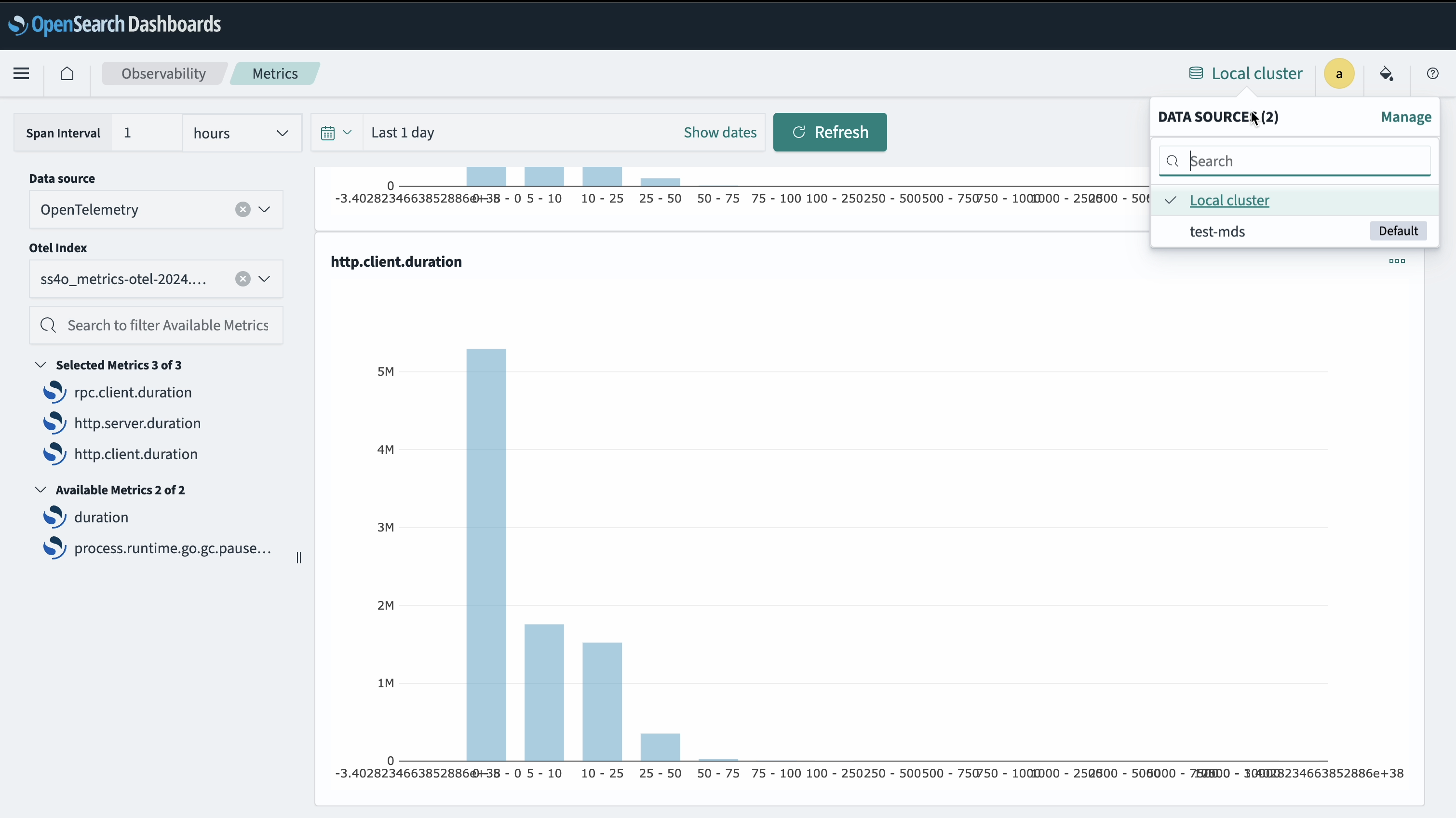
You can also view metric visualizations from other sources alongside local metric visualizations. From the DATA SOURCES dropdown menu, choose the remote metric visualization to add it to the group of visualizations already shown on the dashboard. An example dashboard is shown in the following image.
To learn about multi-cluster support for data sources, see Enable OpenSearch Dashboards to support multiple OpenSearch clusters.
Creating visualizations based on custom metrics
You can create visualizations using the metric data collected by your OpenSearch cluster, including Prometheus metrics and custom metrics.
To create these visualizations, follow these steps:
- From the OpenSearch Dashboards main menu, go to Observability > Metrics.
- In the Metrics source list, select Prometheus or OpenTelemetry.
- In the Available Metrics list, select the metrics to add to your visualization. If you have more than one Prometheus connection, each connection’s metrics are listed separately. The visualization title shows the connection and metric name, for example,
my_prometheus.go_goroutines. - Select Save as visualization.
- Optionally, edit the metric name and select the operational dashboards or applications to which to add the visualization.
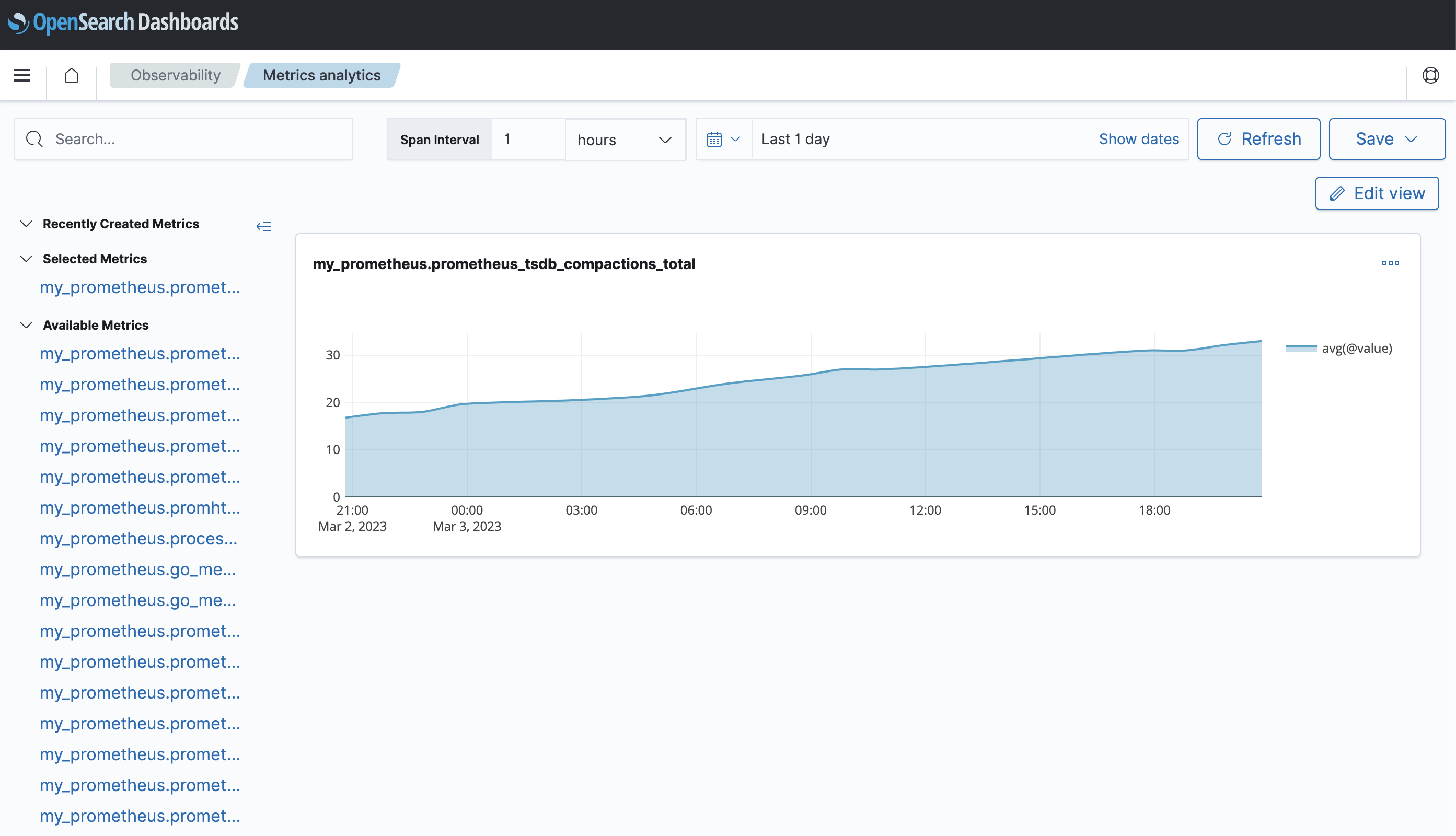
- Select Save to save your visualization. An example visualization is shown in the following image.
Defining PPL queries for Prometheus metrics
You can define Piped Processing Language (PPL) queries to interact with metrics collected by Prometheus. The following is an example PPL query for a Prometheus metric:
source = my_prometheus.prometheus_http_requests_total | stats avg(@value) by span(@timestamp,15s), handler, code
Creating a custom visualization based on the PPL query
To create a custom visualization based on the PPL query, follow these steps:
- From the OpenSearch Dashboards main menu, go to Observability > Logs and select Event Explorer.
- Enter your PPL query and select Run.
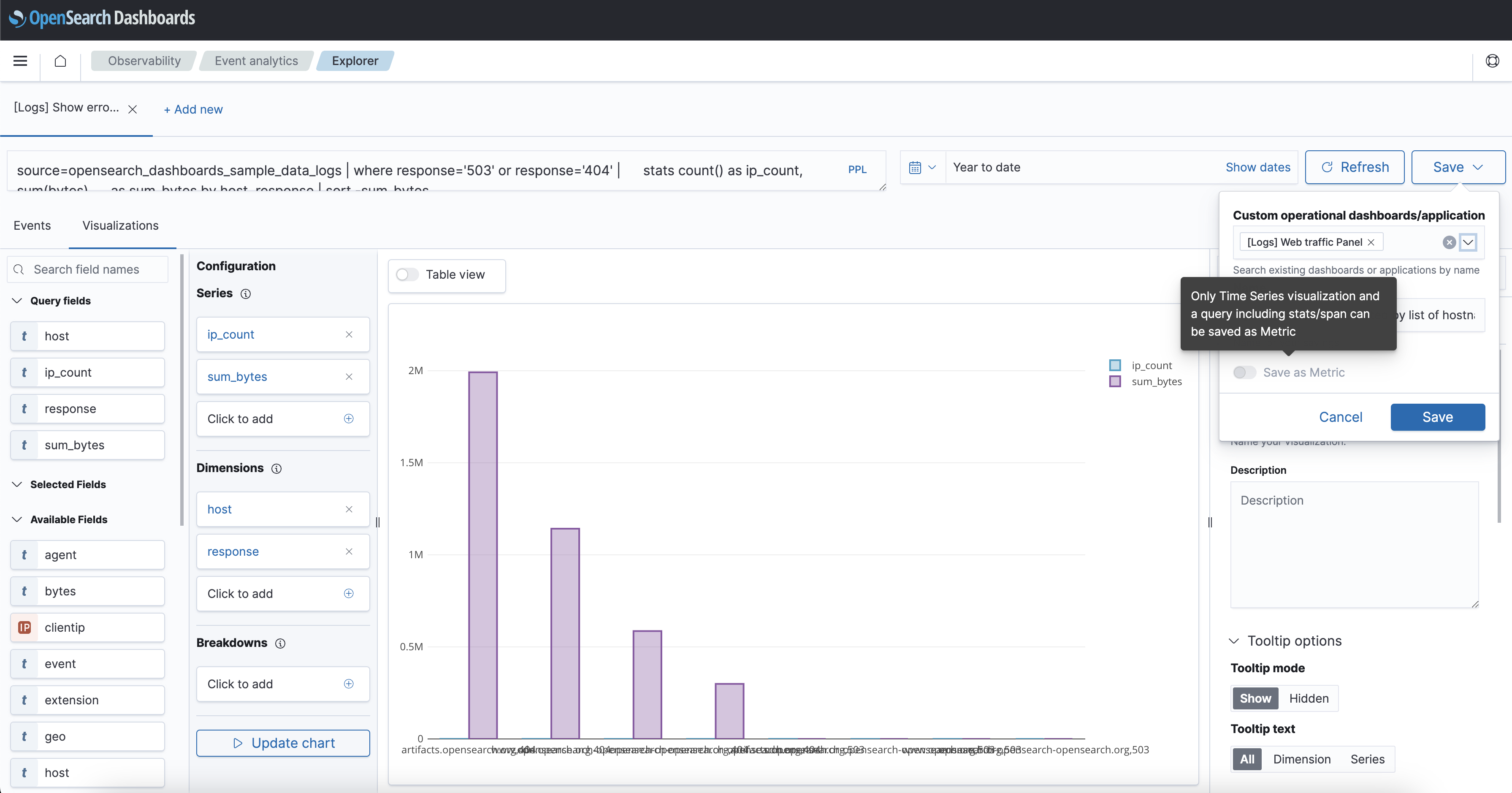
- Select the Visualizations tab, and then select Save.
- Optionally, in the Custom operational dashboards/application list, select the dashboards or applications to which to add the visualization. Enter a Name for the visualization. To save the visualization as a metric, turn on Save as Metric.
- Select Save to save your custom visualization.
Only queries that include a time-series visualization and statistics or span information can be saved as a metric, as shown in the following image.