Log ingestion
Log ingestion provides a way to transform unstructured log data into structured data and ingest into OpenSearch. Structured log data allows for improved queries and filtering based on the data format when searching logs for an event.
Get started with log ingestion
OpenSearch Log Ingestion consists of three components—Data Prepper, OpenSearch, and OpenSearch Dashboards. The Data Prepper repository contains several sample applications that you can use to get started.
Basic flow of data
-
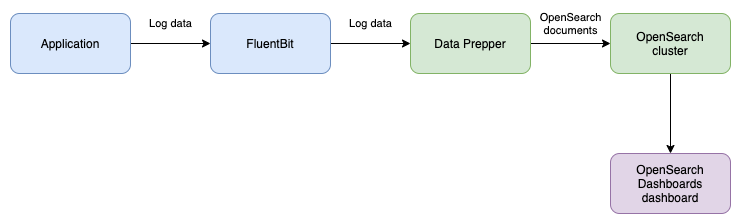
Log Ingestion relies on you adding log collection to your application’s environment to gather and send log data.
(In the following example, Fluent Bit is used as a log collector that collects log data from a file and sends the log data to Data Prepper).
-
Data Prepper receives the log data, transforms the data into a structured format, and indexes it on an OpenSearch cluster.
-
The data can then be explored through OpenSearch search queries or the Discover page in OpenSearch Dashboards.
Example
This example mimics the writing of log entries to a log file that are then processed by Data Prepper and stored in OpenSearch.
The example is located in the examples/log-ingestion/ directory of the Data Prepper repository and contains the following files.
| File | Description |
|---|---|
docker-compose.yaml | Defines the Fluent Bit (fluent-bit), single-node OpenSearch cluster (opensearch), and OpenSearch Dashboards (dashboards) containers. |
docker-compose-dataprepper.yaml | Defines the Data Prepper (data-prepper) container. |
fluent-bit.conf | Configures Fluent Bit to read test.log and send each new line to Data Prepper. |
log_pipeline.yaml | Defines the Data Prepper pipeline, which parses each log line using the COMMONAPACHELOG grok pattern and writes it to the apache_logs index. |
test.log | The log file that Fluent Bit reads. |
The example sets the OpenSearch admin password to Developer@123 in both docker-compose.yaml and log_pipeline.yaml. To use a different password, change it in both files before you start the containers.
To run the example, follow these steps:
-
Clone the Data Prepper repository and go to the example directory:
git clone https://github.com/opensearch-project/data-prepper.git cd data-prepper/examples/log-ingestion -
Start the containers using both Docker Compose files in a single command:
docker compose -f docker-compose.yaml -f docker-compose-dataprepper.yaml up -dBoth files must be specified in the same command so that all four containers join the same Docker network. If you start the files separately, Fluent Bit cannot reach Data Prepper and Data Prepper cannot reach OpenSearch, so no data is indexed.
-
Wait until Data Prepper is ready to receive data. Run the following command until the output contains a line similar to
Started http source on port 2021:docker logs data-prepper 2>&1 | grep "Started http source"Data Prepper starts the pipeline only after it connects to OpenSearch, which can take a minute or longer. If you write log data before Data Prepper is ready, Fluent Bit can discard the data after it fails to deliver it.
-
Append a log line to
test.log:echo '63.173.168.120 - - [04/Nov/2021:15:07:25 -0500] "GET /search/tag/list HTTP/1.0" 200 5003' >> test.logFluent Bit collects the log line and sends it to Data Prepper. To confirm delivery, run
docker logs fluent-bit. The output contains a line similar to the following:[2026/10/06 15:29:12.026] [ info] [output:http:http.0] data-prepper:2021, HTTP status=200 200 OK -
Data Prepper parses the log line and writes it to the
apache_logsindex, as defined inlog_pipeline.yaml. Data Prepper sends documents to OpenSearch in batches, so the document can take a minute or longer to appear. To view the document, run the following command:curl -X GET -u 'admin:Developer@123' -k 'https://localhost:9200/apache_logs/_search?pretty&size=1'The response contains the parsed log data:
{ "took" : 18, "timed_out" : false, "_shards" : { "total" : 1, "successful" : 1, "skipped" : 0, "failed" : 0 }, "hits" : { "total" : { "value" : 1, "relation" : "eq" }, "max_score" : 1.0, "hits" : [ { "_index" : "apache_logs", "_id" : "zQHWEaEBgXJEccxmMBZy", "_score" : 1.0, "_source" : { "date" : 1.791300551511732E9, "log" : "63.173.168.120 - - [04/Nov/2021:15:07:25 -0500] \"GET /search/tag/list HTTP/1.0\" 200 5003", "request" : "/search/tag/list", "auth" : "-", "ident" : "-", "response" : "200", "bytes" : "5003", "clientip" : "63.173.168.120", "verb" : "GET", "httpversion" : "1.0", "timestamp" : "04/Nov/2021:15:07:25 -0500" } } ] } } -
To view the data in OpenSearch Dashboards, go to http://localhost:5601 and log in as the
adminuser. Create an index pattern for theapache_logsindex, and then select the index pattern on the Discover page. The index does not contain a field of thedatetype, so create the index pattern without a time field. For more information, see Index patterns.
To stop the containers and delete their data, run the following command:
docker compose -f docker-compose.yaml -f docker-compose-dataprepper.yaml down -v