Resource access management
Introduced 3.3
Resource sharing in OpenSearch Dashboards provides fine-grained, document-level access control for individual resources that plugins define. This feature extends OpenSearch’s role-based access control by allowing resource owners to specify who can access a resource and what level of access they have, including read-only or read-write permissions. Use OpenSearch Dashboards for everyday access management and the Dev Tools console for automation and batch operations.
If resource sharing features are not visible in OpenSearch Dashboards, contact your OpenSearch administrator to enable the capability and assign appropriate permissions.
A resource is a document that a plugin creates and stores in a protected system index, such as a machine learning (ML) model group, an anomaly detector, a report definition, or a Flow Framework workflow.
The following table lists the default resource access, which is determined by the user’s role and relationship to the resource.
| User | Access |
|---|---|
| Resource creator | Full access (view, edit, delete, and share) |
| Superadmin | Full access |
| Other users | No access unless the resource is shared with them |
After you share a resource with specific users, roles, or backend roles, it becomes visible to those users in OpenSearch Dashboards, which filters resource lists based on each user’s identity, permissions, and the resource sharing configuration.
Prerequisites
To use resource sharing in OpenSearch Dashboards, you must meet the following prerequisites:
- An administrator has granted you the cluster permissions for the resource’s plugin. You need these permissions to create resources.
- You own the resource, you are a superadmin, or the owner has shared the resource with you.
- An administrator has enabled the following settings:
plugins.security.resource_sharing.enabled: true plugins.security.resource_sharing.protected_types: ["<resource-type>"] plugins.security.system_indices.enabled: trueFor more information about these settings, see Configuring resource sharing.
Managing access for all resource types
The Resource Access Management page lists the resources of any protected type that you can access and lets you manage sharing for them in one place. Follow these steps to view and manage access for a resource:
-
On the top menu, go to Management > Resource Access Management.
-
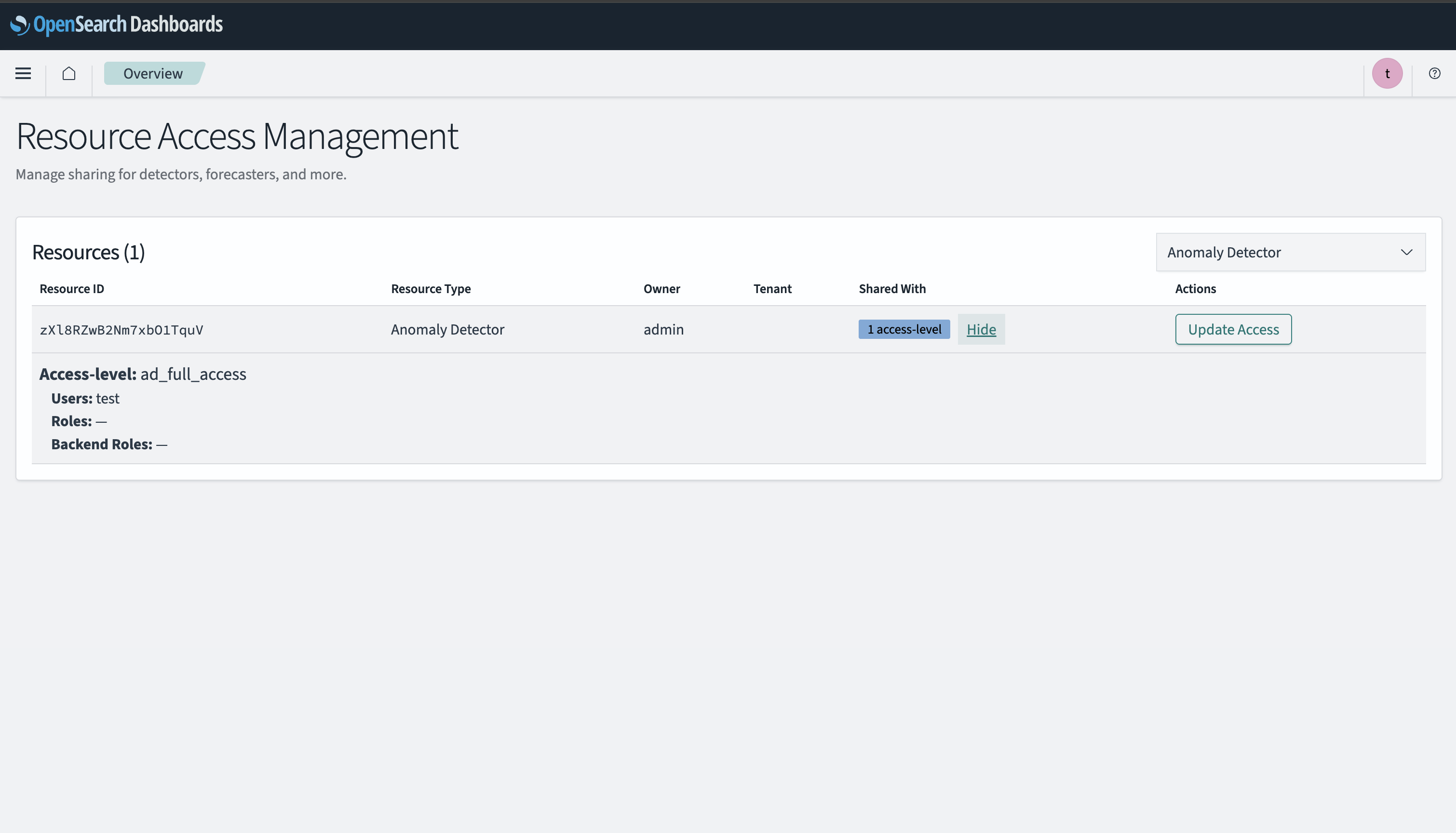
In the Resources panel, in the upper-right corner, select a resource type from the dropdown list. The table lists the resources of that type that you can access and shows the owner of each resource in the Owner column. The Shared With column lists the users, roles, and backend roles that the resource is shared with, along with their access levels, or Not shared if the resource is private. If no resources appear, create a resource or ask an administrator or the resource owner to share one with you.
The following image shows the Resources panel for the anomaly detector resource type.
-
In the Actions column, select Share for a private resource or Update Access for a resource that is already shared. These options appear only for resources that you own or that the owner granted you share permission for. Superadmins can share any resource.
-
In the Share Resource or Update Access dialog, from the Access-level dropdown list, select an access level. In the Share Resource dialog, first select Add access-level to display the fields.
-
Enter the users, roles, and backend roles that you want to grant this level of access to in the Users, Roles, and Backend roles fields. To grant access to all users, enter an asterisk (
*) in the Users field. -
To grant a different level of access to another set of users, select Add access-level and repeat the preceding two steps. To delete an access level, select Remove.
-
Select Share or Update Access to apply the changes. Removing access immediately hides the resource from the affected users.
Managing access from a plugin page
Introduced 3.9
You can manage access to a resource directly from the plugin’s resource list when resource sharing is enabled for the resource type.
The following table lists the resources that support access management from their plugin’s resource list and links to the access levels available for each one.
| Plugin | Resources |
|---|---|
| Alerting | Monitors and workflows |
| Anomaly Detection | Detectors and forecasters |
| Flow Framework | Workflows |
| ML Commons | Model groups |
| Notifications | Channels |
| Reporting | Report definitions and reports |
| Security Analytics | Detectors and correlation rules |
You can share a resource only if you are its owner, a superadmin, or a user to whom the owner granted share permission.
Sharing a resource
To share a resource from a plugin page, follow these steps:
-
Open the resource list for a supported plugin. For example, on the top menu, go to OpenSearch Plugins > Anomaly Detection, and then select Detectors.
-
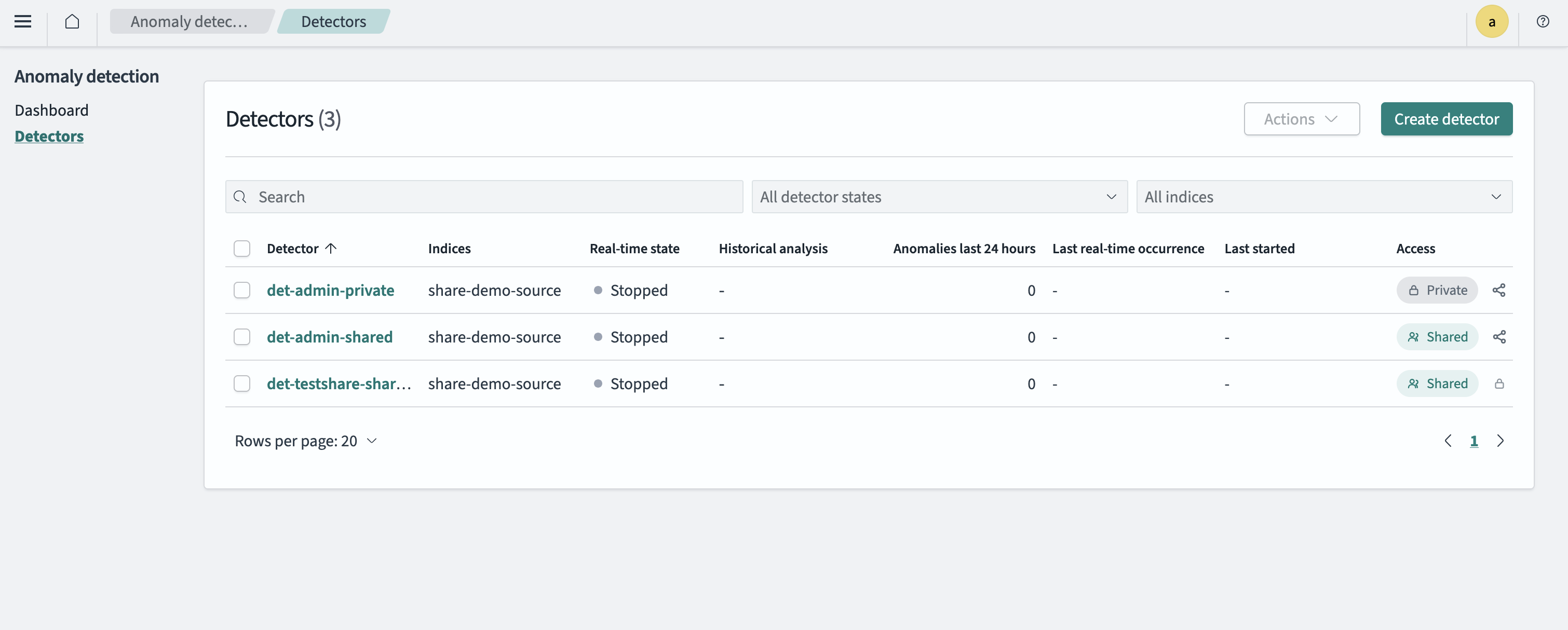
In the Access column, review the sharing status for each resource. Each resource displays a status of Private or Shared. Resources that you have permission to share also display a share icon, as shown in the following image.
-
Select the share icon for the resource that you want to manage.
-
In the Manage access dialog, configure the following values:
-
From the Access level dropdown list, select an access level. The available levels vary by resource type.
-
In the Users field, enter a username and press Enter. To share the resource with all users at the selected access level, enter an asterisk (
*). -
To share the resource with roles or backend roles, expand Advanced access options and enter the role names in the Roles or Backend roles field.
-
To share the resource at more than one access level, select Add access level and repeat the preceding steps. Each level maintains its own users, roles, and backend roles. To delete a level, select Remove level.
-
Select Save changes.
-
Making a resource private
To stop sharing a resource, follow these steps:
-
In the Access column, select the share icon for the resource.
-
In the Remove all sharing section of the Manage access dialog, select Remove access.
The resource status returns to Private, and the users, roles, and backend roles that it was shared with can no longer access it.
Listing resources shared with you
OpenSearch Dashboards shows only the resources that you can access, so no additional actions are required. A resource appears in your resource lists in any of the following cases:
- You own the resource.
- The owner has explicitly shared the resource with you.
- The owner has shared the resource with one of your roles or backend roles.
- The resource is shared with all users.
In all cases, listing a resource also requires the cluster permissions for the resource’s plugin.
Managing resource sharing using APIs
You can manage resource sharing programmatically using REST APIs. These operations can only be performed if you are the owner, a superadmin, or have sharing access to the resource. You can use the command line or the Dev Tools console to send API requests.
For complete API documentation, including endpoints, parameters, and examples, see Resource sharing APIs.
Troubleshooting
Use the following table to troubleshoot common issues.
| Issue | Possible cause | Fix |
|---|---|---|
| The Resource Access Management page is not visible. | The feature is disabled. | Ask an administrator to enable plugins.security.resource_sharing.enabled. |
| You can’t create a resource. | You don’t have the cluster permissions for the resource’s plugin. | Ask an administrator to map you to a role that grants those permissions. |
| You can’t access a resource. | The resource is not shared with you. | Ask the owner to share the resource with you at the appropriate access level. |
An API request returns a 403 error. | The resource is not shared with you. | Ask the owner to share the resource with you at the appropriate access level. |
| A resource is not listed in OpenSearch Dashboards. | The resource type is not marked as protected. | Ask an administrator to add the resource type to plugins.security.resource_sharing.protected_types. |
| Updating access has no effect. | The access level is not valid for the resource type. | Verify the access level against the documentation for the resource’s plugin. |
Related documentation
- Resource sharing and access control – Backend concepts, configuration, and setup
- Resource sharing APIs – REST API reference for programmatic management