Datasets
Introduced 3.5
A dataset represents a collection of indexes that you want to analyze together. Datasets provide a user-friendly way to organize and access your observability data in OpenSearch Dashboards. Datasets allow you to assign types, names, and descriptions to your data sources and indexes, making it easier to work with logs and traces.
Datasets offer several advantages over traditional index patterns:
- User-friendly names: Assign descriptive names instead of relying on index pattern syntax.
- Descriptions: Add context about what data the dataset contains.
- Schema mappings: Map fields from non-standard formats to OpenTelemetry-compatible fields for correlation.
- Type-specific behavior: Logs and traces datasets integrate with their respective Discover pages.
Dataset types
OpenSearch supports the following dataset types.
| Type | Description | Use case |
|---|---|---|
| Logs | Generic log data for analytics and exploration | Application logs, system logs, access logs |
| Traces | OpenTelemetry span data ingested through OpenSearch Data Prepper | Distributed tracing, performance monitoring |
Prerequisites
Before using datasets, ensure that you have fulfilled the following prerequisites:
-
Enable feature flags: Add the following settings to your
opensearch_dashboards.ymlfile:workspace.enabled: true data_source.enabled: true explore.enabled: true explore.discoverTraces.enabled: true datasetManagement.enabled: trueAfter updating the configuration file, restart OpenSearch Dashboards for the changes to take effect.
-
Index data: Your log or trace data must already be indexed in OpenSearch.
-
Ensure appropriate permissions: You need permissions to create and manage datasets in your workspace.
Creating a logs dataset
To create a logs dataset, follow these steps:
-
In the workspace left navigation, select Datasets.
-
Select Create dataset and choose Logs from the dropdown menu.
-
In Step 1: Select data, select your data source, as shown in the following image. You can use wildcard patterns (for example,
logs-*) to match multiple indexes.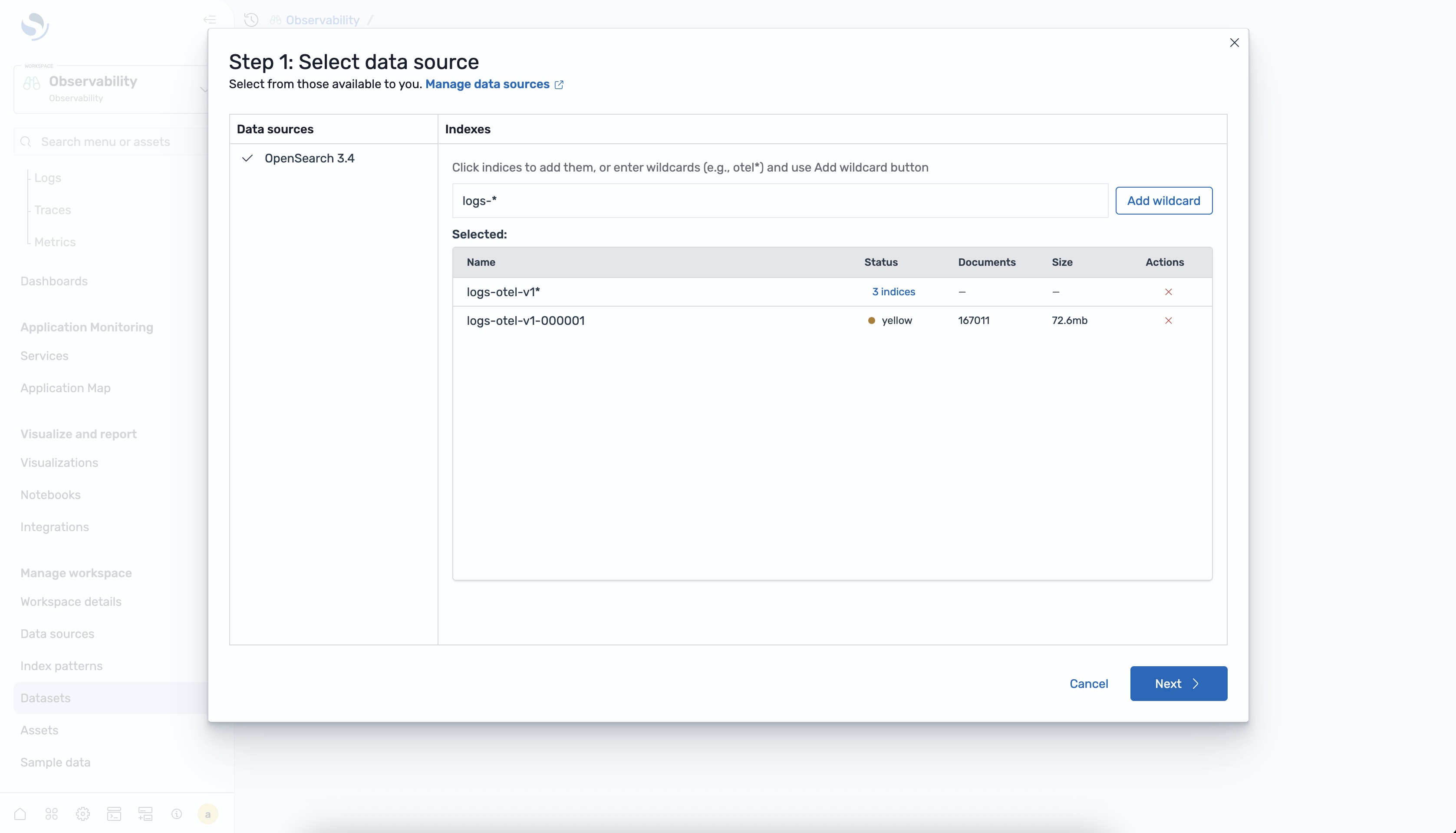
-
In Step 2: Configure data, configure the dataset settings, as shown in the following image.
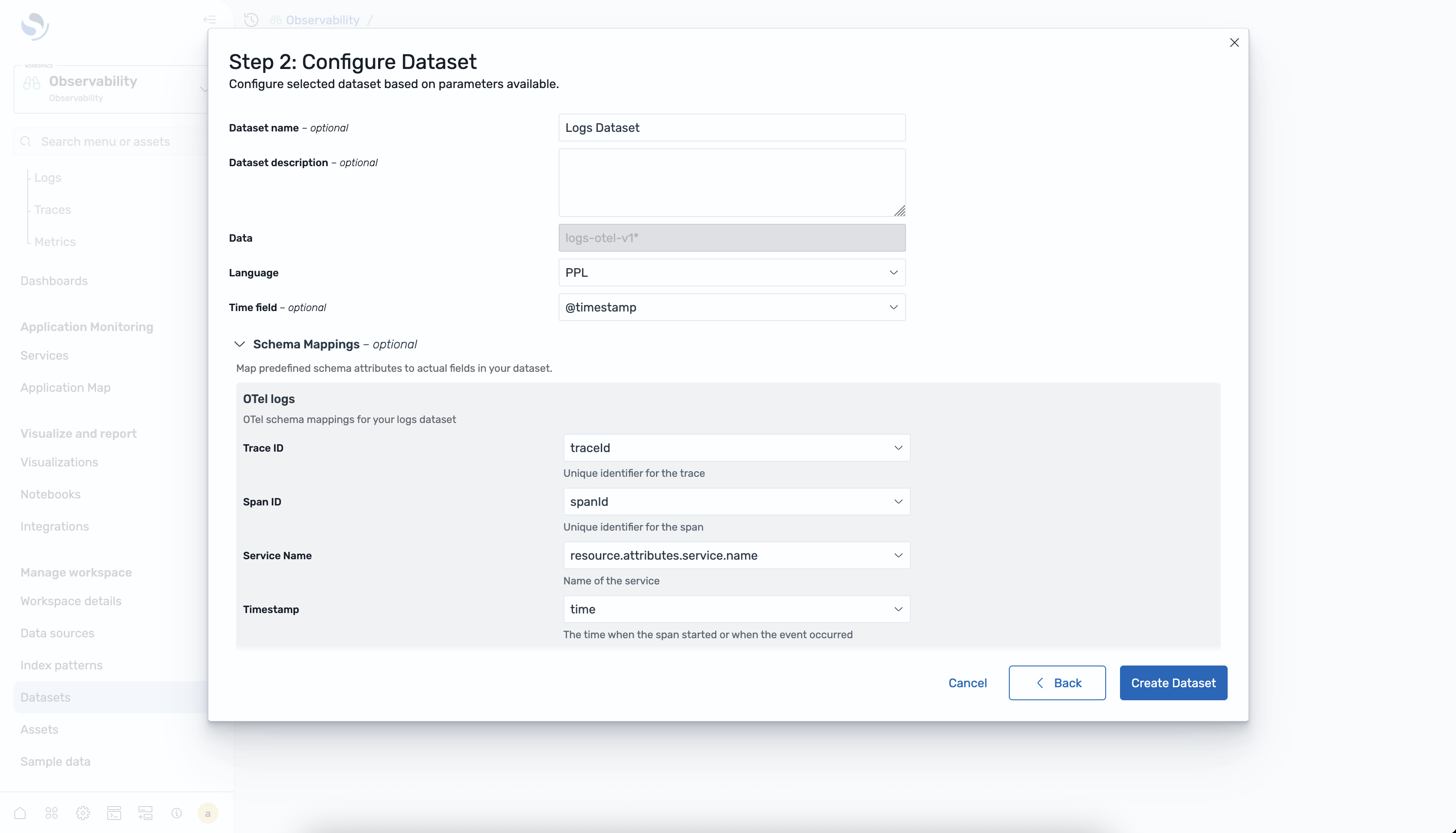
You can configure the following settings:
- Name – Enter a descriptive name for the dataset.
- Description (Optional) – Add the data description.
- Time field: Choose the timestamp field for time-based queries.
- Schema mappings (Optional) – Map your log fields to standard OpenTelemetry fields for correlation with traces:
- Trace ID field: The field containing trace identifiers.
- Span ID field: The field containing span identifiers.
- Service name field: The field containing service names.
- Timestamp field: The field containing event timestamps.
-
Select Create dataset to save your configuration.
Creating a traces dataset
To create a traces dataset, follow these steps:
-
In the workspace left navigation, select Datasets.
-
Select Create dataset and choose Traces from the dropdown menu.
-
In Step 1: Select data, select your trace data source. The data source must reference indexes containing OpenTelemetry span data ingested using Data Prepper.
-
In Step 2: Configure data, configure the dataset settings, as shown in the following image.
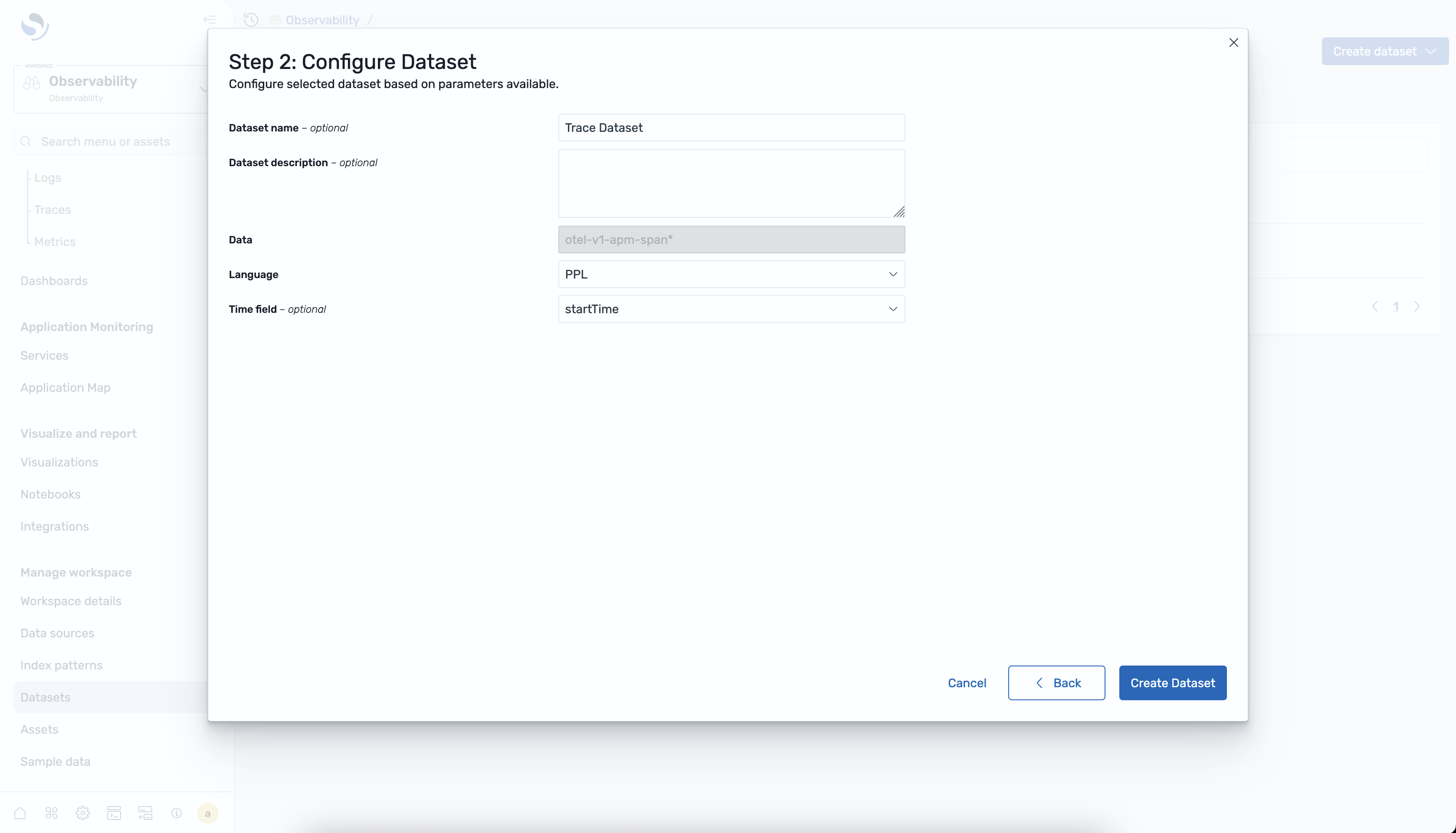
You can configure the following settings:
- Name – Enter a descriptive name for the dataset.
- Description (Optional) – Add the data description.
- Time field – Choose the timestamp field (typically,
startTimeor@timestamp).
-
Select Create dataset to save your configuration.
Viewing datasets
After creating datasets, you can view and manage them from the Datasets page using the following steps:
-
In the workspace left navigation, select Datasets.
-
The list view displays all datasets with their names, types, and data sources, as shown in the following image.
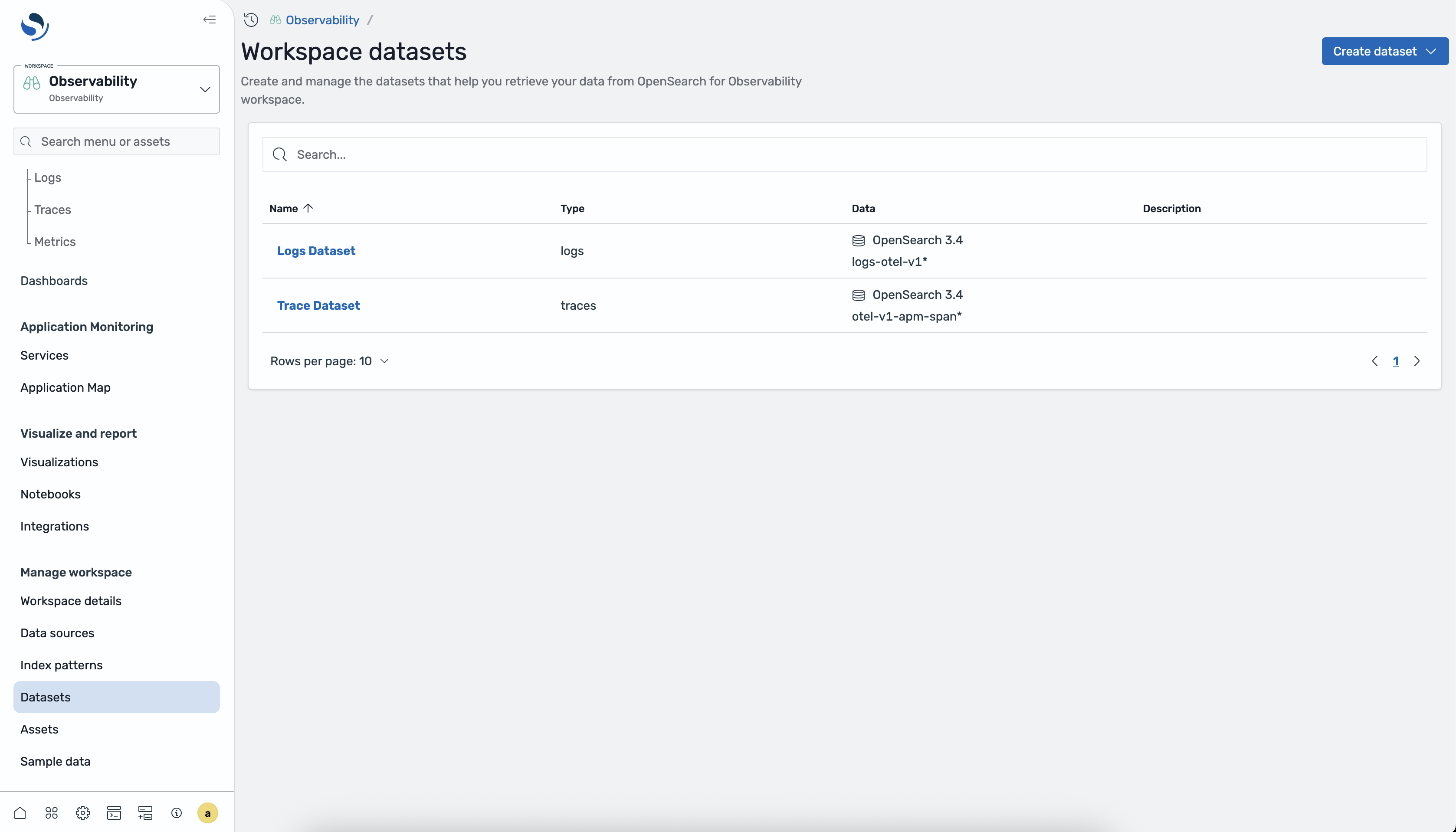
-
Select a dataset to view its details, including configuration settings and any correlations.
Analyzing datasets in Discover pages
Datasets integrate with the Discover interface for exploring your data.
Logs datasets
To analyze logs datasets, follow these steps:
- Navigate to Discover > Logs.
- From the dataset selector, select your logs dataset.
- Use Piped Processing Language (PPL) queries to explore and analyze your log data.
Traces datasets
To analyze traces datasets, follow these steps:
- Navigate to Discover > Traces.
- Select your traces dataset from the dataset selector.
- Explore span data and trace flows.
Related documentation
- Index patterns – Compare datasets to traditional index patterns.
- Data Prepper – Ingest OpenTelemetry data into OpenSearch.
- Correlations – Link traces and logs datasets.