Discover logs
Introduced 3.5
The Logs page in OpenSearch Dashboards is a log analytics tool that allows you to explore and analyze application logs using Piped Processing Language (PPL). On this page, you can query log data, create visualizations from aggregated results, and add these visualizations to dashboards.
The Logs page provides the following capabilities:
- PPL-based querying: Use PPL syntax to filter, aggregate, and transform log data.
- Automatic visualization: When you use aggregation commands like
stats, the interface automatically switches to a visualization view. - Multiple visualization types: Choose from various visualization types.
- Dashboard integration: Save visualizations directly to new or existing dashboards.
- Query management: Save queries for reuse and access recent queries.
Prerequisites
Before using the Logs page, ensure that you have fulfilled the following prerequisites:
-
Enable feature flags: Add the following settings to your
opensearch_dashboards.ymlfile:workspace.enabled: true data_source.enabled: true explore.enabled: trueAfter updating the configuration file, restart OpenSearch Dashboards for the changes to take effect.
-
Create an observability workspace: You must be working within an observability workspace. The Logs page is only available in this workspace type.
Note: Workspaces are not compatible with multi-tenancy. To enable workspaces, you must first disable multi-tenancy by setting
opensearch_security.multitenancy.enabled: false. -
Configure a logs dataset: You must have at least one logs dataset configured. For detailed instructions, see Datasets.
Accessing the Logs page
To access the Logs page:
- Navigate to an observability workspace in OpenSearch Dashboards.
- In the left navigation, expand Discover and select Logs.
Exploring log data
The Logs page is shown in the following image.
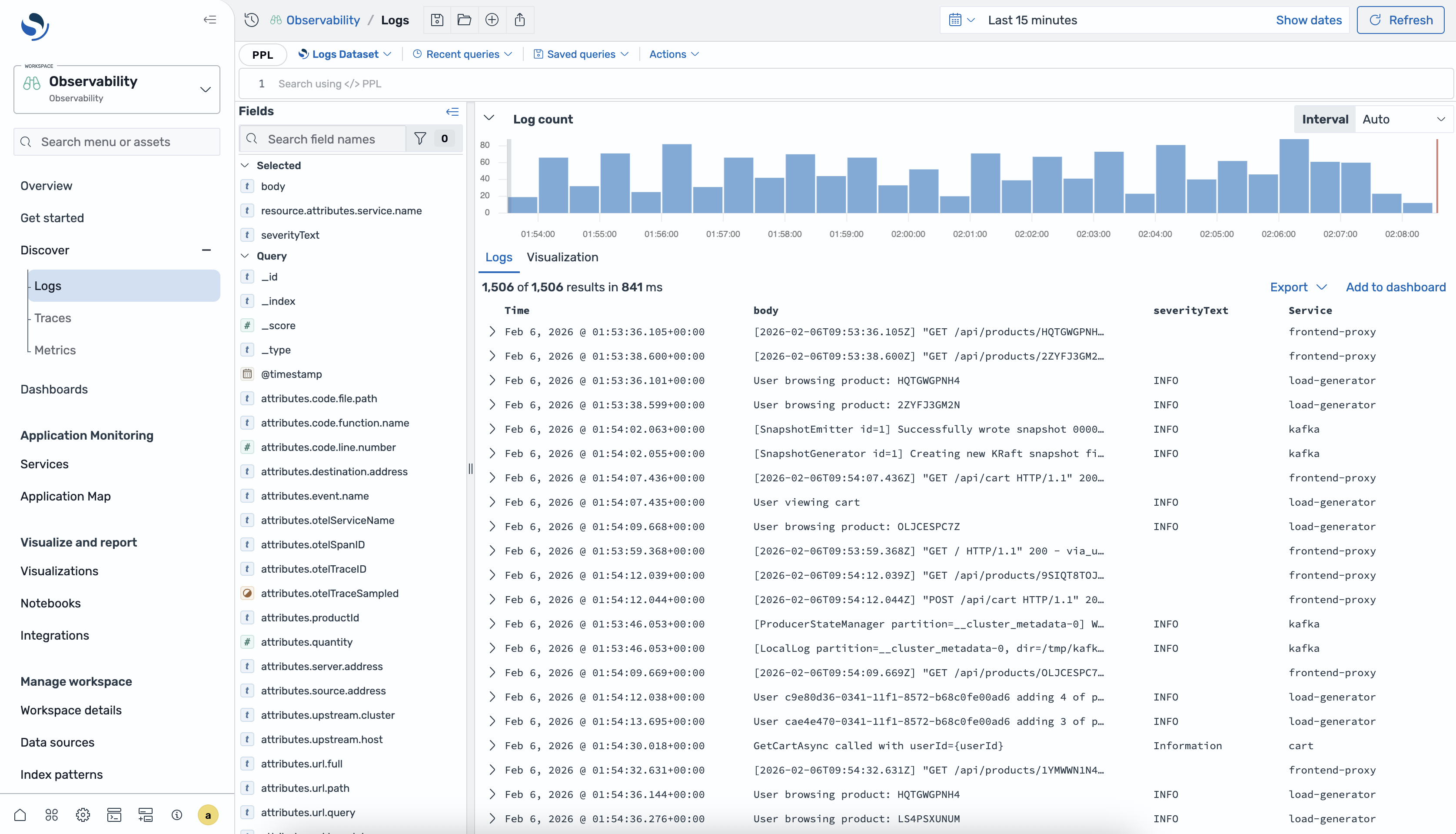
It consists of the following components:
- PPL editor: The query bar at the top where you write PPL queries.
- Dataset selector: Select the logs dataset to explore from the dropdown list at the top of the page.
- Recent queries: Access previously run queries at the top of the page.
- Saved queries: Access queries you have saved for reuse at the top of the page.
- Fields: Located on the left side, the Fields panel displays available fields organized into Selected fields and Query fields sections.
- Log count: The Log count histogram shows the distribution of log entries over time. Use the Interval selector to adjust the time bucket size.
- Results area: Displays query results with two tabs:
- Logs: Shows individual log entries in a table format.
- Visualization: Displays aggregated data as charts when using
statscommands.
- Time range selector: Located in the upper-right corner, allows you to set the time range for your query.
Querying logs using PPL
You can use PPL for querying log data. PPL allows you to chain commands using the pipe character (|) to filter, transform, and aggregate data.
Basic queries
To retrieve all logs from your dataset, run a query without any filters by entering a query and selecting Refresh. The results appear in the Logs tab showing individual log entries.
Filtering using the WHERE clause
Use the WHERE clause to filter logs based on field values:
| WHERE `resource.attributes.service.name` = 'frontend-proxy'
You can combine multiple conditions by providing several WHERE clauses:
| WHERE `resource.attributes.service.name` = 'frontend-proxy'
| WHERE `attributes.url.path` in ("/api/cart","/api/checkout")
Managing queries
The Logs page provides tools to help you organize and reuse your PPL queries efficiently.
- Recent queries: Select Recent queries to view and rerun previously executed queries.
- Saved queries: Select Saved queries to access queries you have saved. To save the current query, select Actions > Save query.
Creating visualizations from logs
When you use the stats command to aggregate data, the Logs page automatically switches to the Visualization tab to display the results as a chart.
Using the stats command
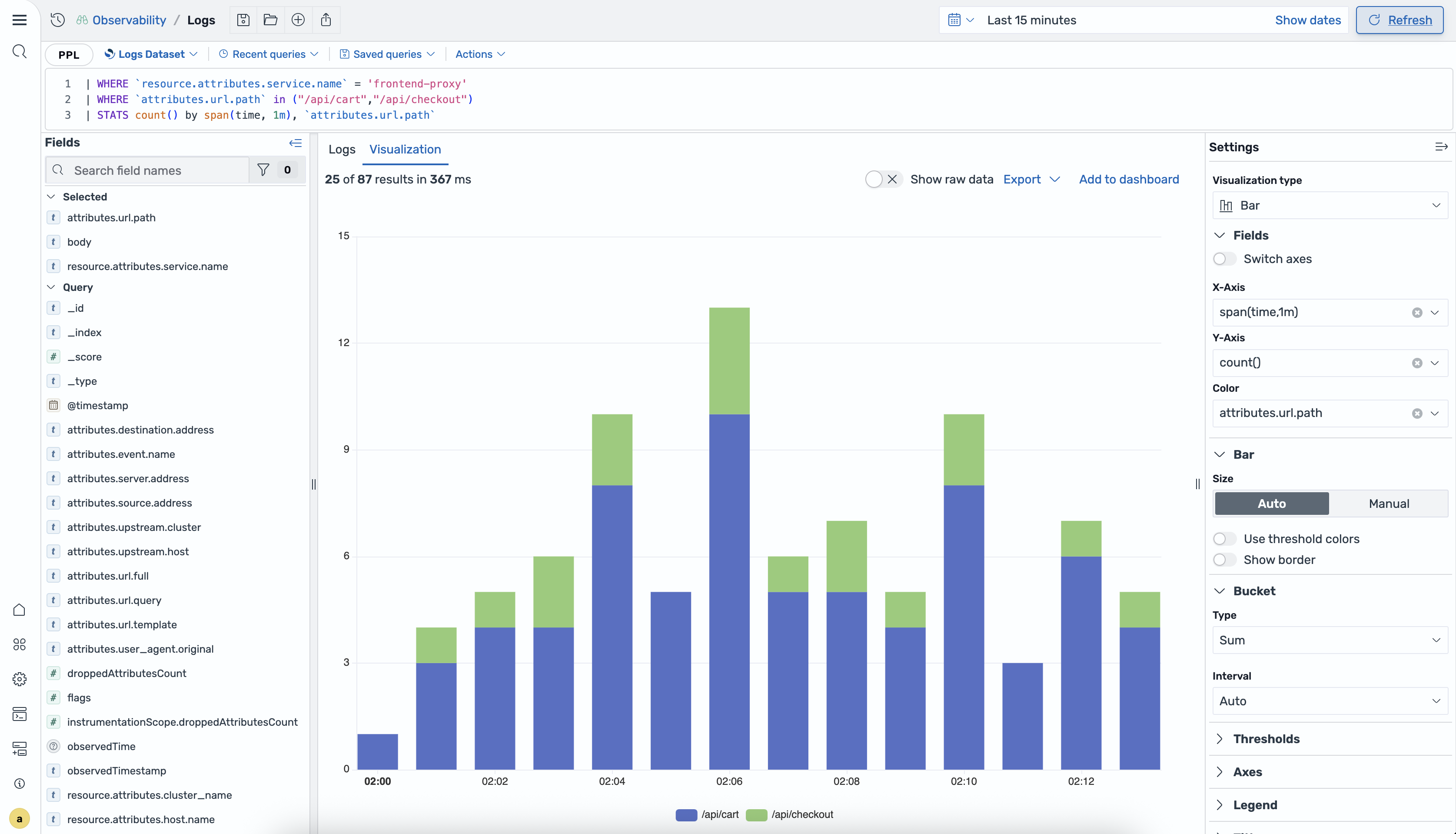
The stats command aggregates data based on specified fields. For example, to count logs per minute grouped by URL path, use the following query:
| WHERE `resource.attributes.service.name` = 'frontend-proxy'
| WHERE `attributes.url.path` in ("/api/cart","/api/checkout")
| STATS count() by span(time, 1m), `attributes.url.path`
When you run this query, the interface automatically switches to the Visualization tab and displays a chart, as shown in the following image.
Visualization types
To change the visualization type, go to Settings > Visualization type and select one of the available options, as shown in the following image.
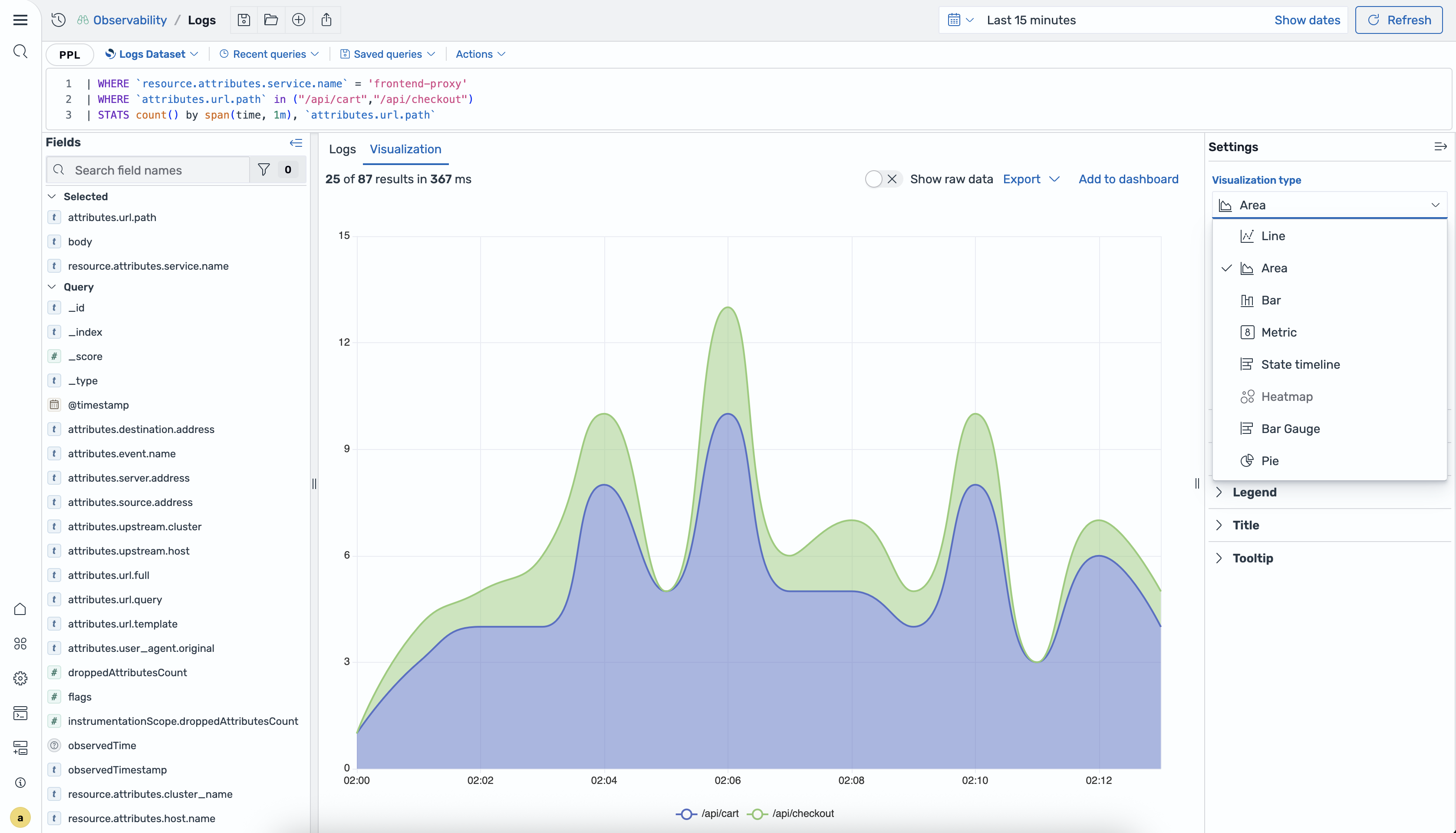
The following visualization types are available.
| Type | Description |
|---|---|
| Line | Displays data as connected points; ideal for showing trends over time. |
| Area | Similar to line charts but with the area below the line filled in. |
| Bar | Displays data as vertical or horizontal bars for comparing categories. |
| Metric | Shows a single aggregated value as a large number. |
| State timeline | Displays state changes over time on a horizontal timeline. |
| Heatmap | Uses color intensity to represent values in a matrix format. |
| Bar Gauge | Displays values as horizontal bars with configurable thresholds. |
| Pie | Shows proportions as slices of a circular chart. |
Visualization settings
To customize your visualization, update the options in the Settings panel, shown in the following image.
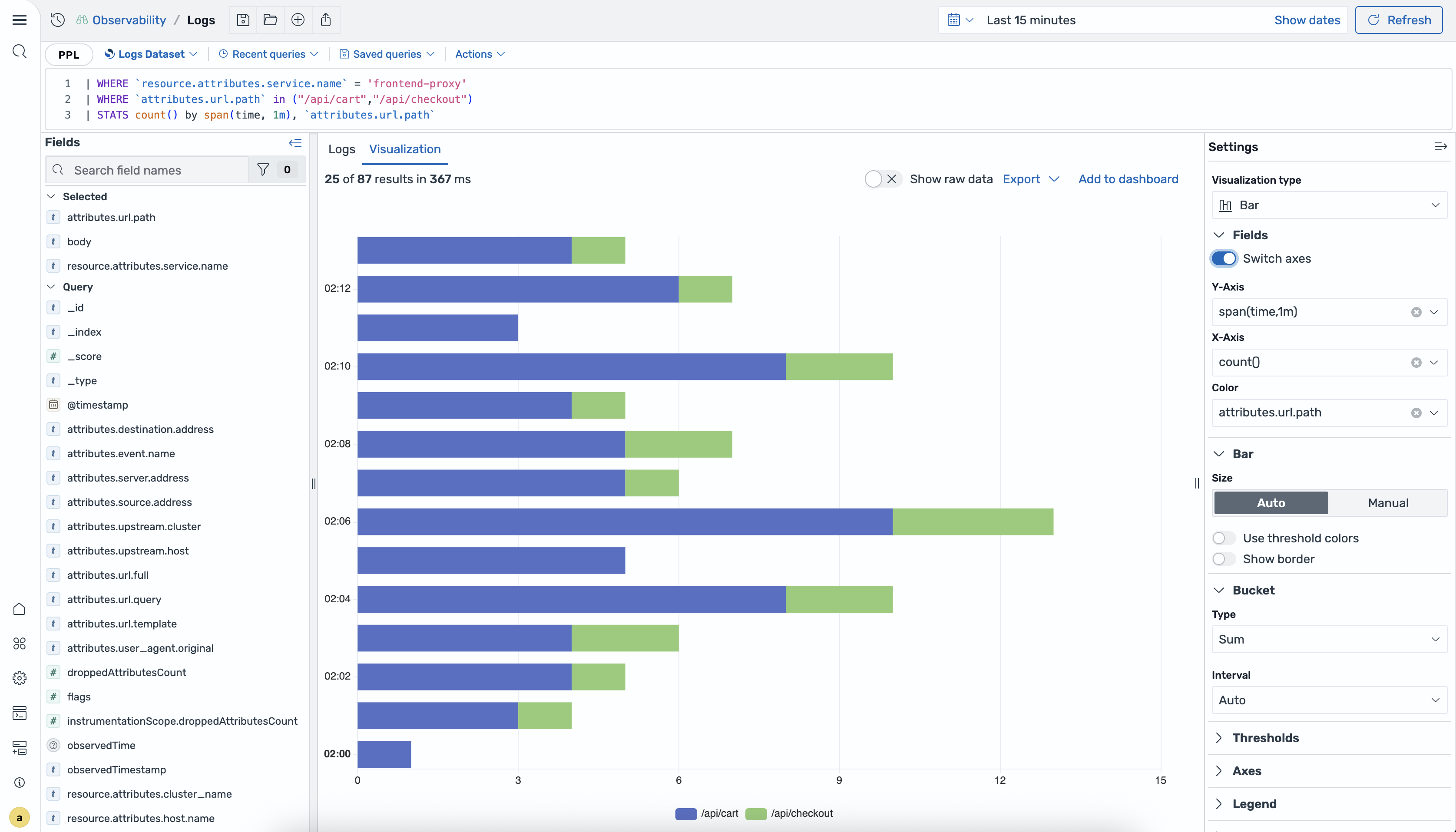
You can update the following options:
- Fields: Configure the fields to display on the X-Axis, Y-Axis, and Color (for grouping data series by different values). For bar charts, you can toggle Switch axes in the Fields section to change the chart orientation from vertical to horizontal (swap X and Y axes).
- Bar/Bucket: For bar charts, configure bar size (Auto or Manual) and bucket settings (Type and Interval).
- Thresholds: Define value thresholds using custom colors.
- Axes: Configure axes labels, scales, and formatting.
- Legend: Control legend visibility and position.
Adding visualizations to dashboards
You can save your visualizations directly to dashboards for ongoing monitoring using the following steps:
-
After creating a visualization, select Add to dashboard in the results area.
- In the Save and Add to Dashboard dialog, choose one of the following options:
- Save to existing dashboard: Select an existing dashboard from the dropdown.
- Save to new dashboard: Enter a name for the new dashboard.
-
Enter a name for the saved search in the Save search field.
- Select Add to save the visualization to the dashboard.
Related documentation
- Datasets – Create and manage logs datasets.
- PPL – Learn PPL query syntax.
- Correlations – Link logs and traces datasets.