Access OpenSearch Dashboards
Once OpenSearch and OpenSearch Dashboards are running, open your browser and navigate to the following URL:
http://localhost:5601(without the Security plugin) orhttps://localhost:5601(with the Security plugin) for a local installation.- https://playground.opensearch.org/app/home#/ for the OpenSearch Playground.
- OpenSearch Dashboards refers to the web UI for OpenSearch—the application you’re looking at in your browser.
- The Dashboards application is the tool within OpenSearch Dashboards for assembling visualizations into a single page.
- A dashboard (lowercase) is an individual page of visualizations created in the Dashboards application.
The OpenSearch Dashboards home page
The home page provides access to all major applications, including Discover for exploring data, Visualize for building charts, Dashboards for assembling visualizations, and Dev Tools for running API queries.
Classic navigation
In installations in which workspaces are not enabled, the left navigation panel lists all applications directly. The following image highlights the main applications described in this section.
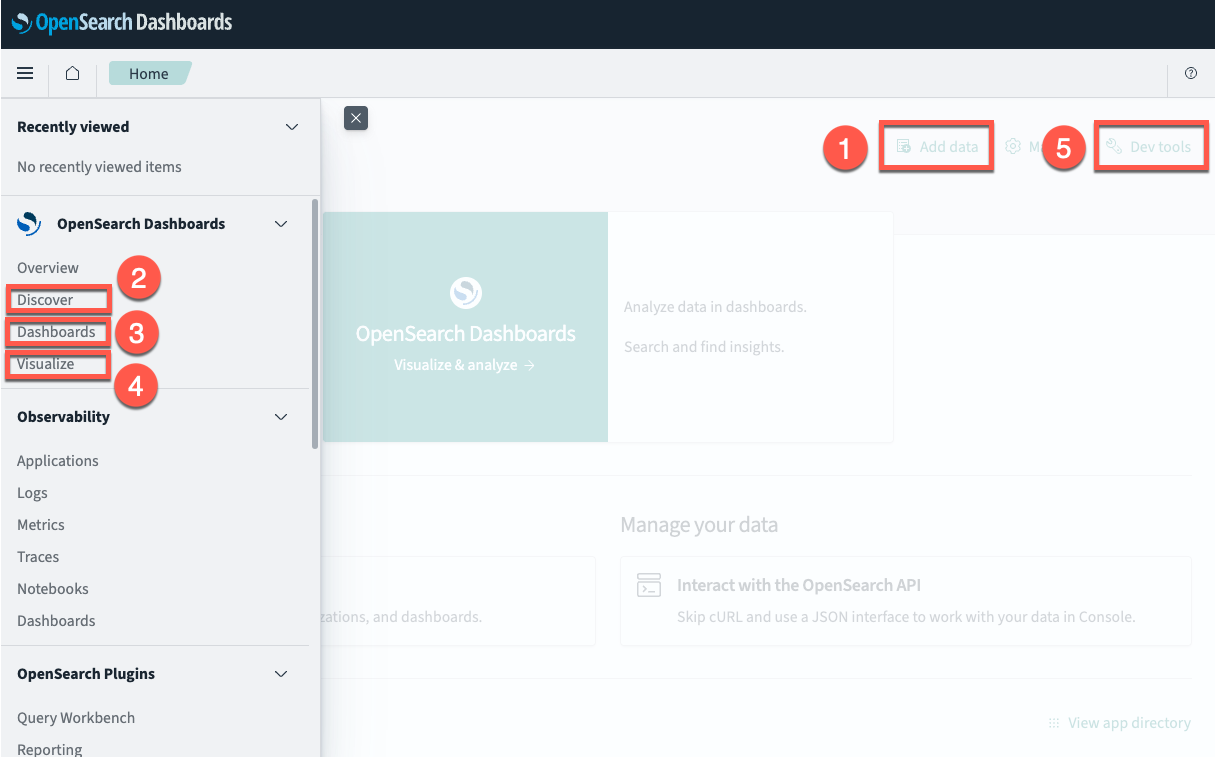
- Prepare your data.
- Explore the Discover application.
- Explore the Dashboards application.
- Explore the Visualize application.
- Run queries in OpenSearch Dashboards.
The examples in this documentation use classic navigation. If you have workspaces enabled, the menu structure is different but the same applications are available within your workspace.
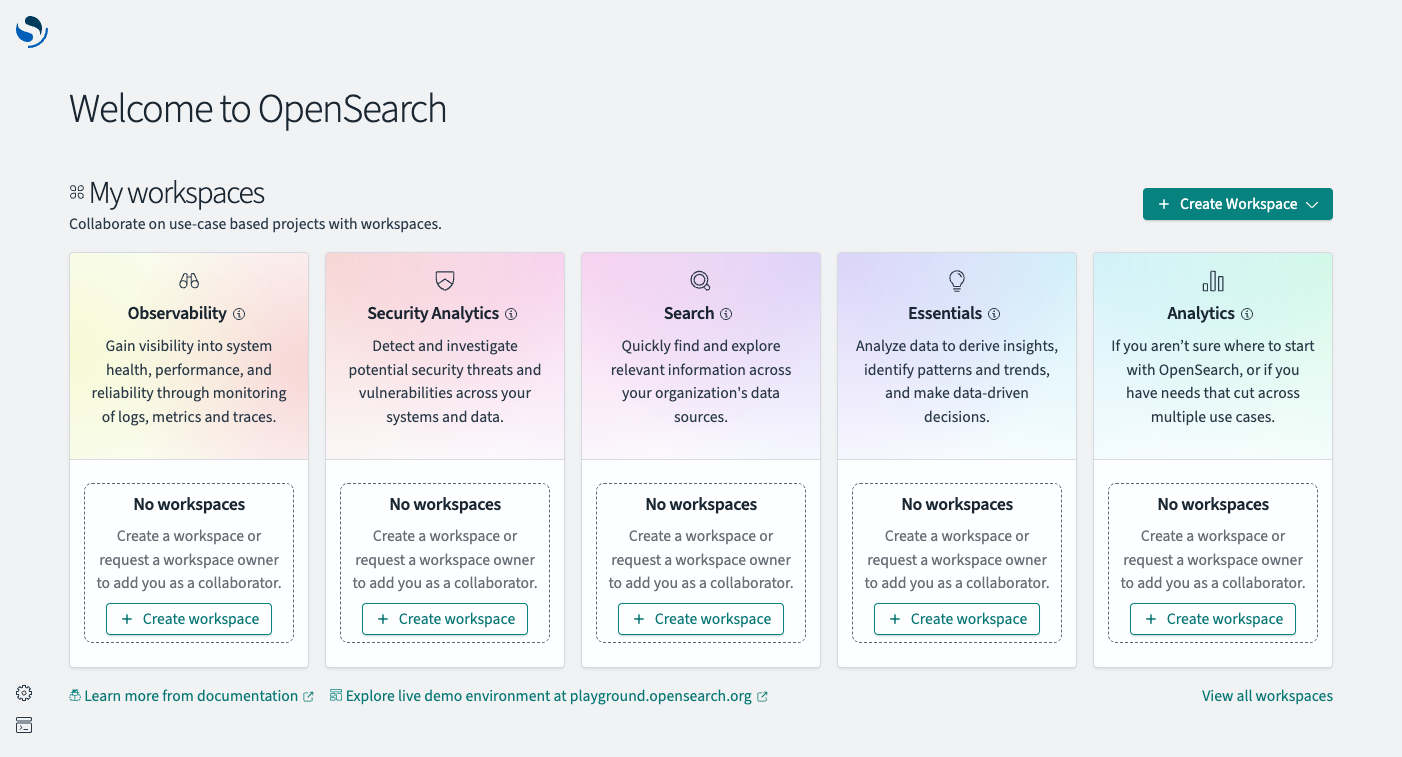
Workspaces navigation
Workspaces group applications into focused environments (for example, Analytics, Observability, or Security Analytics). To access OpenSearch Dashboards applications, first create a workspace and select it. Some features, such as creating visualizations using queries, are only available within workspaces. For more information, see Workspaces.
The following image shows the left navigation within an example Analytics workspace, including the main applications described in this section.
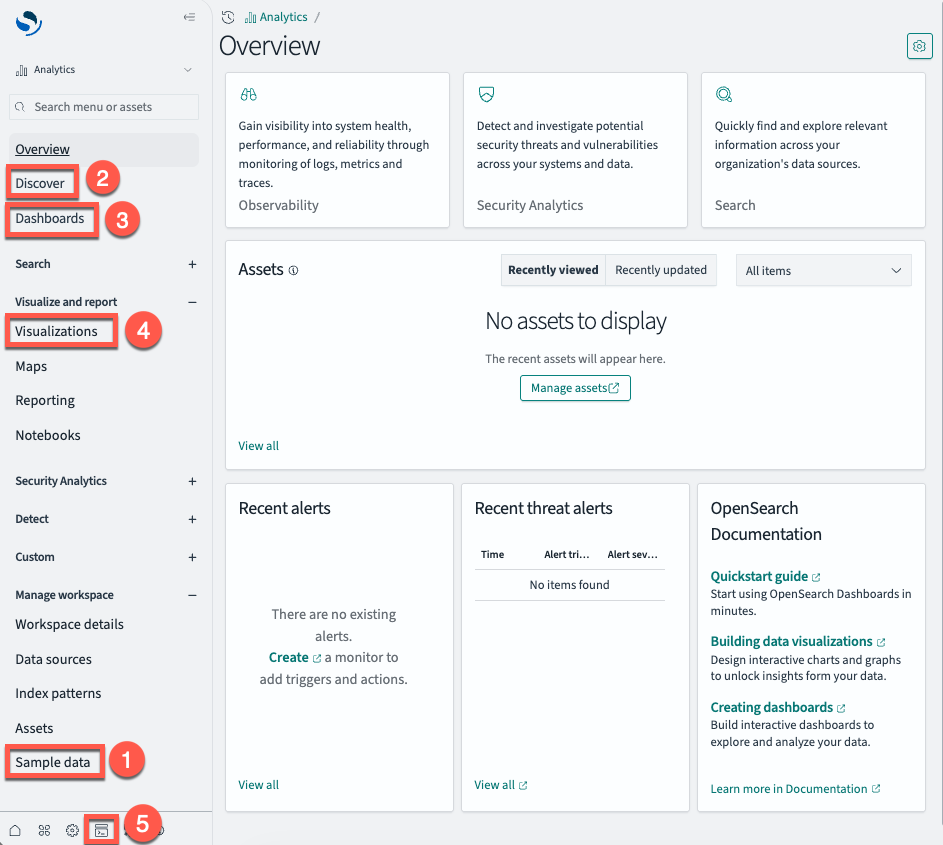
- Prepare your data.
- Explore the Discover application.
- Explore the Dashboards application.
- Explore the Visualize application.
- Run queries in OpenSearch Dashboards.
Further reading
- For a detailed user interface reference, see Using OpenSearch Dashboards.
Next steps
- To learn what each application does, see Learn about main applications and query languages.