Run queries in the Dev Tools console
The Dev Tools console lets you send Query DSL queries to OpenSearch instead of using cURL in your terminal.
Try it: Write and run a query
-
To open the Dev Tools console, select Dev Tools on the main OpenSearch Dashboards page or select Management > Dev Tools from the left navigation menu. In installations with workspaces enabled, select the code icon (
 ) in the lower-left corner of the navigation panel.
 -
Write a query in the editor pane on the left side of the console. For example, enter the following query to index some documents:
POST _bulk { "create": { "_index": "students", "_id": "2" } } { "name": "Jonathan Powers", "gpa": 3.85, "grad_year": 2025 } { "create": { "_index": "students", "_id": "3" } } { "name": "Jane Doe", "gpa": 3.52, "grad_year": 2024 } -
To send the query, place the cursor anywhere in the query text and select the play icon (
 ) on the upper right of the request, or press
 Ctrl/Cmd+Enter.OpenSearch displays the response in the pane on the right side of the console.
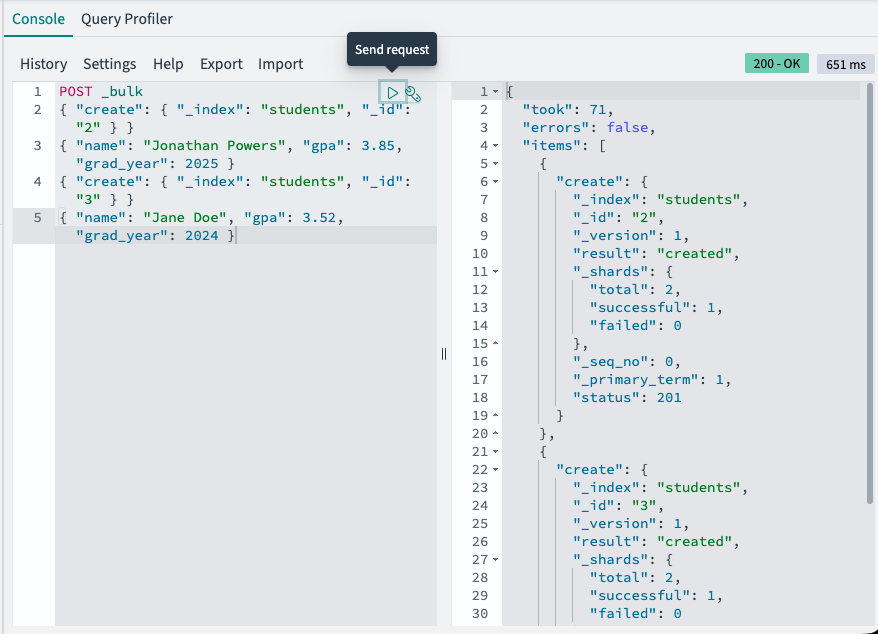
-
Try a search query. Enter the following request to retrieve all documents from the
studentsindex:GET students/_search { "query": { "match_all": {} } } -
Select the play icon to send the request and view the results.
Next steps
- For the full Dev Tools reference, see Dev Tools.
- For the full query language reference, see Query DSL.