Gauge visualization
A gauge visualization displays a data field in a simulated analog instrument like a speedometer. The gauge value can be instantly compared with marked ranges or thresholds. The visualization can show a single value or multiple bucketed values.
When to use gauge visualizations
Use gauge visualizations to monitor a key indicator against an acceptable range in a dashboard.
Creating a gauge visualization
The examples on this page use the Sample flight data dataset. Before you begin, complete the prerequisites.
To create a gauge visualization, follow these steps:
-
In the New Visualization dialog, select Gauge, then select your index pattern (for example, opensearch_dashboards_sample_data_flights).
The visualization displays a gauge showing a count of the documents in the index pattern. For the
opensearch_dashboards_sample_data_flightsdata, this is13059if the date range contains all the documents. - Under Metrics, expand Metric count.
- Set Aggregation to Median and Field to FlightTimeMin.
-
Select Update.
The gauge displays
502.775, presented as the full range of gauge.If your visualization displays a different value, make sure that your time filter window is large enough to encompass all the sample flight data.
-
Now that you have some idea of the magnitude of the data, change the display range so that the displayed value falls within it.
- Select the Options tab.
-
In the Ranges panel, edit the three default ranges as follows:
From To 0 250 250 500 500 750 - Select Update.
-
To compare two different conditions in one visualization, bucket the data.
- Under Buckets, select Add > Split group.
- Set Aggregation to Terms and Field to FlightDelay.
- Select Update.
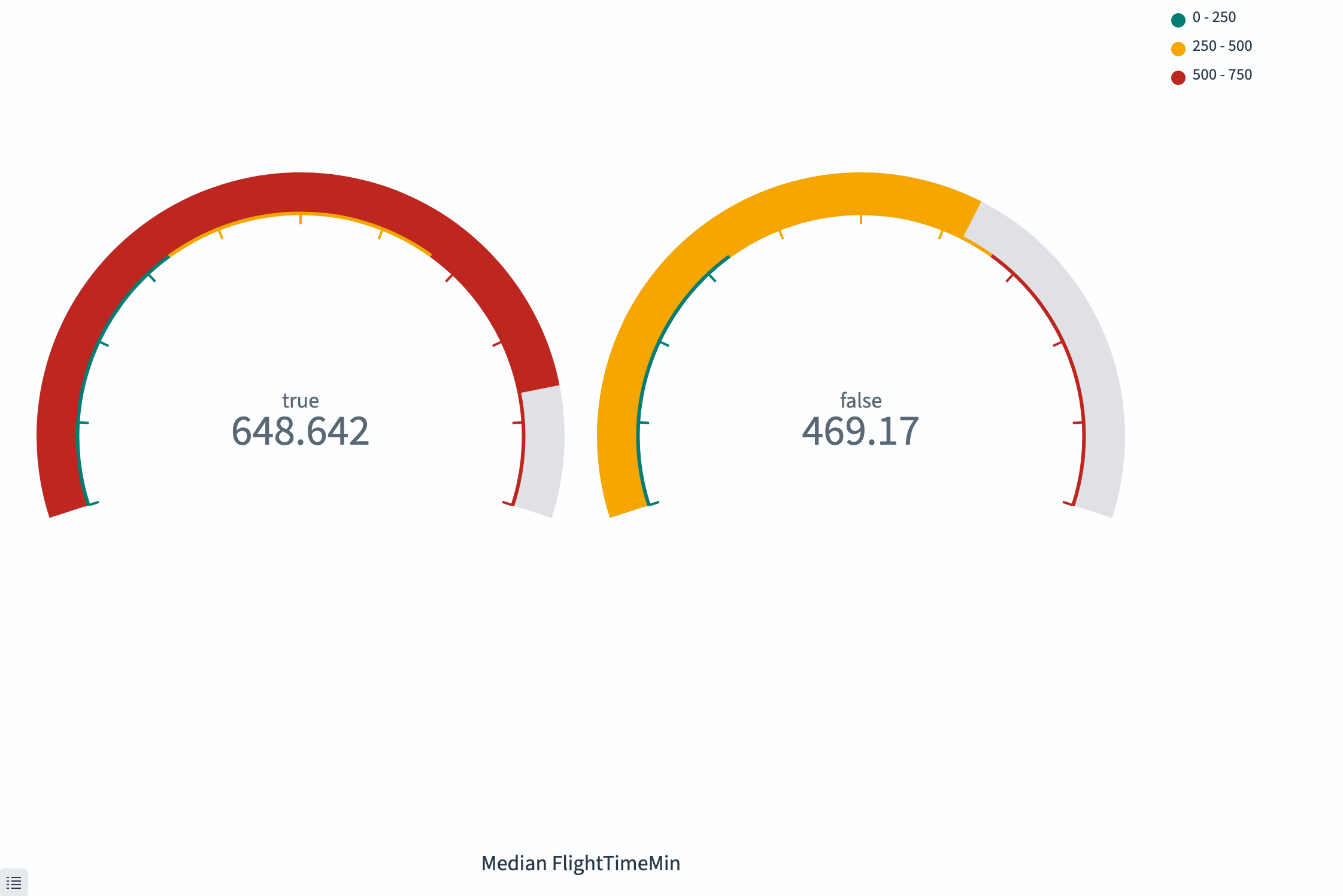
The visualization displays two gauges, with median flight times for delayed and non-delayed flights, as shown in the following image.
Configuring a gauge visualization
For information about general visualization configuration, see Configuring visualizations.
Options tab
| Setting | Description |
|---|---|
| Ranges | Defines the color-coded segments of the gauge arc. Each range has a start and end value. |
| Percentage mode | When enabled, displays the value as a percentage of the maximum range value. |
| Show scale | When enabled, displays tick marks on the gauge. |
| Color options | Controls the colors assigned to each range segment. |
Next steps
- To choose a different visualization type, see Visualization types.
- To add this visualization to a dashboard, see Creating dashboards.