Managing dashboards
Manage dashboards in OpenSearch Dashboards from the Dashboards application main page, shown in the following image.
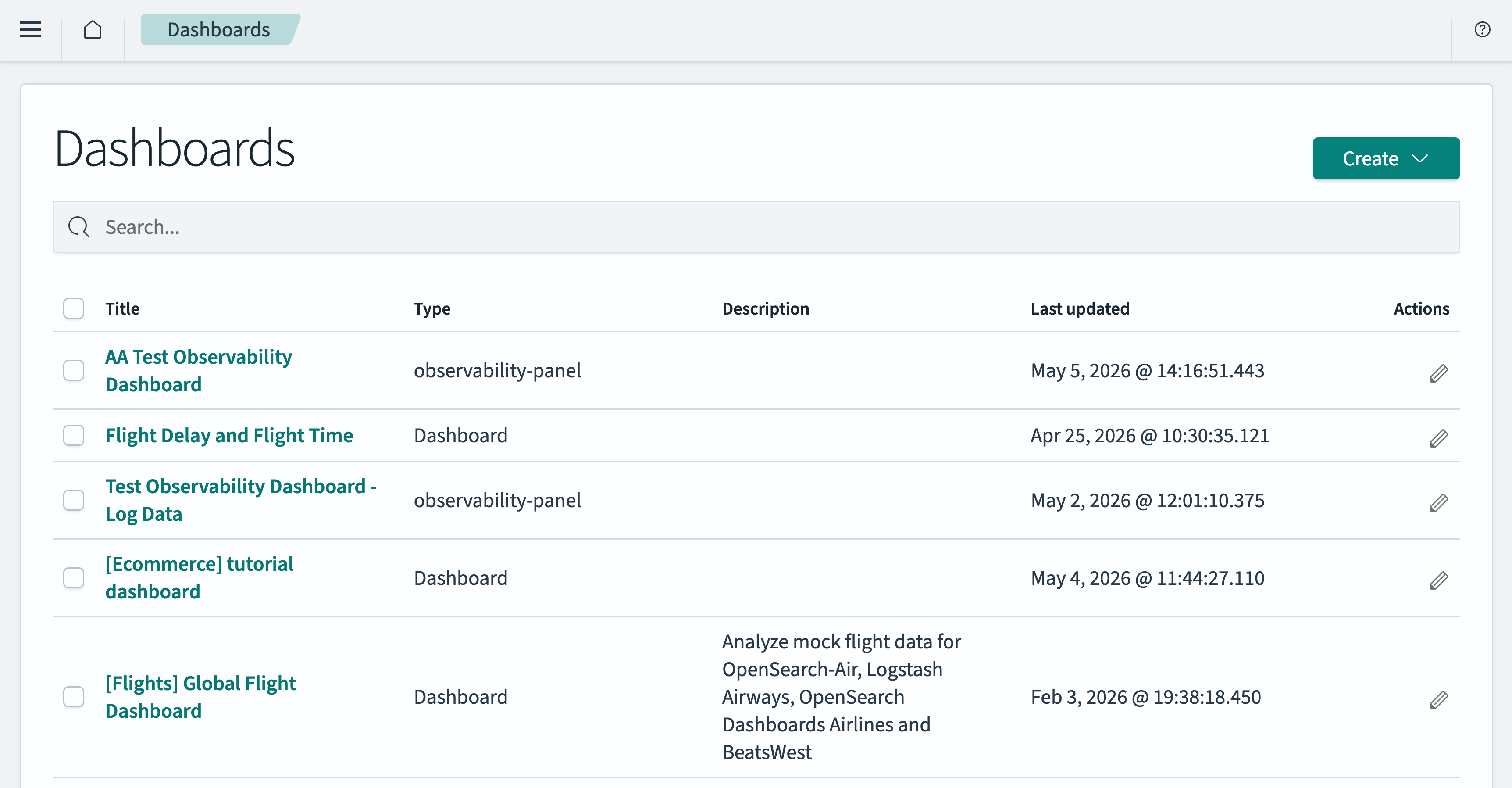
You can do the following:
- Save a dashboard.
- Create and edit a dashboard. See Opening a dashboard.
- Export a dashboard to a file.
- Delete dashboards.
Saving a dashboard
You can save a newly created dashboard or save changes to an existing dashboard.
Saving a new dashboard
To save a new dashboard, follow these steps:
-
In the application menu, select Save.
The application displays the Save dashboard dialog.
-
Enter a title for the dashboard in the Title box.
-
(Optional) Enter a Description.
-
(Optional) To save the current time filter so it’s applied when you reopen the dashboard, select Store time with dashboard.
-
Select Save.
Saving an existing dashboard
You can save a dashboard at any time.
To save an existing dashboard:
-
Select Save in the upper right of the Create panel.
The application displays the Save dashboard dialog. If you have previously saved the dashboard, the Title box contains the dashboard title.
-
(Optional) To change the dashboard name, enter a new title for the dashboard in the Title box.
Saving an existing dashboard without selecting Save as new dashboard overwrites the previous state of the dashboard, even if you’ve renamed the dashboard.
-
(Optional) Update the Description.
-
(Optional) To leave the saved dashboard in its current state and save the changes as a new dashboard, select Save as new dashboard.
-
(Optional) To save the current time filter so it’s applied when you reopen the dashboard, select Store time with dashboard.
-
Select the Save button.
Exporting a dashboard
You can export a dashboard to a PDF file or PNG image file.
Exporting a dashboard is a Reporting feature. You must have the Reporting plugin active to export a file.
This feature requires the Reporting plugin. See Reporting using OpenSearch Dashboards for more information about reporting.
-
Select Reporting from the application menu.
-
From the drop-down menu, select Download PDF or Download PNG.
The application displays the Generating report dialog. The report can take several seconds to generate.
-
The report opens in your browser or downloads, depending on your browser preference.
Deleting dashboards
To delete one or more dashboards, follow these steps:
-
In the navigation panel, select OpenSearch Dashboards > Dashboards.
-
From the list in the Dashboards table, select the checkbox next to all the dashboards you want to delete.
-
Choose the Delete N Dashboards button (where N is the number of checked boxes) to the left of the Search box in the Dashboards panel.
-
In the confirmation dialog, choose Delete.