Customizing a dashboard
You can customize a dashboard in the following ways:
- Resize panels.
- Move panels.
- View a panel in full screen mode
- Customize the title, legend, or colors in a visualization.
Prerequisites
You can customize a dashboard only when you have the dashboard open for editing. See Opening a dashboard.
Resizing a panel
To resize a panel, follow these steps:
-
Select and hold the
 (resize) icon in the panel’s lower-right corner.
 -
Drag to the new dimensions.
Other panels move out of the way to accommodate the new panel size.
Moving a panel
To move a panel, follow these steps:
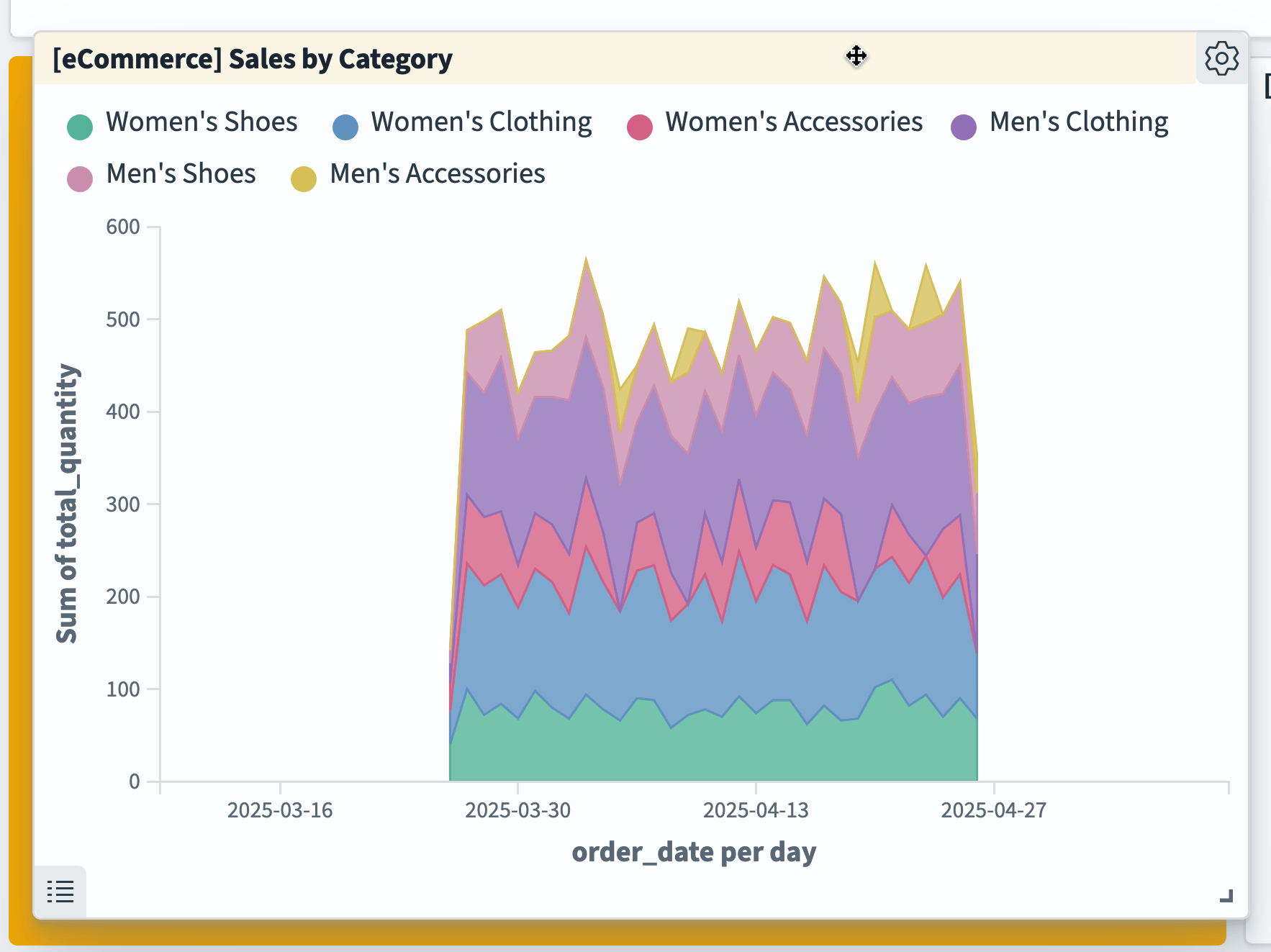
- Select and hold the panel title or the top of the panel as shown in the following image.
-
Drag the panel to the new location.
Other panels move out of the way to accommodate the new panel location.
Using full screen mode
You can view a single visualization panel in full screen mode and then return to dashboard mode.
Viewing a panel in full screen mode
To view a panel in full screen mode, follow these steps:
-
Choose the
 (ellipses) icon at the upper right of the panel.
The
(ellipses) icon is visible only when you point to the visualization panel. -
In the Options drop-down, select
 (maximize) Maximize panel.
Reducing a panel from full screen mode
To reduce a panel from full screen mode, follow these steps:
-
Choose the
(ellipses) icon at the upper right of the panel.The
(ellipses) icon is visible only when you point to the visualization panel. -
Select
 (minimize) Minimize.
Customizing a visualization panel
You can customize the following aspects of a visualization panel in a dashboard:
Hiding and displaying the legend
To display or hide the panel legend:
- Choose the
 (list) icon in the panel’s lower left corner.
Changing a color
To change a color in the visualization, follow these steps:
-
From the visualization legend, select a category.
-
From the flyout, select a color.
The visualization graphic updates with your change.
The color change is only saved for the current panel and dashboard. It does not affect the saved visualization.
Changing or hiding the panel title
To display, hide, or customize the panel title, follow these steps:
-
Choose the
 (gear) icon.
 -
From the Options window, select Edit panel title.
-
From the Customize panel dialog, enter a title under Panel title.
-
(Optional) Toggle the Show panel title to hide the title.
-
Choose Save.
Changing a panel title only affects the panel on the current dashboard. The change does not affect the visualization on any other dashboard nor any other panel containing that visualization.
Next steps
If you have made changes to the dashboard that you want to keep, save the dashboard. See Saving a dashboard.