Configuring visualizations
The configuration panel is on the right side of the Visualize application. It contains two or more tabs depending on the type of visualization being edited. For terminology definitions, see Concepts.
The configuration panel contains the following tabs:
- The Data tab enables the addition of metrics and data buckets to the visualization.
- The Metrics and axes tab controls display options such as how to display axes, labels, and scales; text display and alignment, and visualization-specific options. This tab is labeled Options for some visualization types.
- The Panel settings tab contains options for panel-wide settings such as the legend, tooltips, and grid lines.
Data tab
The Data tab uses aggregations to determine what data is displayed and how it is grouped. When you configure a visualization, OpenSearch Dashboards automatically generates aggregation queries based on your selections. For a hands-on walkthrough, see Creating aggregation-based visualizations.
The following visualization types use the Data tab with aggregations: Area, Horizontal Bar, Vertical Bar, Coordinate Map, Data Table, Gauge, Goal, Heat Map, Line, Metric, Pie, Region Map, and Tag Cloud.
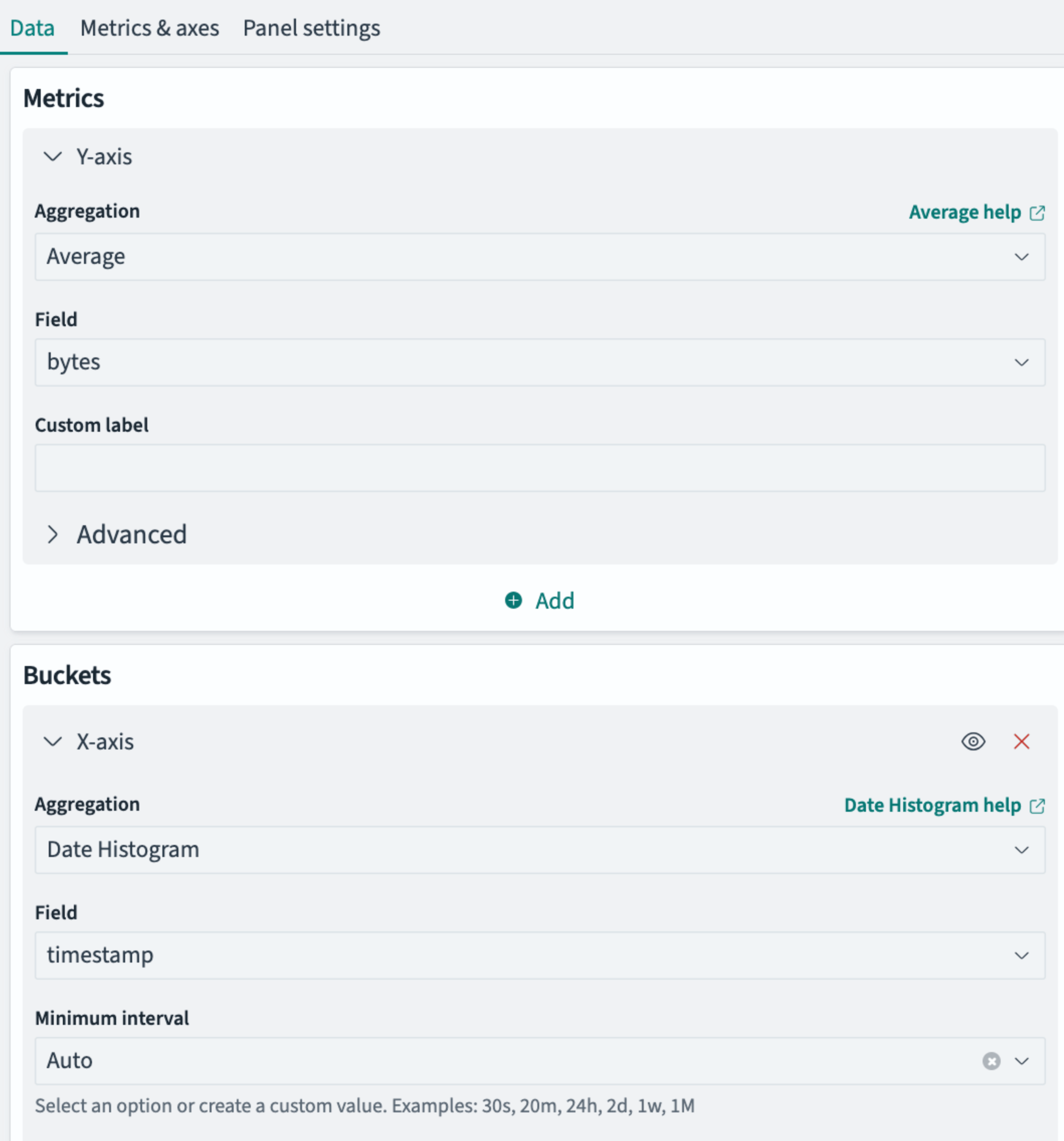
A typical Data tab is shown in the following image.
The Data tab generally contains two types of panels for adding elements to the visualization:
- Y-axis, Data or Metrics panels for choosing the field or fields to be displayed
- X-axis or Buckets panels for choosing how to segment the data for display
Metrics and Buckets panels both use progressive disclosure, meaning that subsequent options available to you are based on your last choice in the panel. A typical sequence for choosing a metric or bucket is as follows:
-
You select an aggregation type, such as average, count, max, or min, from a dropdown list of available choices.
-
You select a field from a dropdown list. The field selection is limited to data types to which your selected aggregation can be applied. For example, the Count aggregation applies to documents as a whole, so no field selection is presented. The Date Histogram aggregation applies only to timestamp fields.
-
You optionally select other options such as range intervals or a custom name to label the field in the visualization.
-
You optionally add more fields or buckets. For example, after choosing an X-axis bucket type of histogram to display a cost variable across product category in a bar chart, you might add a split chart bucket to display a separate bar chart for each customer gender.
Metric aggregations
Metric aggregations appear in the Metrics panel and become Y-axis values in charts. The following table lists the available metric aggregations.
| Metric | Description | Requires field |
|---|---|---|
Count | Counts the number of documents in each bucket. This is the default metric for new visualizations and does not require a field selection. In the aggregation API, every bucket aggregation response includes a doc_count field, which contains the number of documents that are in that bucket—and Count displays this value. | No |
Average | Calculates the average value of a numeric field. | Yes |
Max | Returns the maximum value of a numeric field. | Yes |
Median | Returns the 50th percentile value of a numeric field. In the aggregation API, this uses the percentiles aggregation at the 50th rank. | Yes |
Min | Returns the minimum value of a numeric field. | Yes |
Percentile Ranks | Returns the percentile rank of specified values within a numeric field. After selecting, enter threshold values in the Values list to define the points at which to calculate ranks. | Yes |
Percentiles | Returns values at specified percentile ranks of a numeric field. After selecting, configure the Percents list to define which percentiles to calculate. The defaults are 1, 5, 25, 50, 75, 95, and 99. Each percentile appears as a separate series in the visualization. | Yes |
Standard Deviation | Calculates the standard deviation of a numeric field. In the aggregation API, this uses the extended_stats aggregation. | Yes |
Sum | Calculates the total sum of a numeric field. | Yes |
Top Hit | Returns one or more of the top values from a field, sorted by a specified metric. After selecting, configure Aggregate with (how to combine multiple values: Concat, Min, Max, Sum, or Average), Size (number of top values to return), Sort on (field to sort by), and Order (ascending or descending). | Yes |
Unique Count | Counts the number of distinct values in a field. In the aggregation API, this corresponds to the cardinality aggregation. | Yes |
Parent pipeline aggregations
Parent pipeline aggregations compute values based on the output of another metric within the same bucket. They appear in the Metrics panel below the basic metric aggregations.
After selecting a parent pipeline aggregation, use the Metric dropdown to choose which metric to operate on. Select an existing metric from the Y-axis, or select Custom metric to define a new metric inline (this reveals a nested aggregation selector where you can configure any of the basic metric aggregations).
| Metric | Description |
|---|---|
Cumulative Sum | Calculates the cumulative sum of a metric across ordered buckets. |
Derivative | Calculates the rate of change of a metric between consecutive buckets. |
Moving Avg | Calculates a moving average of a metric over a sliding window of buckets. |
Serial Diff | Calculates the difference between a metric value and an earlier value in the series. |
Sibling pipeline aggregations
Sibling pipeline aggregations compute a single value from all buckets in a sibling aggregation and display it alongside the other metrics. They appear in the Metrics panel below the parent pipeline aggregations.
Like parent pipeline aggregations, sibling pipeline aggregations use the Metric dropdown to select which metric to operate on. Select an existing metric or Custom metric to define one inline.
| Metric | Description |
|---|---|
Average Bucket | Calculates the average of a metric across all buckets. |
Max Bucket | Returns the maximum value of a metric across all buckets. |
Min Bucket | Returns the minimum value of a metric across all buckets. |
Sum Bucket | Calculates the sum of a metric across all buckets. |
Bucket aggregations
Bucket aggregations appear in the Buckets panel and determine how data is grouped. When you select Add in the Buckets panel, you first choose a bucket type:
| Bucket type | Description |
|---|---|
| X-axis | Groups data along the horizontal axis of the chart. |
| Split series | Creates multiple series (lines, bars, or areas) within the same chart, each representing a different group. |
| Split chart | Creates separate charts for each group, displayed in a row or column layout. |
After you choose a bucket type, you select a bucket aggregation to define how the data is grouped. The following table lists the available bucket aggregations.
| Aggregation | Description |
|---|---|
Date Histogram | Groups documents into time intervals (for example, hourly, daily, or weekly). Requires a date field. |
Date Range | Groups documents into custom date ranges that you define. Requires a date field. |
Filters | Groups documents by custom query filters that you define. Each filter creates a bucket. |
Histogram | Groups numeric values into fixed-size intervals. Requires a numeric field. |
IPv4 Range | Groups documents into custom IP address ranges. Requires an IP field. |
Range | Groups numeric values into custom ranges that you define. Requires a numeric field. |
Significant Terms | Identifies terms that appear more frequently in the selected dataset than in the overall index. Requires a keyword or text field. |
Terms | Groups documents by the unique values of a field. Requires a keyword, numeric, IP, or Boolean field. |
For more information about bucket aggregation types, see Bucket aggregations.
Metrics and axes tab
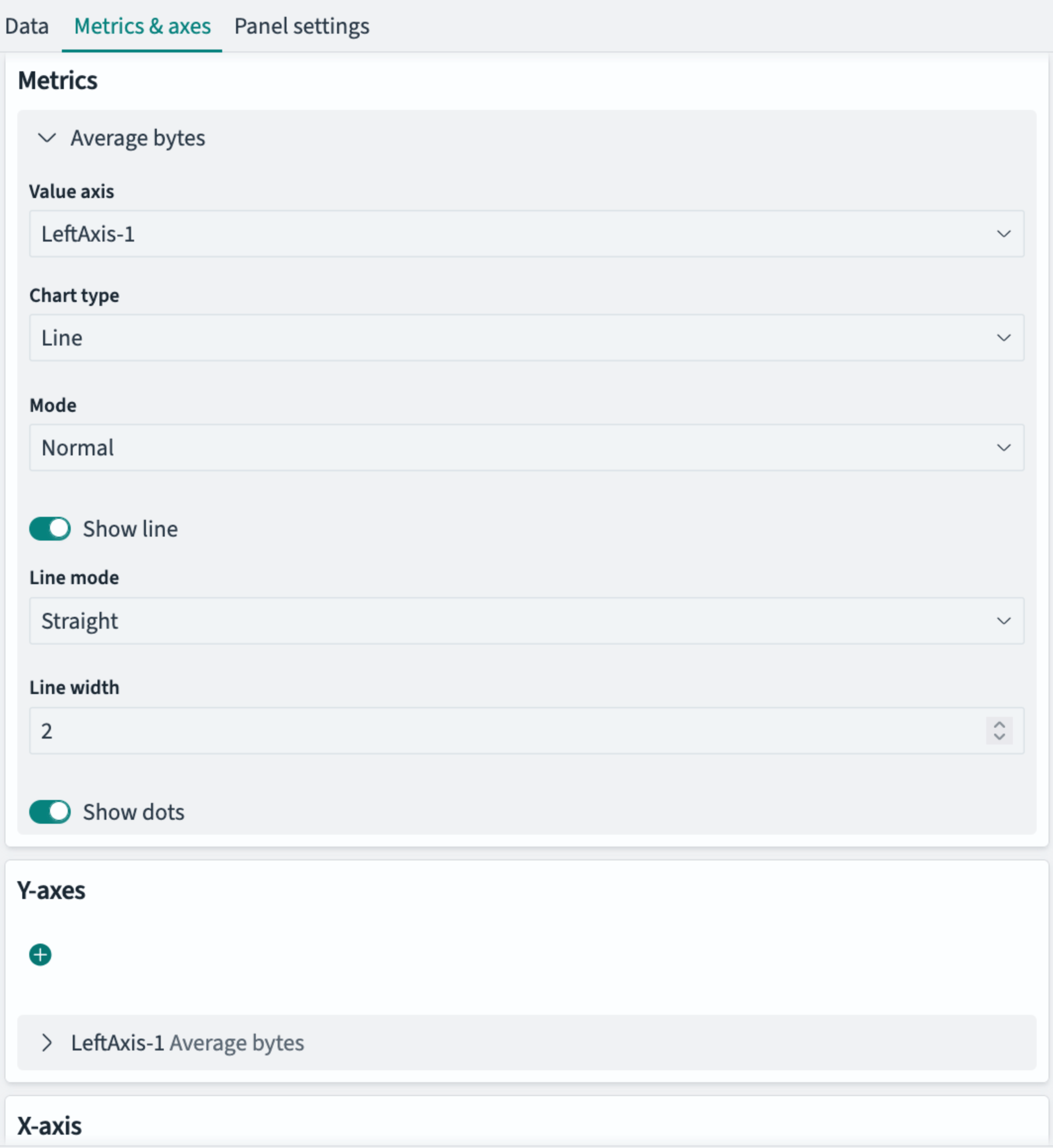
A typical Metrics tab is shown in the following image.
Like the Data tab, contents of the Metrics and axes (or Options) tab depend on the visualization type as well as the specifics of the data that you’ve selected. Options vary widely, but generally fall into the following categories. This is not an exhaustive list:
Metrics options
Metrics or display options include:
- The form factor of the graphic, such as Circle or Arc for gauges; or Line/Bar/Area chart types
- Visualization-specific options, such as Stacked or Normal (superimposed) area charts
- Whether to display lines and dots in line graphs, line width, and line style (such as straight or smoothed)
- Range widths
- Color schemas (for heat maps, for example)
Axis options
X- and Y-axis options include:
- Position of the axes
- Mode, such as normal or percentage scale
- Whether to display or truncate labels and their alignment
- Custom titles for axes
- Whether to display axis lines and tick marks
Panel settings
A typical Panel settings tab is shown in the following image.
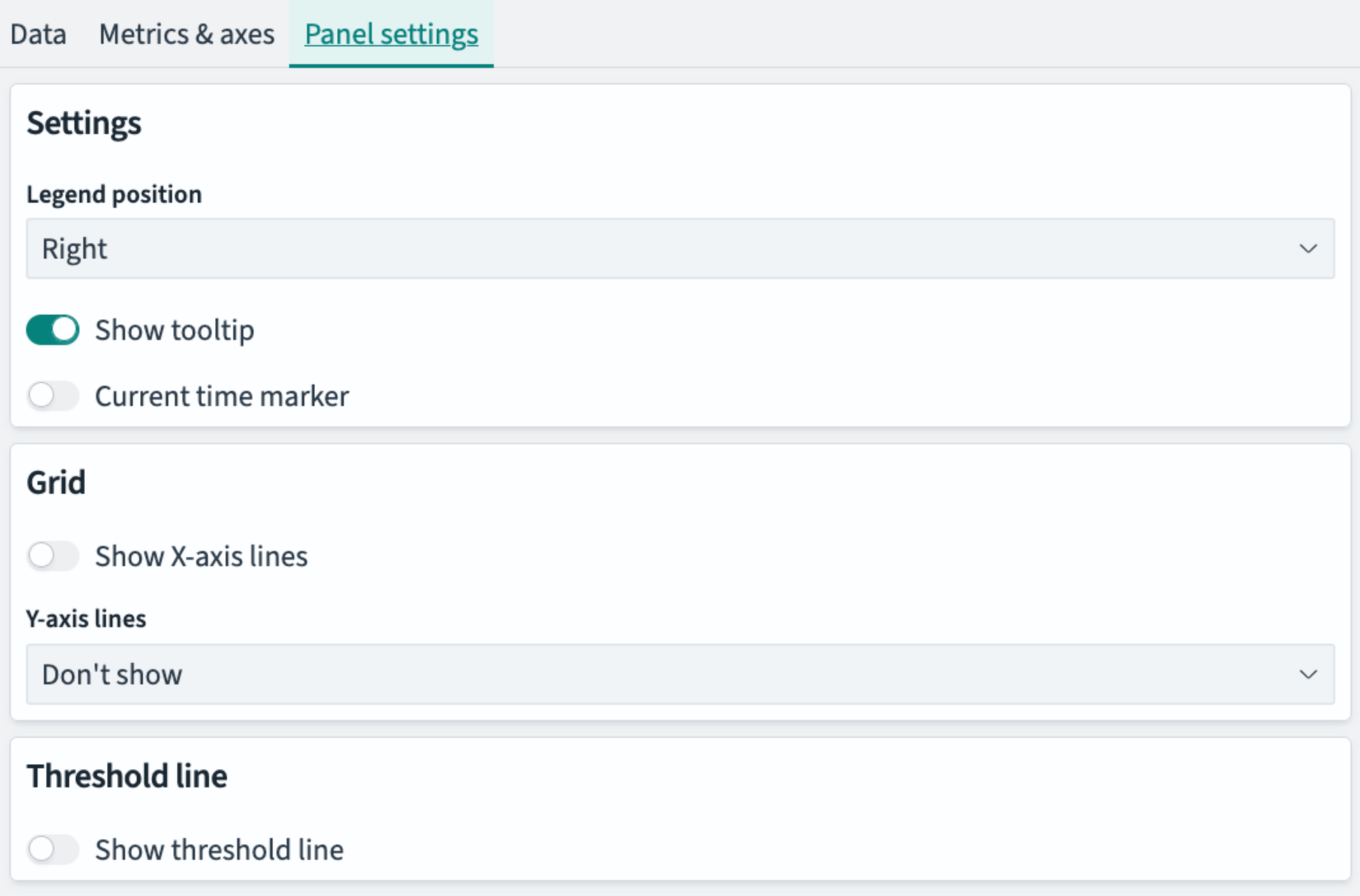
The Panel settings tab controls panel-wide display options such as the following:
- Change the position of the legend
- Show a threshold line
- Highlight the current time on a timeline
- Show or hide vertical or horizontal grid lines
- Label values on charts
Legend colors
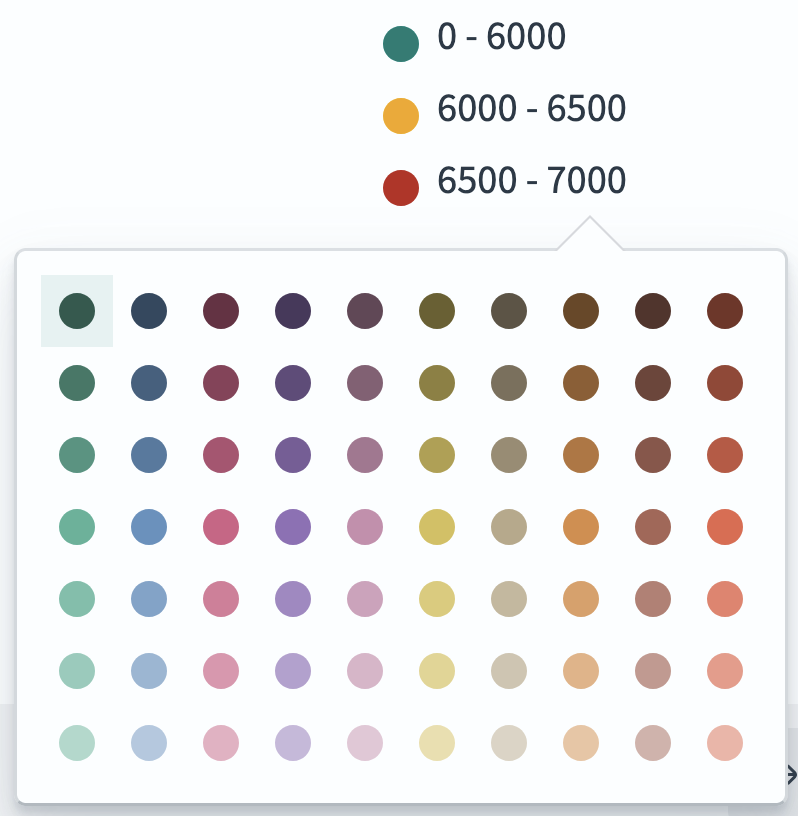
The legend shows the color key in charts where range, categorical, or text variables are represented by colors.
Use the legend to change the colors of a graphical element. To change a color, follow these steps:
-
Select an entry in the legend.
-
Choose a color from the palette that appears.
Next steps
- For a hands-on tutorial, see Creating aggregation-based visualizations.