Creating visualizations using queries
The visualization editor lets you create visualizations by writing Piped Processing Language (PPL) or Prometheus Query Language (PromQL) queries. The editor automatically maps query result fields to chart axes and suggests a chart type based on the shape of your data. To open the visualization editor from a dashboard, select Create new > Add visualization.
Prerequisites
Before using the visualization editor, complete the following setup steps.
Step 1: Enable required settings
Add the following settings to your opensearch_dashboards.yml file:
workspace.enabled: true
explore.enabled: true
After updating the configuration file, restart OpenSearch Dashboards for the changes to take effect.
Step 2: Create a workspace
The visualization editor requires a workspace. To create a workspace, follow these steps:
- Navigate to the OpenSearch Dashboards home page.
- Select Create workspace.
- Enter a workspace name.
- Select the Analytics (all features) use case.
- Select Create workspace.
For more information, see Create a workspace.
Step 3: Configure a data source
The visualization editor requires a dataset associated with your workspace:
-
For PPL, configure an index pattern:
- Inside your workspace, go to Index patterns (under Management).
- Select Create index pattern.
- Enter the index name (for example,
opensearch_dashboards_sample_data_logs). - Select Next step.
- Select a time field (for example,
@timestamp). - Select Create index pattern.
For more information, see Index patterns.
- For PromQL (Prometheus data source), configure a Prometheus data source connection for your workspace. For more information, see Connecting Prometheus to OpenSearch.
Step 4 (Optional): Install sample data
The examples in this documentation use the OpenSearch Dashboards sample datasets. To install the sample datasets, follow these steps:
- In the left navigation panel, expand Manage workspace and select Sample data.
- Select the Add data button in the Sample log data tile and any others that you want to add. The examples in this section use the sample log data.
For more information, see Adding sample data.
Navigating the visualization editor UI
The following image shows the main components of the visualization editor.
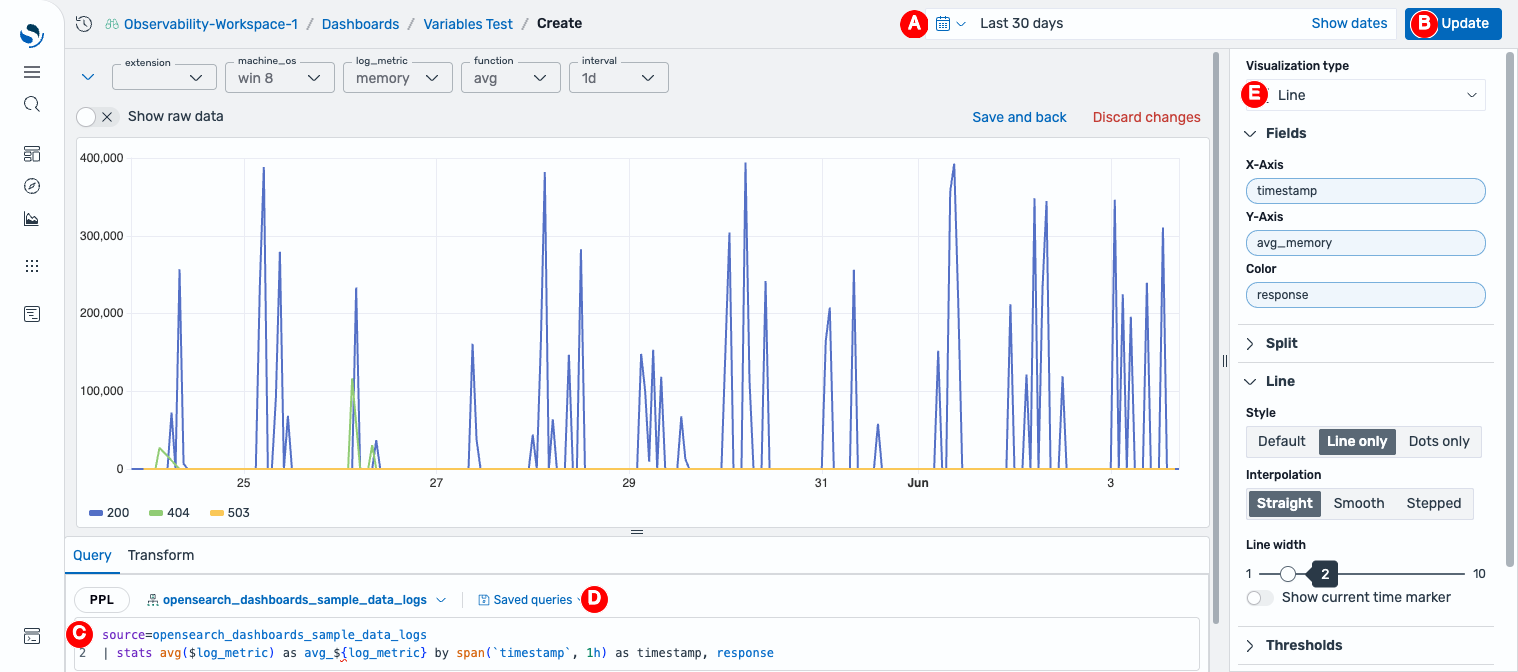
- The time filter (A) selects the time range for query results.
- The Update button (B) runs or refreshes the query.
- The query editor (C) is where you write PPL queries.
- The Saved queries dropdown (D) saves and loads reusable queries.
- The configuration panel (E) contains the chart type selector, field mappings, and style settings.
Creating a visualization
To open the visualization editor, use one of the following methods:
- From the left navigation menu, select Explorer > Logs, then select the Visualization tab.
- From a dashboard, select the add panel icon, then select Add visualization.
To create a visualization, follow these steps:
- Select a dataset from the dataset selector in the query bar (for example, opensearch_dashboards_sample_data_logs).
-
Write a PPL query in the query editor. If you selected a dataset, start the query with a pipe character (
|). Otherwise, specify the source explicitly usingsource =. For example, the following query counts log events per hour:source = opensearch_dashboards_sample_data_logs | stats count() by SPAN(@timestamp, 1h)If
opensearch_dashboards_sample_data_logsis already selected as the dataset, you can omit thesource:| stats count() by SPAN(@timestamp, 1h) - Select Update or press Enter to run the query.
- The editor automatically selects a chart type and maps fields to axes based on your query results. To change the chart type, use the Visualization type dropdown.
- To customize the field mapping, use the Fields panel.
Using dashboard variables
You can use dashboard variables to create dynamic, interactive visualizations. Variables let you switch between filter values, metrics, time intervals, and aggregation functions without editing the query. Reference variables in your PPL or PromQL queries using $variableName or ${variableName} syntax.
For more information, see Dashboard variables.
Saving a visualization
To save a visualization, select Save (or Save and back if you opened the editor from a dashboard). Enter a name for the visualization and select Save.
If you opened the visualization editor from a dashboard, the visualization is automatically added to that dashboard after saving. If you created the visualization from Explorer > Logs, save it first, then add it to a dashboard manually.
Saving and reusing queries
To save a PPL query for reuse, select Saved queries > Save query. In the dialog, configure the following options.
| Option | Description |
|---|---|
| Save as new query | When selected, saves the query as a new entry rather than overwriting an existing one. |
| Name | A name for the saved query. |
| Description | An optional description of the query. |
| Include filters | When enabled, saves the currently applied filters along with the query. |
| Include time filter | When enabled, saves the current time range along with the query. |
Select Save changes to save the query.
To load a previously saved query, select Saved queries > Open query, then select a query from the list and select the Open query button. The saved query is loaded into the query editor.
Visualization types
For a list of supported chart types and their expected data shapes, see Visualization types.
Configuring visualizations
Shared configuration options (fields, split, axes, tooltip, legend, thresholds, and more) apply across multiple visualization types. For details, see Configuring visualizations in the visualization editor.