Using the field select tool
By default, the Discover application’s Results table displays all fields for every document in the table. In the field select tool, you can select which data fields appear in the Results table.
The field select tool is in the vertical panel to the immediate left of the Discover application pane. It is available only in the Discover application.
Navigating the field select tool
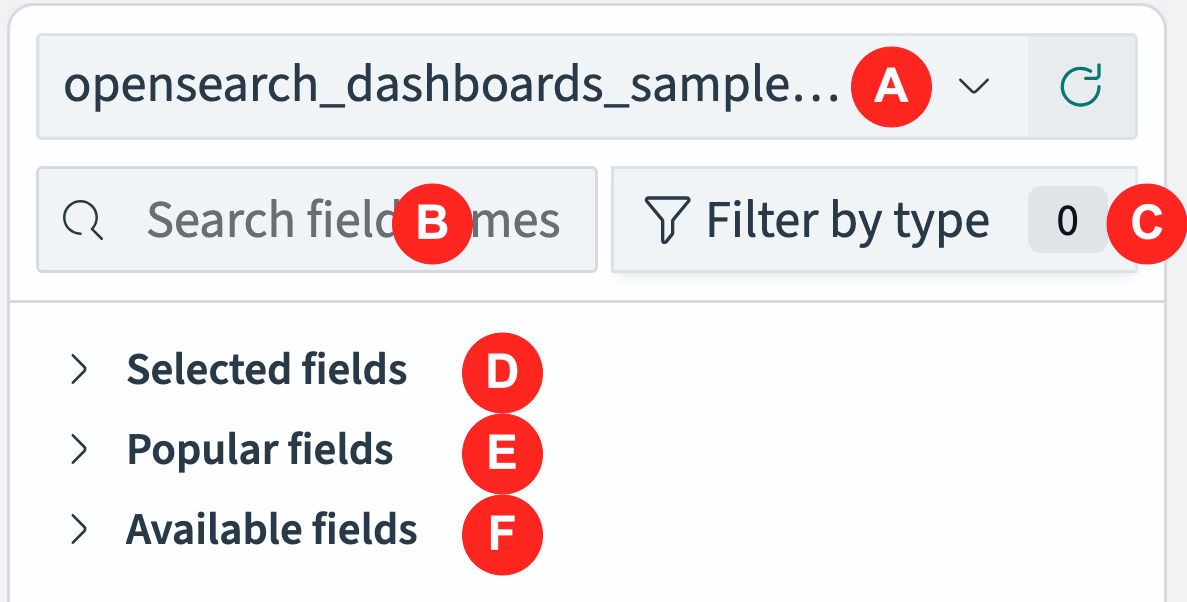
The following components make up the field select tool.
- The Index patterns dropdown (A) presents all available index patterns. The selected index pattern determines what data is loaded and therefore which fields are available in the field select tool.
- The Search field names (B) box narrows the fields available in the select tool by matching field names to your search string.
- The Filter by type dropdown (C) narrows the fields available based on data properties such as data type and searchability.
- The Selected fields list (D) is a collapsible list of all selected fields.
- The Popular fields list (E) is a collapsible list of recently selected fields.
- The Available fields list (F) is a collapsible list of all fields that have not been selected.
The Selected fields, Popular fields, and Available fields lists are mutually exclusive. A field appears in only one of these collapsible lists.
Selecting an index pattern
Before exploring and visualizing data, you must select an index pattern.
An index pattern is equivalent to a table view in a traditional relational database system. It defines the dataset that you are interested in exploring and visualizing. For information about creating index patterns, see Index patterns.
To select an index pattern, follow these steps:
- In the field select tool, select an index pattern from the Index patterns dropdown.
Selecting fields to display
To select a field for display in the Results table, follow these steps:
-
Select
 (expand) Available fields to expand the Available fields.
If the field has been used recently, it might be in the Popular fields list instead of Available fields.
-
(Optional) Use the
 Filter by type popover to narrow the available fields by type.
 -
(Optional) Enter text in the Search field names box to narrow the list of available fields.
-
Select a field in the Available fields or Popular fields list.
-
Choose the
 (add) icon of the selected field.
The field is added as a column in the Results table in the Discover application pane.
Removing fields
To remove a field from display in the Results table, follow these steps:
-
Select
(expand) Selected fields to expand the Selected fields. -
Choose a field in the Selected fields list.
-
Choose the
 (remove) icon of the selected field.
The field is removed from the Results table in the Discover application pane.
If the removed field was the last selected field, the Results table defaults back to displaying all fields.
Filtering fields by type
Often the list of available fields is long. To avoid scrolling through the list, filter fields in the field select tool by data type and by whether they are aggregatable or searchable.
The number to the right of Filter by type indicates the number of active type filters.
Filtering fields by data type
To narrow the fields in the field select tool by data type, follow these steps:
-
Select
Filter by type. -
In the Filter by type popover, select a data type from the Type dropdown.
The fields are restricted to the selected type.
Fields are restricted in all the lists: Selected fields, Popular fields, and Available fields.
Filtering fields by property
To filter fields by property, follow these steps:
-
Select
Filter by type. -
In the Filter by type popover, select an Aggregatable option. For example, selecting yes filters out all non-aggregatable fields.
-
In the Filter by type popover, select a Searchable option. For example, selecting yes filters out all non-searchable fields.
Searchable fields are fields that are included in the inverted index and are available for search. For more information, see Index.
Filtering missing fields
To filter out fields with missing data, follow these steps:
-
Select
Filter by type. -
In the Filter by type popover, activate the Hide missing fields toggle.