Using the search bar
The same search bar is at the top of the Discover, Dashboard, and Visualize applications. Use it to filter the data displayed in those applications.
In the search bar, you do text-based searches using either of two languages:
-
Dashboards Query Language (DQL): A basic query language with nested field queries.
-
Query string query language (Lucene): A query language based on the Apache Lucene query language.
The terms Query string query language and Lucene are used interchangeably in the documentation and UI.
Query string query language and DQL support different features. For example, DQL has nested expressions; Lucene has fuzzy searches and regular expressions. For a full comparison, see DQL and query string query quick reference.
Navigating the search bar

The following components make up the search bar.
- The
 (save) icon (A) saves the current query.
 - The Search box (B) accepts a query in the currently selected query language.
- The query language selector (C) opens the Syntax options popover for selecting the query language.
Changing the query language
The current query language, OpenSearch Dashboards Query Language (DQL) or Query String Query Language (Lucene), is displayed at the right side of the Search box.
To switch between DQL and query string query language, follow these steps:
-
Choose the query language selector (displaying the current query language).
-
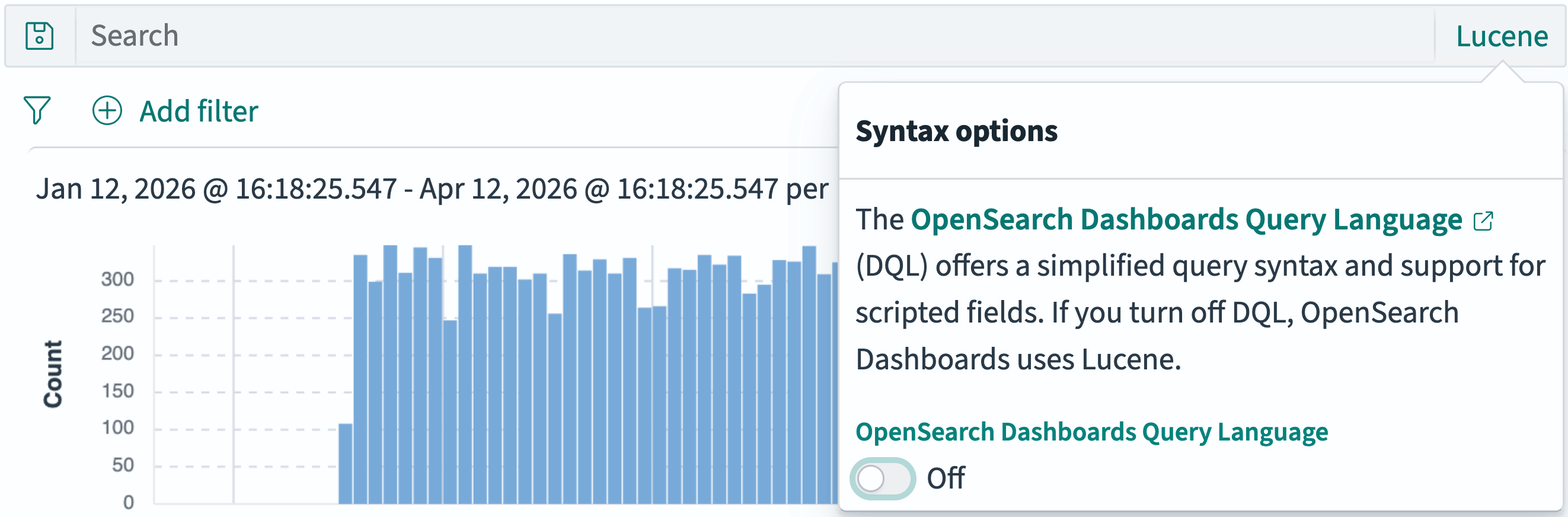
In the Syntax options dialog, toggle OpenSearch Dashboards Query Language on or off.
If OpenSearch Dashboard Query Language (DQL) is turned off, the query language is set to OpenSearch Dashboards Query Language, and the query language selector displays Lucene.
Filtering based on a query
To filter using the Search box, follow these steps:
-
Enter a filter criterion in the Search box. For example, using DQL against the OpenSearch e-commerce sample data, enter
category: "Men's Clothing".For information about querying in DQL, see Dashboards Query Language (DQL).
For information about querying in Lucene, see Query string query language (Lucene).
-
Select Refresh.

The Results table is updated to reflect filtering by the query.
Editing a filter query
To change the query, follow these steps:
-
Edit the filter criterion in the Search box. For example, to change the DQL query in the previous example, change the query to
sales_by_category is "Women's Clothing". -
Select Refresh.
The Results table is updated to reflect the altered query.
Saving a query
Use this procedure to save any combination of:
- The DQL or Lucene query.
- The filters.
- The time filter.
To save a query, follow these steps:
- Select the (save) icon.
There does not have to be a query in the Search box. You can use this procedure to save the filters and/or the time filter without saving a query.
-
From the Save popover, select Save current query or Save as new.
-
In the Save query dialog, enter a Name for the query.
-
(Optional) In the Description box, enter a description of the query.
-
(Optional) Activate the Include filters toggle to also save the filters in the filter list.
-
(Optional) Activate the Include time filter toggle to also save the currently active time filter.
-
Select Save.
Loading a saved search
To load a saved search, follow these steps:
-
Select the
(save) icon. -
Select the search you want to load.
The filter loads and the data displayed in the Discover application is updated.
Editing a query
To change an existing query, follow these steps:
-
Select the
(save) icon. -
Select the query you want to edit.
-
Filter the data using the search query, filters, and time filter you want to update a query to.
-
Again select the
(save) icon. The current saved query is checked in the list. -
Select Save changes.
-
(Optional) In the Save query dialog, enter or change the Description.
-
Select Save.
Deleting a query
To delete a query, follow these steps:
-
Select the
(save) icon. -
Hover over the query you want to delete.
-
Select the
 (trash) icon.
 -
In the delete confirmation dialog, select Delete.