Histograms in the visualization editor
A histogram displays the distribution of a numeric field by grouping values into bins (buckets) and showing the count of values in each bin as vertical bars.
Creating a histogram
The following example demonstrates a basic histogram visualization. Before you begin, complete the prerequisites.
Basic histogram
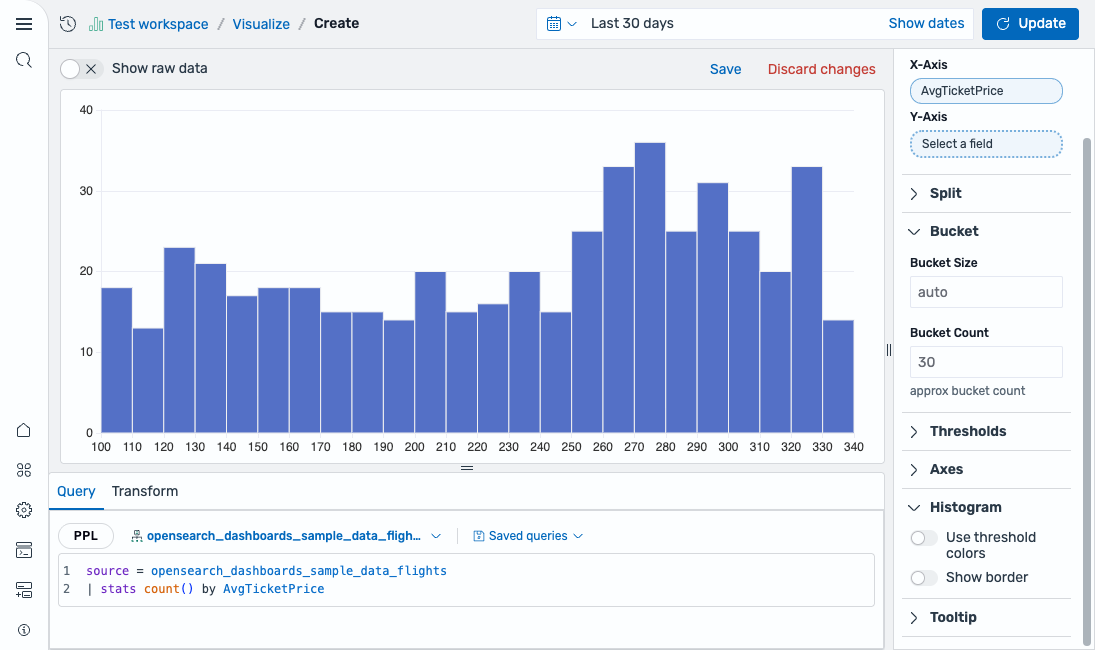
Start with a query that counts values grouped by a numeric field:
source = opensearch_dashboards_sample_data_flights | stats count() by AvgTicketPrice
After running this query, select Histogram as the chart type. The editor maps the field as follows:
- The X-Axis displays the
AvgTicketPricefield.
The result is a histogram showing the distribution of ticket prices, as shown in the following image.
Configuring a histogram
You can configure the following settings in the configuration panel.
Fields
In the Fields section, configure the fields displayed on each axis.
| Field | Description |
|---|---|
| X-Axis | Select a numeric field to distribute into buckets along the horizontal axis. |
| Y-Axis | Select a numeric field for the vertical axis. If left blank, the chart displays the count of values in each bucket. |
Split
In the Split by dropdown list, select a field to split the chart into separate elements by value. For more information, see Split.
Bucket
The following settings control how data is grouped into bins.
| Setting | Description |
|---|---|
| Bucket Size | Sets the width of each bin. Enter a numeric value or leave as auto to let the editor calculate an appropriate size. |
| Bucket count | Sets the maximum number of bins to display. |
Thresholds
For information about configuring thresholds, see Thresholds.
Axes
The X-axis and Y-axis share the same configuration options. For more information, see Axes.
Histogram
Use the following settings to customize the appearance of the histogram.
| Setting | Description |
|---|---|
| Use threshold colors | When enabled, colors bars based on threshold ranges. |
| Show border | When enabled, adds a border around each bar. |
Tooltip
Toggle the Show tooltip selector to enable or disable tooltips.