Reporting using OpenSearch Dashboards
Use OpenSearch Dashboards to generate reports from the page that you are viewing and to create, manage, and delete report definitions. For information about report definitions, the file formats available for each report source, and the permissions required, see Reporting. To perform these operations programmatically, see Reporting API.
Generating reports
To generate a report from the interface, follow these steps:
- Open the dashboard, visualization, notebook, or saved search that you want to report on.
- On the top menu, select Reporting.
- Select the format:
- For dashboards, visualizations, and notebooks, select Download PDF or Download PNG.
- For saved searches in Discover, select Generate CSV or Generate XLSX.
Reports are generated asynchronously in the background and might take a few minutes, depending on the size of the report. A notification appears when your report is ready, and the file is downloaded.
To generate reports on a schedule, select Create report definition in the Reporting menu, and then proceed to Creating reports using a definition. This option fills in many of the fields based on the page you were viewing.
To view the reports that you generated, select View reports in the Reporting menu.
Creating reports using a definition
Definitions let you generate reports on a periodic schedule.
- On the top menu, go to OpenSearch Plugins > Reporting.
- In the Report definitions section, select Create.
- In Report settings, enter a name and optional description for your report.
- Choose the Report source: Dashboard, Visualization, Saved search, or Notebook.
- Select your dashboard, visualization, saved search, or notebook. Then choose a time range for the report.
- Choose a file format for the report. For a saved search, you can also set the Record limit.
- (Optional) Add a header or footer to the report. Headers and footers are only available for dashboard, visualization, and notebook reports.
-
In Report trigger, choose either On demand or Schedule.
For scheduled reports, select either Recurring or Cron based. Recurring reports run daily or at a specified interval. Cron expressions give you more flexibility. For more information, see Cron expressions.
- Select Create.
Deleting report definitions
You can delete report definitions from OpenSearch Dashboards or by using the API. Deleting a report definition does not delete previously generated reports.
Generated reports cannot be deleted individually.
Deleting from OpenSearch Dashboards
To delete a report definition, follow these steps:
- On the top menu, go to OpenSearch Plugins > Reporting.
- In the Report definitions section, select the name of the report definition you want to delete.
- On the report definition details page, choose Delete.
- In the confirmation dialog, choose Delete.
Deleting using the API
To delete a report definition, send the following request:
DELETE _plugins/_reports/definition/{report_definition_id}
To find the report definition ID, list all definitions:
GET _plugins/_reports/definitions
For the full set of reporting endpoints, see Reporting API.
Troubleshooting
You can use the following topics to troubleshoot and resolve issues with reporting.
Chromium fails to launch with OpenSearch Dashboards
While creating a report for dashboards or visualizations, you might see the following error:
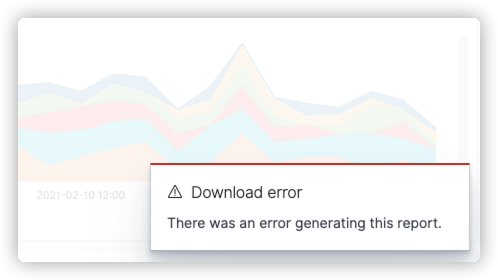
This problem can occur for two reasons:
-
You don’t have the correct version of
headless-chrometo match the operating system on which OpenSearch Dashboards is running. Download the correct version. -
You’re missing additional dependencies. Install the required dependencies for your operating system from the additional libraries section.
Characters not loading in reports
You might encounter an issue where UTF-8 encoded characters look fine in your browser, but they don’t load in your generated reports because you’re missing the required font dependencies. Install the font dependencies, and then generate your reports again.