Create and request visualization reports
To generate a report, provide the Reporting CLI with the OpenSearch Dashboards URL of the dashboard, visualization, notebook, or saved search that you want to capture.
Getting the URL
To get the URL, follow these steps:
- In OpenSearch Dashboards, open the dashboard, visualization, notebook, or saved search.
- On the top menu, select Share > Permalinks.
- In Generate the link as, select Saved object.
-
Select Copy link.
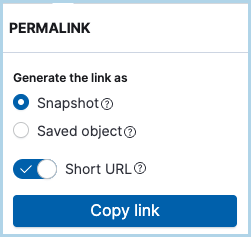
A Saved object link is percent-encoded and contains the time range of the page. A Snapshot link also contains the current filters and query, but it can include characters, such as ' and !, that the shell interprets. Enclose the URL in single quotes when you pass it to the -u option. To use a Snapshot link that contains a single quote, save the URL in the OPENSEARCH_URL variable of a .env file. For more information, see Use environment variables with the Reporting CLI.
Don’t use a link generated with the Short URL option. The Reporting CLI uses the URL path to determine the report source, so for a short URL, the report includes the OpenSearch Dashboards header and buttons.
If the URL does not include a time range, the report uses the default time range of OpenSearch Dashboards.
Example: Downloading a PDF report
The following command downloads a PDF report of a dashboard to the current directory:
opensearch-reporting-cli -u '<dashboards-url>'
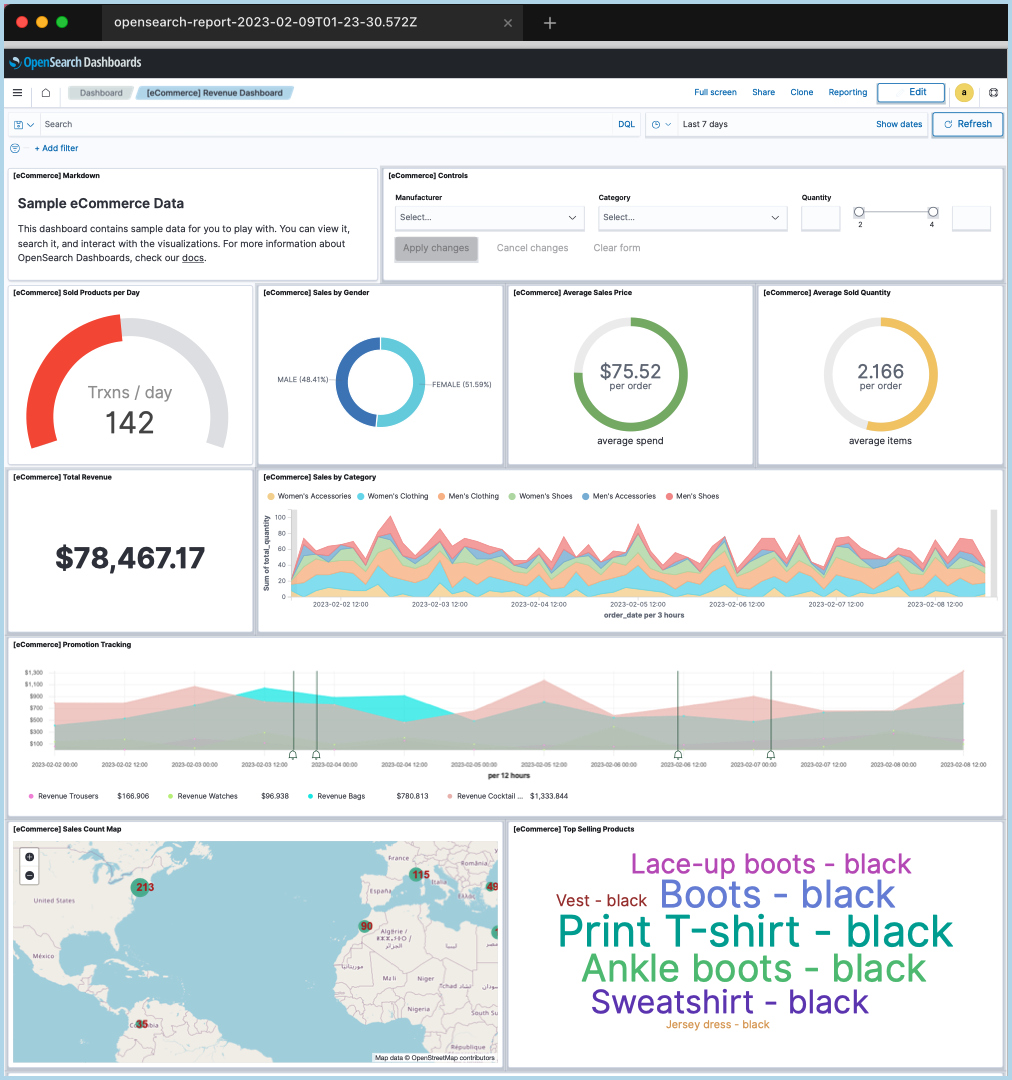
PDF is the default format. If you don’t specify a file name, the report is saved as opensearch-report-<timestamp>.pdf. The following image shows an example PDF report.
Example: Downloading a PNG report of a long dashboard
OpenSearch Dashboards loads dashboard panels only when they are visible in the browser window. By default, the window is 600 pixels tall, so panels in the lower part of a long dashboard can appear empty in the report. To capture all panels, set the -l option to a height that fits the entire dashboard:
opensearch-reporting-cli -u '<dashboards-url>' -f png -l 2200 -n web-traffic
The report is saved as web-traffic.png. If a file with the same name already exists in the current directory, the Reporting CLI does not overwrite it and the command fails.
Example: Downloading a CSV report of a saved search
CSV reports are supported only for saved searches. To download a CSV report, provide the URL of a saved search and set the window width to 800:
opensearch-reporting-cli -u '<saved-search-url>' -f csv -w 800 -n orders
The Reporting CLI generates the CSV report by selecting Reporting > Generate CSV in Discover. When the window is resized to any other width after the page loads, the Reporting menu is not displayed, and the command fails with the error No element found for selector: button[id="downloadReport"].
Example: Requesting a report using basic authentication
If the Security plugin is enabled, provide the authentication type and credentials. The following command uses basic authentication to request a PDF report:
opensearch-reporting-cli -u '<dashboards-url>' -a basic -c '<username>:<password>'
To avoid passing the password on the command line, set the OPENSEARCH_USERNAME and OPENSEARCH_PASSWORD environment variables instead of the -c option.
Example: Sending a report by email using SMTP
The following command generates a PDF report and sends it as an attachment to the specified recipient using an SMTP server:
opensearch-reporting-cli -u '<dashboards-url>' -e smtp --smtphost <smtp-host> --smtpport <smtp-port> --smtpusername <smtp-username> --smtppassword <smtp-password> -s <sender-email> -r <recipient-email>
The email contains an image of the page, a link to the page in OpenSearch Dashboards, and the report as an attachment. The report is also saved to the current directory. To send the email to multiple recipients, separate the addresses with commas. To change the email subject and body, use the --subject and --note options. The --note option accepts either a string or the path to a text file.
Example: Sending a report by email using Amazon SES
The following command generates a PNG report and sends it using Amazon SES:
opensearch-reporting-cli -u '<dashboards-url>' -f png -e ses -s <sender-email> -r <recipient-email>
Amazon SES requires AWS credentials and a verified sender address. For more information, see Using Amazon SES to request an email with a report attachment.
For all available options, see Reporting CLI options.