Identifying document language for multilingual search
To search text in several languages, you can index each language in a field with its own language analyzer. This tutorial shows you how to use an ML inference ingest processor to detect the language of text fields during ingestion and copy each field to a language-specific field. The tutorial uses the Hugging Face papluca/xlm-roberta-base-language-detection text classification model hosted on Amazon SageMaker and applies to both self-managed OpenSearch and Amazon OpenSearch Service.
Replace the placeholders beginning with the prefix your_ with your own values.
Prerequisite: Deploy the model to Amazon SageMaker
To deploy the model to a SageMaker endpoint, run the following Python code in a SageMaker notebook. The code uses SageMaker Python SDK 2.x, which you can install by running pip install "sagemaker<3":
import sagemaker
import boto3
from sagemaker.huggingface import HuggingFaceModel

try:
    role = sagemaker.get_execution_role()
except ValueError:
    iam = boto3.client('iam')
    # Replace with your SageMaker execution role name if different
    role = iam.get_role(RoleName='sagemaker_execution_role')['Role']['Arn']

# Hub model configuration from Hugging Face
hub = {
    'HF_MODEL_ID':'papluca/xlm-roberta-base-language-detection',
    'HF_TASK':'text-classification'
}

# Create a Hugging Face model class
huggingface_model = HuggingFaceModel(
    transformers_version='4.37.0',
    pytorch_version='2.1.0',
    py_version='py310',
    env=hub,
    role=role,
)

# Deploy the model to SageMaker Inference
predictor = huggingface_model.deploy(
    initial_instance_count=1,
    instance_type='ml.m5.large'
)

print(f"SageMaker Endpoint Name: {predictor.endpoint_name}")

# Test the model
prediction = predictor.predict({
    "inputs": "I like you. I love you",
})
print(prediction)
If you run the code outside a SageMaker notebook, sagemaker.get_execution_role() returns the IAM role that you’re signed in with, if any. In this case, set role to the ARN of your SageMaker execution role.
Note the endpoint name in the output; you’ll use it to create a connector in the next step. You can also find the endpoint name in the SageMaker console in Inference > Endpoints.
Step 1: Create a connector
The connector configuration depends on where you run OpenSearch. In self-managed OpenSearch, the connector signs requests to SageMaker using AWS access keys. In Amazon OpenSearch Service, the connector uses an AWS Identity and Access Management (IAM) role. Follow the steps for your platform.
Option 1: Self-managed OpenSearch
Follow these steps to create a connector in self-managed OpenSearch.
Step 1.1: Create an IAM user
Create an IAM user with programmatic access and attach the following policy, which allows the user to invoke the SageMaker endpoint:
{
    "Version": "2012-10-17",
    "Statement": [
        {
            "Effect": "Allow",
            "Action": "sagemaker:InvokeEndpoint",
            "Resource": "arn:aws:sagemaker:your_aws_region:your_aws_account_id:endpoint/your_sagemaker_endpoint_name"
        }
    ]
}
Generate an access key and secret key for the user.
Step 1.2: Create the connector
To create a connector that uses the IAM user’s credentials, send the following request:
POST /_plugins/_ml/connectors/_create
{
  "name": "SageMaker language identification model connector",
  "description": "Connector for a language identification model in SageMaker",
  "version": 1,
  "protocol": "aws_sigv4",
  "credential": {
    "access_key": "your_aws_access_key",
    "secret_key": "your_aws_secret_key",
    "session_token": "your_aws_session_token"
  },
  "parameters": {
    "region": "your_aws_region",
    "service_name": "sagemaker"
  },
  "actions": [
    {
      "action_type": "predict",
      "method": "POST",
      "url": "https://runtime.sagemaker.${parameters.region}.amazonaws.com/endpoints/your_sagemaker_endpoint_name/invocations",
      "headers": {
        "content-type": "application/json"
      },
      "request_body": "{ \"inputs\": \"${parameters.inputs}\" }"
    }
  ]
}
The session_token is required only for temporary credentials. If you use the IAM user’s access key, omit session_token.
The response contains a connector ID:
{
  "connector_id": "bLYgeJEBXV92Z6od5rXM"
}
Note the connector ID; you’ll use it in Step 2.
Option 2: Amazon OpenSearch Service
Follow these steps to create a connector in Amazon OpenSearch Service.
Step 1.1: Create an IAM role to invoke the model
Go to the IAM console, create a new IAM role named my_invoke_sagemaker_model_role, and add the following trust policy and permissions. The connector uses this role to invoke the model:
- Custom trust policy:
{
    "Version": "2012-10-17",
    "Statement": [
        {
            "Effect": "Allow",
            "Principal": {
                "Service": "es.amazonaws.com"
            },
            "Action": "sts:AssumeRole"
        }
    ]
}
- Permissions:
{
    "Version": "2012-10-17",
    "Statement": [
        {
            "Effect": "Allow",
            "Action": "sagemaker:InvokeEndpoint",
            "Resource": "arn:aws:sagemaker:your_aws_region:your_aws_account_id:endpoint/your_sagemaker_endpoint_name"
        }
    ]
}
Note the role ARN; you’ll use it in the following steps.
Step 1.2: Create an IAM role for signing connector requests
Create an IAM role named my_create_sagemaker_connector_role for signing your Create Connector API request. Add the following trust policy and permissions:
- Custom trust policy:
{
    "Version": "2012-10-17",
    "Statement": [
        {
            "Effect": "Allow",
            "Principal": {
                "AWS": "your_iam_user_arn"
            },
            "Action": "sts:AssumeRole"
        }
    ]
}
You’ll use the your_iam_user_arn IAM user to assume the role in Step 1.4.
- Permissions:
{
    "Version": "2012-10-17",
    "Statement": [
        {
            "Effect": "Allow",
            "Action": "iam:PassRole",
            "Resource": "your_iam_role_arn_created_in_step1.1"
        },
        {
            "Effect": "Allow",
            "Action": "es:ESHttpPost",
            "Resource": "your_opensearch_domain_arn"
        }
    ]
}
Note this role ARN; you’ll use it in the following steps.
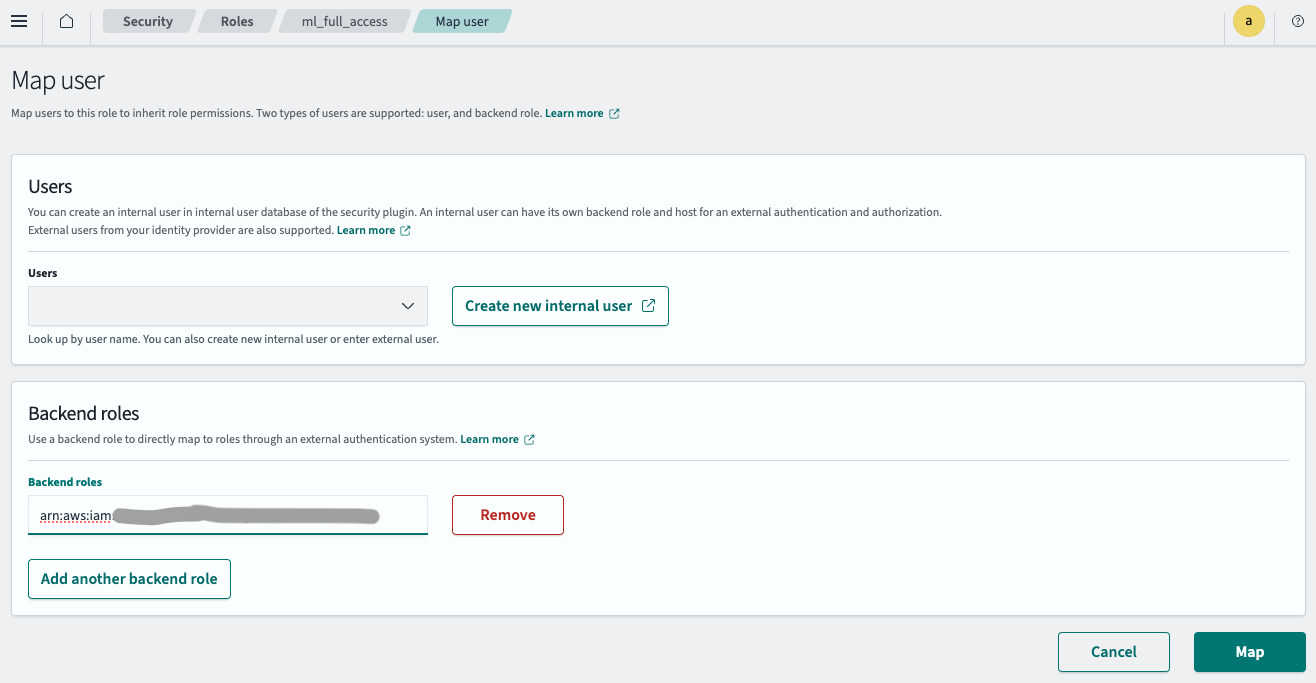
Step 1.3: Map a backend role
Follow these steps to map a backend role:
- Log in to OpenSearch Dashboards and select Security on the top menu.
- Select Roles, and then select the ml_full_access role.
- On the ml_full_access role details page, select Mapped users, and then select Manage mapping.
- Enter the IAM role ARN created in Step 1.2 in the Backend roles field, as shown in the following image.
- Select Map.
Step 1.4: Create the connector
To create the connector, run the following Python code. The code assumes the role created in Step 1.2 and signs the request using its temporary credentials:
import boto3
import requests
from requests_aws4auth import AWS4Auth

host = 'your_amazon_opensearch_domain_endpoint'
region = 'your_amazon_opensearch_domain_region'
service = 'es'

assume_role_response = boto3.Session().client('sts').assume_role(
  RoleArn="your_iam_role_arn_created_in_step1.2",
  RoleSessionName="your_session_name"
)
credentials = assume_role_response["Credentials"]
awsauth = AWS4Auth(credentials["AccessKeyId"], credentials["SecretAccessKey"], region, service, session_token=credentials["SessionToken"])

path = '/_plugins/_ml/connectors/_create'
url = host + path

payload = {
  "name": "SageMaker language identification model connector",
  "description": "Connector for a language identification model in SageMaker",
  "version": 1,
  "protocol": "aws_sigv4",
  "credential": {
    "roleArn": "your_iam_role_arn_created_in_step1.1"
  },
  "parameters": {
    "region": "your_sagemaker_model_region",
    "service_name": "sagemaker"
  },
  "actions": [
    {
      "action_type": "predict",
      "method": "POST",
      "url": "https://runtime.sagemaker.${parameters.region}.amazonaws.com/endpoints/your_sagemaker_endpoint_name/invocations",
      "headers": {
        "content-type": "application/json"
      },
      "request_body": "{ \"inputs\": \"${parameters.inputs}\" }"
    }
  ]
}

headers = {"Content-Type": "application/json"}

r = requests.post(url, auth=awsauth, json=payload, headers=headers)
print(r.status_code)
print(r.text)
The script outputs a connector ID:
{"connector_id":"bLYgeJEBXV92Z6od5rXM"}
Note the connector ID; you’ll use it in the next step.
Step 2: Register and deploy the model
To register and deploy the model using the connector ID from Step 1, send the following request:
POST /_plugins/_ml/models/_register?deploy=true
{
  "name": "SageMaker language identification model",
  "function_name": "remote",
  "description": "Remote model for language identification",
  "connector_id": "bLYgeJEBXV92Z6od5rXM"
}
The response contains the model ID:
{
  "task_id": "hbYheJEBXV92Z6oda7Xb",
  "status": "CREATED",
  "model_id": "hrYheJEBXV92Z6oda7X7"
}
Note the model ID; you’ll use it in the following steps.
Step 3: Test the model
To test the model, send the following request:
POST /_plugins/_ml/models/hrYheJEBXV92Z6oda7X7/_predict
{
  "parameters": {
    "inputs": "Say this is a test"
  }
}
The response contains the detected language in the label field and the confidence score in the score field. The label is located at the response[0].label path in the dataAsMap object; you’ll use this path in the ingest pipeline:
{
  "inference_results": [
    {
      "output": [
        {
          "name": "response",
          "dataAsMap": {
            "response": [
              {
                "label": "en",
                "score": 0.9411176443099976
              }
            ]
          }
        }
      ],
      "status_code": 200
    }
  ]
}
The model returns language codes such as en, de, and es. For the list of languages that the model detects, see the model card.
Step 4: Create an ingest pipeline
Create an ingest pipeline that detects the language of the name and notes fields and copies each field to a language-specific field, such as name_en or notes_de. The pipeline contains the following processors:
- An
ml_inferenceprocessor that invokes the model for each field. Theinput_mapandoutput_maparrays are processed in order: the firstinput_mapobject corresponds to the firstoutput_mapobject, so both arrays must contain the same number of objects. The processor invokes the model once for eachinput_mapobject and stores the detected language in thepredicted_name_languageandpredicted_notes_languagefields. - Two
copyprocessors that copy thenameandnotesfields to target fields whose names contain the detected language. Thetarget_fielduses a template snippet to insert the detected language.
To create the pipeline, send the following request:
PUT /_ingest/pipeline/language_identification_pipeline
{
  "description": "Ingest pipeline to identify language and create language-specific fields",
  "processors": [
    {
      "ml_inference": {
        "model_id": "hrYheJEBXV92Z6oda7X7",
        "input_map": [
          {
            "inputs": "name"
          },
          {
            "inputs": "notes"
          }
        ],
        "output_map": [
          {
            "predicted_name_language": "response[0].label"
          },
          {
            "predicted_notes_language": "response[0].label"
          }
        ]
      }
    },
    {
      "copy": {
        "source_field": "name",
        "target_field": "name_{{predicted_name_language}}",
        "ignore_missing": true
      }
    },
    {
      "copy": {
        "source_field": "notes",
        "target_field": "notes_{{predicted_notes_language}}",
        "ignore_missing": true
      }
    }
  ]
}
Step 5: Create an index
Create an index that uses the ingest pipeline by default. The index mappings assign a language analyzer to each language-specific field that the pipeline creates for English, Spanish, and German text. For more information, see Language analyzers:
PUT /task_index
{
  "settings": {
    "index": {
      "default_pipeline": "language_identification_pipeline"
    }
  },
  "mappings": {
    "properties": {
      "name_en": { "type": "text", "analyzer": "english" },
      "name_es": { "type": "text", "analyzer": "spanish" },
      "name_de": { "type": "text", "analyzer": "german" },
      "notes_en": { "type": "text", "analyzer": "english" },
      "notes_es": { "type": "text", "analyzer": "spanish" },
      "notes_de": { "type": "text", "analyzer": "german" }
    }
  }
}
If the model detects a language that has no field in the mappings, OpenSearch creates the field using dynamic mapping, which uses the standard analyzer. To analyze text in other languages, add fields for those languages to the mappings.
Step 6: Ingest documents
Ingest documents in English, German, and Spanish into the index:
POST _bulk
{ "index": { "_index": "task_index", "_id": "1" } }
{ "name": "Buy catnip", "notes": "Mittens really likes the stuff from Humboldt." }
{ "index": { "_index": "task_index", "_id": "2" } }
{ "name": "Kaufen Sie Katzenminze", "notes": "Mittens mag die Sachen von Humboldt wirklich." }
{ "index": { "_index": "task_index", "_id": "3" } }
{ "name": "comprar hierba gatera", "notes": "A Mittens le gustan mucho las cosas de Humboldt." }
To verify that the pipeline detected the language, retrieve the German document:
GET /task_index/_doc/2
The document contains the detected languages and the language-specific name_de and notes_de fields:
{
  "_index": "task_index",
  "_id": "2",
  "_version": 1,
  "_seq_no": 1,
  "_primary_term": 1,
  "found": true,
  "_source": {
    "predicted_notes_language": "de",
    "notes": "Mittens mag die Sachen von Humboldt wirklich.",
    "notes_de": "Mittens mag die Sachen von Humboldt wirklich.",
    "predicted_name_language": "de",
    "name_de": "Kaufen Sie Katzenminze",
    "name": "Kaufen Sie Katzenminze"
  }
}
The English and Spanish documents contain the name_en and notes_en fields and the name_es and notes_es fields, respectively.
Step 7: Search the documents
To search all language-specific name fields, use a multi_match query with a wildcard field name:
GET /task_index/_search
{
  "query": {
    "multi_match": {
      "query": "comprar",
      "fields": ["name_*"]
    }
  }
}
The query matches the Spanish document because the name_es field is analyzed using the Spanish analyzer:
{
  "took": 2,
  "timed_out": false,
  "_shards": {
    "total": 1,
    "successful": 1,
    "skipped": 0,
    "failed": 0
  },
  "hits": {
    "total": {
      "value": 1,
      "relation": "eq"
    },
    "max_score": 0.13076457,
    "hits": [
      {
        "_index": "task_index",
        "_id": "3",
        "_score": 0.13076457,
        "_source": {
          "predicted_notes_language": "es",
          "name_es": "comprar hierba gatera",
          "notes_es": "A Mittens le gustan mucho las cosas de Humboldt.",
          "notes": "A Mittens le gustan mucho las cosas de Humboldt.",
          "predicted_name_language": "es",
          "name": "comprar hierba gatera"
        }
      }
    ]
  }
}
Related documentation
- ML inference processor
- Language analyzers
- Multi-match queries
- Connectors for third-party ML platforms