Dev Tools console
Use the Console tab in Dev Tools to send REST API requests to OpenSearch, including Query DSL search queries, index management operations, and cluster administration commands.
The console supports all OpenSearch REST APIs. For example, you can use the console to perform the following common operations:
- Search for documents using
match,term,range, and other query types. - Retrieve all documents from an index using
match_allqueries. - Count matching documents without retrieving them using the
_countendpoint. - Compute metrics, statistics, and summaries of your data using aggregations.
- Narrow down search results by combining queries with filters.
Writing and sending requests
Write your queries in the editor pane on the left side of the console. For example, enter the following request, which indexes one document into a students index:
PUT students/_doc/1
{
  "name": "John Doe",
  "gpa": 3.89,
  "grad_year": 2022
}
For long queries, you can collapse and expand parts of your query by selecting the small triangles next to the line numbers.
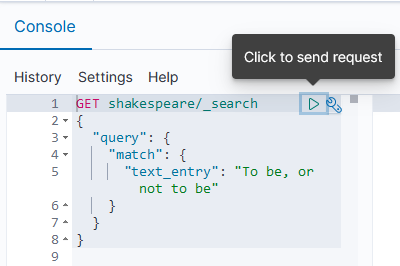
To send a query to OpenSearch, select the query by placing the cursor anywhere in the query text. Then choose the play icon ( ) on the upper right of the request or press
 Ctrl/Cmd+Enter, as shown in the following image.
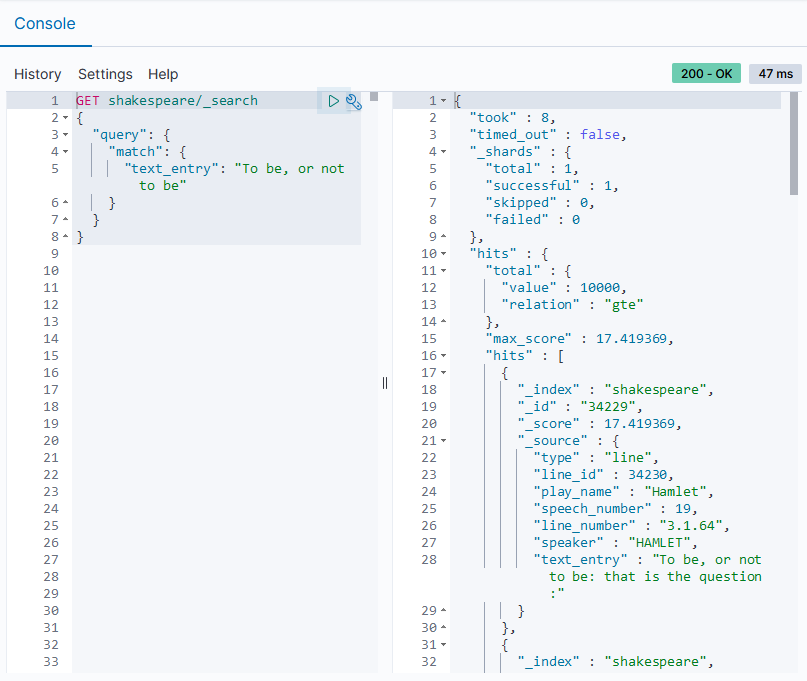
OpenSearch displays the response in the response pane on the right side of the console. For the indexing request, the response confirms that the document was created, as shown in the following image.
To search for the document that you indexed, enter the following request:
GET students/_search
{
  "query": {
    "match": {
      "name": "John Doe"
    }
  }
}
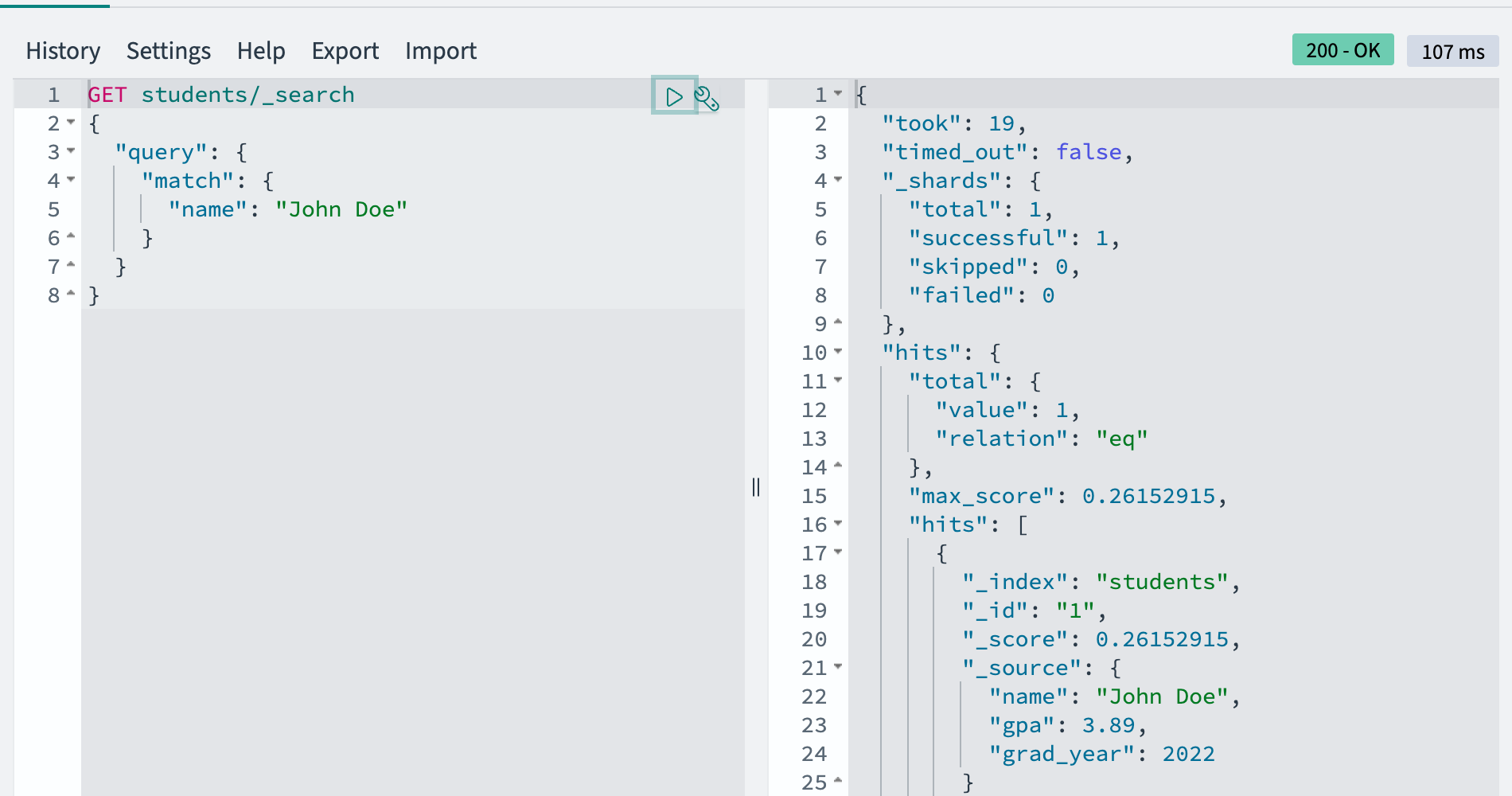
The response contains the matching document in the hits array, as shown in the following image.
Working in the cURL and console formats
The console uses an easier syntax to format REST requests than the curl command.
For example, the following curl command runs a search query:
curl -XGET http://localhost:9200/students/_search?pretty -H 'Content-Type: application/json' -d'
{
  "query": {
    "match": {
      "name": "John Doe"
    }
  }
}'
The same query has a simpler syntax in the console format:
GET students/_search
{
  "query": {
    "match": {
      "name": "John Doe"
    }
  }
}
If you paste a curl command directly into the console, the command is automatically converted into the format the console uses. To convert a query in the console into cURL format, see Copying a query as cURL.
Using triple quotation marks in queries
When writing queries containing quotation marks (") and backslash (\) characters, you can use triple quotation marks (""") to avoid escaping the characters. This format improves readability and helps avoid escape characters when writing large or complex strings, especially when working with deeply nested JSON strings.
You can index a document containing special characters by escaping each special character with a backslash:
PUT /testindex/_doc/1
{
  "test_query": "{ \"query\": { \"query_string\": { \"query\": \"host:\\\"127.0.0.1\\\"\" } } }"
}
Alternatively, you can use triple quotation marks for a simpler format:
PUT /testindex/_doc/1
{
  "test_query": """{ "query": { "query_string": { "query": "host:\"127.0.0.1\"" } } }"""
}
Triple quotation marks are only supported in the console—not in curl or other HTTP clients. To convert a query containing triple quotation marks into a format that other clients accept, use Copy as cURL.
If a response contains the \n, \t, \, or " special characters, the console formats the response using triple quotation marks. To turn off this behavior, select Settings from the top menu and toggle JSON syntax.
Submitting long-running operations
When submitting long-running operations (such as reindexing or snapshot creation) to OpenSearch, you can make the request asynchronous by providing the wait_for_completion=false query parameter. If this parameter is not specified, the request runs synchronously. In that case, if the operation exceeds the OpenSearch request timeout value, the client might send a new request, which can lead to unexpected behavior. If the API does not support asynchronous execution through query parameters, consider using cURL to run the request directly.
Using the request options menu
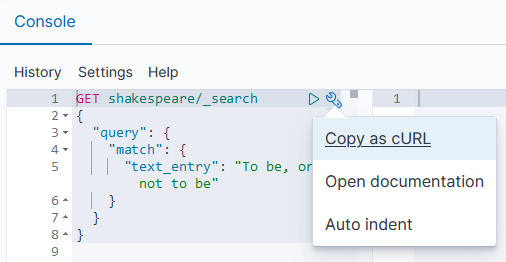
To open the request options menu, select the wrench icon ( ) on the upper right of a request, as shown in the following image.
Copying a query as cURL
To copy a query in cURL format, select the query and choose Copy as cURL from the request options menu. You can then run the copied command in a terminal or paste it into another HTTP client.
Viewing documentation
To view the OpenSearch documentation for the selected request, choose Open documentation from the request options menu.
Auto indenting
To use auto indent, select the queries that you want to format and choose Auto indent from the request options menu.
Auto indenting a collapsed query expands it.
Auto indenting a well-formatted query puts the request body on a single line. This is useful for working with bulk APIs.
Using the top menu
The top menu provides options for reusing queries, configuring the editor, and viewing keyboard shortcuts.
Viewing your request history
You can view up to the 500 most recent requests that OpenSearch ran successfully. To view request history, select History from the top menu. If you select the request you want to view from the left pane, the query is shown in the right pane.
To copy the query into the editor pane, select the query text and then select Apply.
To clear the history, select Clear.
Exporting and importing queries
To save the queries in the editor pane to a file, select Export from the top menu. The console downloads the queries as a sense.json file.
To load queries from a file, select Import from the top menu, select the file, and then choose one of the following import options:
- Merge with existing queries: Adds the imported queries to the queries already in the editor pane.
- Overwrite existing queries: Replaces the contents of the editor pane with the imported queries.
Select Import to complete the import.
Updating the console settings
To update your preferences, select Settings from the top menu. You can configure the following settings:
- Font Size: Sets the editor font size.
- Wrap long lines: Wraps lines that exceed the editor width.
- JSON syntax: Uses triple quotation marks in the response pane for responses containing special characters.
- Autocomplete: Turns autocomplete suggestions on or off for Fields, Indices & Aliases, and Templates.
- Automatically refresh autocomplete suggestions: Refreshes autocomplete suggestions by querying OpenSearch. Automatic refreshes may be an issue if you have a large cluster or network limitations. To refresh suggestions manually, select Refresh autocomplete suggestions.
Using keyboard shortcuts
To view all available keyboard shortcuts, select Help from the top menu.
Next steps
- To try running additional queries in the console, see Ingest data and Search your data.
- For information about writing queries, see Query DSL.